

Accessibility testing takes more than a scan
Uncover accessibility issues that automated tools can’t catch
When you evaluate a webpage for accessibility, it’s appealing to use automated scanners to quickly get an “accessibility score,” identify issues, and then move on. Browser-based accessibility extensions make this easy…in just a few minutes, you can generate a list of accessibility defects from missing labels to low color contrast.
While these tools can catch accessibility issues early, they don’t provide a complete picture or reflect how usable an experience is.
It’s estimated that these automated tools only catch up to 40% of issues, according to Applause. Not only are they not reliable in catching issues like inappropriate alt text or illogical reading order, but they can also produce false positives (like elements that are exempt from color contrast requirements). But most importantly, they can’t evaluate the quality or usability of the experience being audited.
Web accessibility isn’t just about whether a webpage has a “good” accessibility score or “passes” the scan. It’s more about whether users can understand, navigate, and interact with an experience effectively.
Let’s walk through low-effort, browser-based extensions that any designer, developer, or product manager can use when evaluating accessibility in QA or production. These tools fall into three categories of automated, manual, and experiential testing. When they’re used together, they help uncover issues that automated scans alone miss.
Automated accessibility scanners
Automated accessibility scanners offer a quick evaluation of a webpage by identifying common issues such as missing form labels or “empty” links. These scanners have great appeal since they review an entire page in a few seconds. This is especially beneficial when you’re time-crunched during the QA process or auditing ALL existing experiences.
But automated tools also have limitations. While they detect if certain accessibility attributes are present in the code, they can’t evaluate how usable they are for users. For instance, a scan may identify that an image includes alt text (which checks the box), but it can’t assess if the alt text actually adds helpful context for a screen reader user.
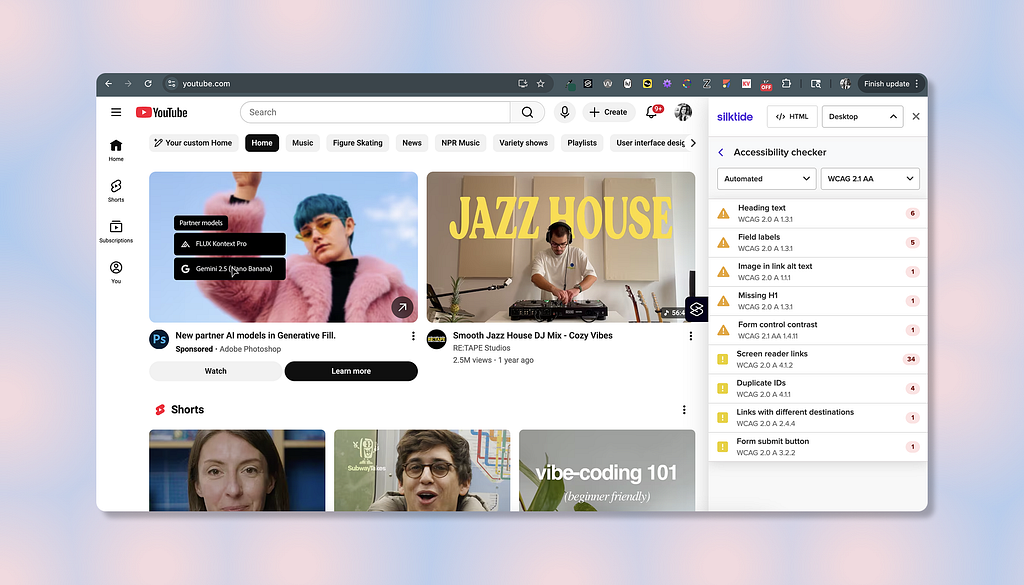
Silktide Accessibility Checker
Silktide Accessibility Checker is a free browser extension that is only supported on Chrome (but there is a way to install on Edge). The tool’s “Accessibility Checker” offers a holistic scan of a webpage to identify accessibility issues across the page’s structure, content, and visual styling. Silktide is great for initial accessibility audits (especially if you’ve never done an audit before), development QA, or catching WCAG failures early.
Flags issues like:
- Missing form labels (input fields without <label> elements)
- Color contrast failures (light gray body text placed on a white background)
- Empty or unclear links (links labeled as “Click here” without meaningful context)
- Structural markup problems (skipped heading levels…H2 → H4)

Benefits of Silktide:
- Clear issue categorization by severity and priority levels
- Less visually cluttered overlays for easy analysis
- Provides recommendations for issue remediation
Limitations of Silktide:
- May miss issues caught by other scanners (like ARIA implementation)
- Can produce false positives (contrast issues on disable UI components)
- Limited to detectable code-level violations (not the holistic user experience)
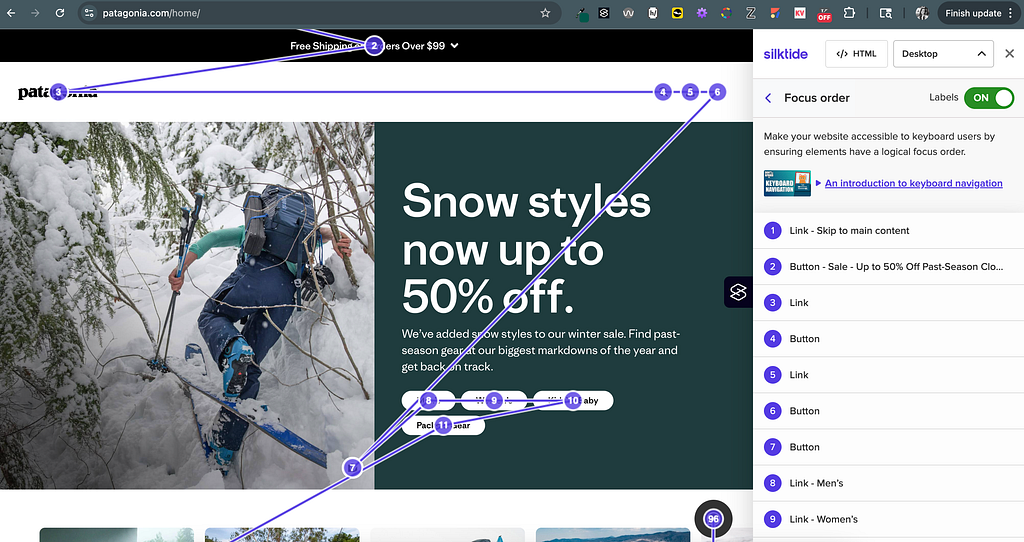
Note: Silktide also provides features that help you better understand the accessibility of a webpage, like visualizing focus order or reading the alt text for images.
WAVE Evaluation Tool
WAVE Evaluation Tool is a free browser extension for Chrome, Edge, and Firefox. It runs an automated accessibility analysis and visually overlays detected issues directly onto the UI and adjacent to the element with the issue. WAVE is helpful for auditors who need visuals for each issue’s location and context (but can be visually overwhelming to some people).
Catches issues like:
- Structural or semantic issues (a button is created using a non-semantic <div>)
- Contrast concerns (insufficient contrast between links and adjacent body text)
- ARIA or labeling errors (form fields missing accessible names)

Benefits of WAVE:
- Detailed visual feedback for the type and location of each issue
- Inline error identification to see issues in context of the UI
- Widely used across accessibility workflows in design and development
Limitations of WAVE:
- Visual overlays may feel overwhelming or distracting during the evaluation
- Overlays may obscure content or elements, especially on complex interfaces.
- Results may vary from other scanning tools
Recommendation: Run webpages through both automated scanners for broader issue detection since each tool uses different evaluation logic.
Manual accessibility tools
Automated scanners help identify code-level issues, but you still need manual tools to evaluate the structure, hierarchy, and usability of a webpage since they require human judgment and contextual understanding.
Let’s review a couple of manual tools that are useful for validating semantic markup, heading structure/ landmark regions, and content order.
HeadingsMap
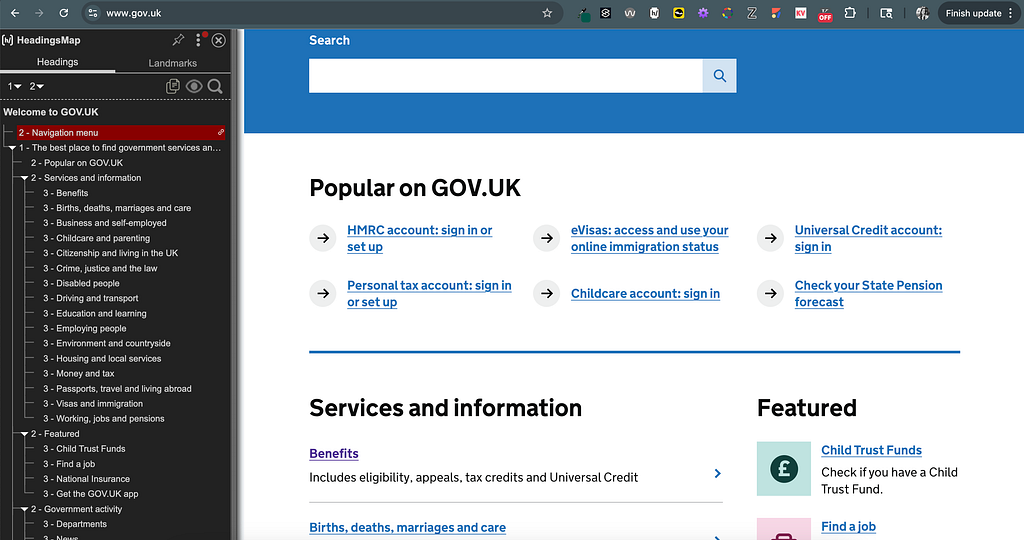
HeadingsMap is a free browser extension for Chrome, Edge, and Firefox that reads the DOM (document object model) to surface the page’s heading hierarchy and landmark structure. This extension allows you to quickly evaluate semantic organization versus rummaging through the code yourself.
Catches issues like:
- Improper heading hierarchy (a jump from an H1 to an H4)
- Skipped or inconsistent nesting (visual headings labeled as paragraph text vs. H3)
- Missing or unclear landmark regions (undefined <main> or <nav> regions)
Benefits of HeadingsMap:
- Clear visualization of the heading levels in an outline format
- Mirrors how assistive technology (like NVDA) users navigate by headings
- Makes it easy to spot hierarchy issues without digging into code
Limitations of HeadingsMap:
- Does not evaluate if the heading is actually descriptive or meaningful
- Limited to identifying issues with only headings and landmarks
- Evaluators must understand what proper hierarchy and structure should look like
Web Developer
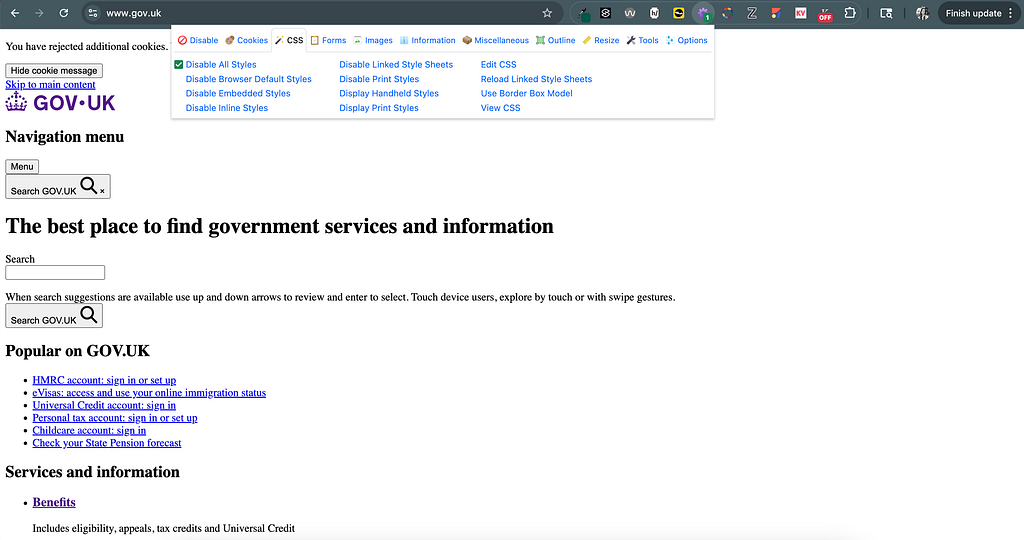
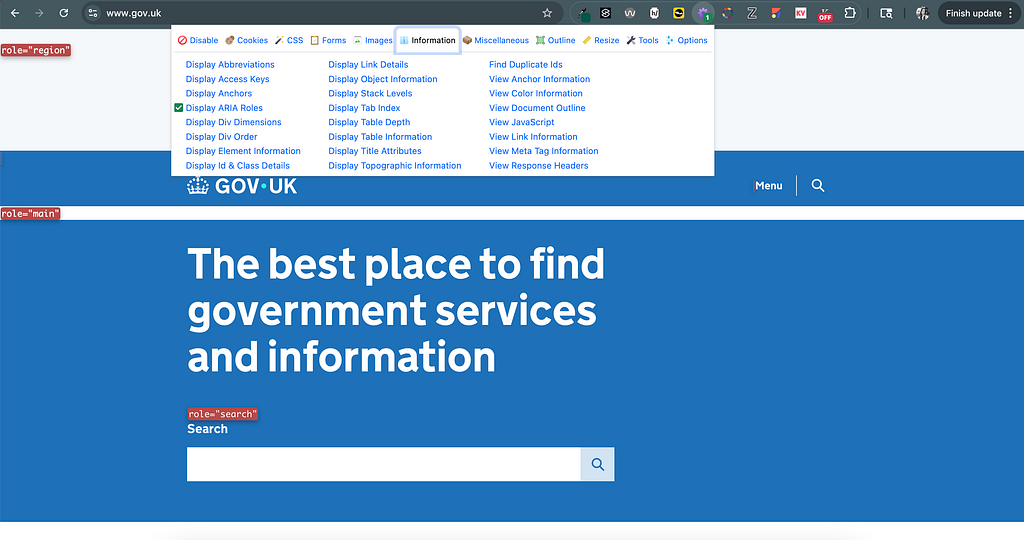
Web Developer is another free browser extension for Chrome, Edge, Firefox, and Opera. This extension includes a lot of functionality, but for accessibility purposes, it can disable CSS and test how a webpage behaves without visual styling. This is critical for users who may turn off CSS styling if it’s too distracting for them or they don’t benefit from it, such as screen reader users.
Flags issues like:
- Content that appears visually correct but is logically out of order in the DOM
- Over-reliance on CSS for meaning (showing hierarchy with font size vs. markup)
- Content overlapping, collapsing, or becoming unreadable when CSS is turned off
Benefits of Web Developer:
- Tests structural resilience when visual styling is turned off
- Disabling CSS can demonstrate how some assistive tech users experience content
- Includes other capabilities beyond CSS testing for additional inspection
Limitations of Web Developer:
- Visually jarring experience since branding and layout are removed
- Not a substitute for real, assistive technology testing
- You must manually assess whether content order and meaning are preserved
Note: Web Developer’s extension offers many features outside disabling CSS, like displaying ARIA role, ID/ class details, or title attributes.
Experimental testing tools
Experimental testing tools simulate how users with visual or cognitive disabilities may perceive or interact with a webpage. Though these simulations don’t replace real user testing or assistive technology testing, they help uncover barriers that may not be found through automated scans.
These tools are useful for identifying experiences that heavily rely on visual styling, color, or fixed layouts. Not only that, they help you better understand the experience users with vision or cognitive disabilities have as they process a webpage.
Web Disability Simulator
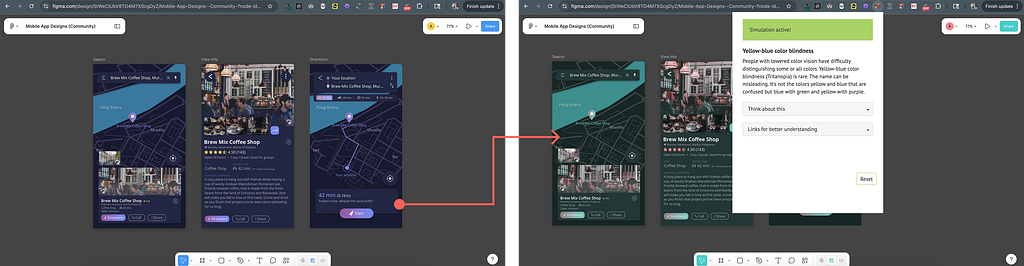
Web Disability Simulator is a free browser extension (only available for Chrome) that gives you the option to test with various visual and cognitive conditions. For instance, you can use the “Red-green color blindness” simulation to view how a page looks for users with that specific color blindness.
Catches issues like:
- Color-dependent communication (error state with only red borders)
- Low readability (text becomes difficult to read when simulated with dyslexia)
- Interaction difficulty due to visual clutter when experiencing sunlight glare
Benefits of Web Disability Simulator:
- Builds empathy for how visual and cognitive disabilities impact usability
- Makes it easy to spot experiences that depend on color to convey meaning
- Supports thinking beyond pass/fail compliance toward inclusive design
Limitations of Web Disability Simulator:
- Simulations do not reflect how users actually use their assistive technology
- Does not account for all disability types or interaction methods
- Evaluators must determine if usability issues create significant barriers
Note: This extension works on both Figma prototypes/ designs in addition to live websites (except for the dyslexia simulator); so you can test works in progress within your Chrome browser.
Zoom for Google Chrome
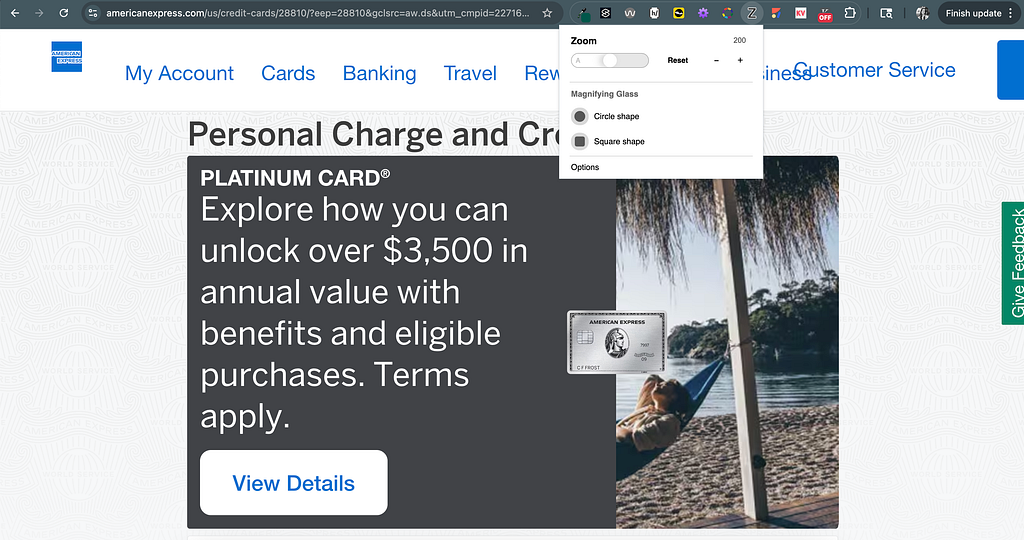
Zoom for Google Chrome is another free browser extension that allows you to adjust full-page or text-only zoom levels. This is very important when testing responsiveness and content reflow at high magnification levels. Some users increase only the text size while others prefer to enlarge the entire webpage. Regardless, the content needs to adjust accordingly to provide an optimal experience to these users.
Catches issues like:
- Loss of functionality when zoomed (interactive elements become inaccessible)
- Text elements overlap or highly truncate when resized to 200%
- Layouts require both vertical and horizontal scrolling at 400% zoom
Benefits of Zoom for Google Chrome:
- Helps verify that text can be resized up to 200% and all page content up to 400% (or more)
- Tests how layouts adapt to increased text size or page magnification
Allows for text-only zoom to isolate typography-related issues
Limitations of Zoom for Google Chrome:
- Does not evaluate semantic accessibility or structure
- Testing of zoom behavior is a manual process
- Results may vary based on browser window or device dimensions
Conclusion
Automated accessibility scanners offer great starting points to identify issues quickly, but they are limited to what’s detectable at the code level. For a better understanding of an experience’s accessibility, you also need to assess structure, content hierarchy, and how a page holds up under different visual or cognitive conditions.
By combining automated, manual, and experimental testing tools, designers and developers can uncover usability barriers that may go undetected in a scan. Instead of focusing on passing automated checks or scores, we need to ensure real users can navigate, understand, and interact with all web content.

Accessibility testing takes more than a scan was originally published in UX Collective on Medium, where people are continuing the conversation by highlighting and responding to this story.
This post first appeared on Read More