

10 Things Linux Can Do That Windows Still Can’t
We all know Linux gives us a world of freedoms we couldn’t possibly have on Windows, but have you ever stopped to think about that freedom in real, qualitative terms? After all, when most people say they can’t switch to Linux, it’s usually because of something they just can’t do without Windows or macOS or Android (which itself is Linux, even if most don’t consider it such).
So, let’s take a closer look at some of the things you can do on/with a Linux system that you just can’t typically do on Windows.
1. Live USB/Live session
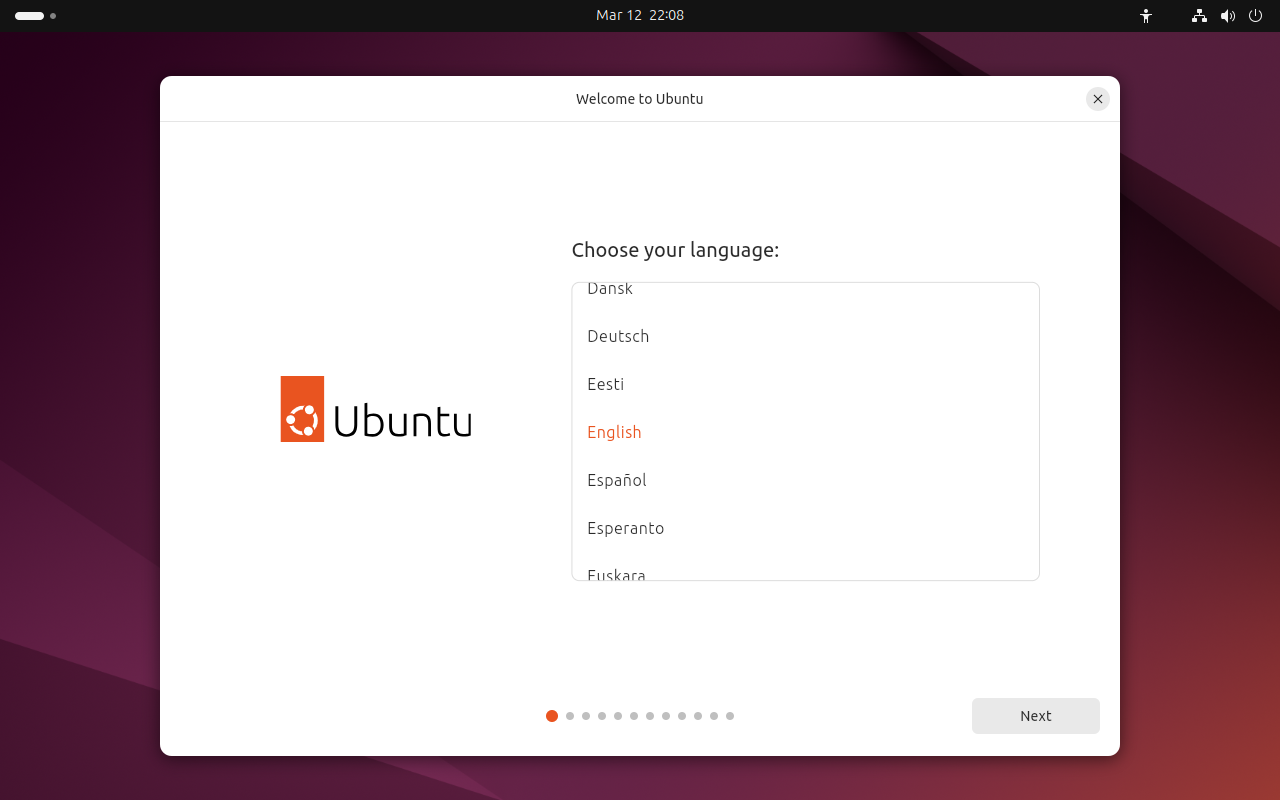
It goes without saying that this one deserves the #1 spot on this list. After all, for most of us, our first experience with Linux was at the welcome screen of a live session from a USB, SD card, or, in the past, CD or DVD. If you go even further back, some of us (myself included) first got to know Linux through the likes of Damn Small Linux running a live session inside Windows itself.
The crazy thing? Live CDs have been a part of the Linux experience since the early 90s, when we still regularly used floppy drives! And yes, live floppies were a thing, too. In fact, they still are.
Not only is there no official way to run Windows as a live session out the box, but Microsoft’s own live session solution, Windows To Go, was an enterprise-only solution and has been discontinued. Non-standard solutions exist, but these are on shaky ground in that they rely on creating a Windows install on portable media, which is something Microsoft hasn’t sanctioned.
2. Login screen customization
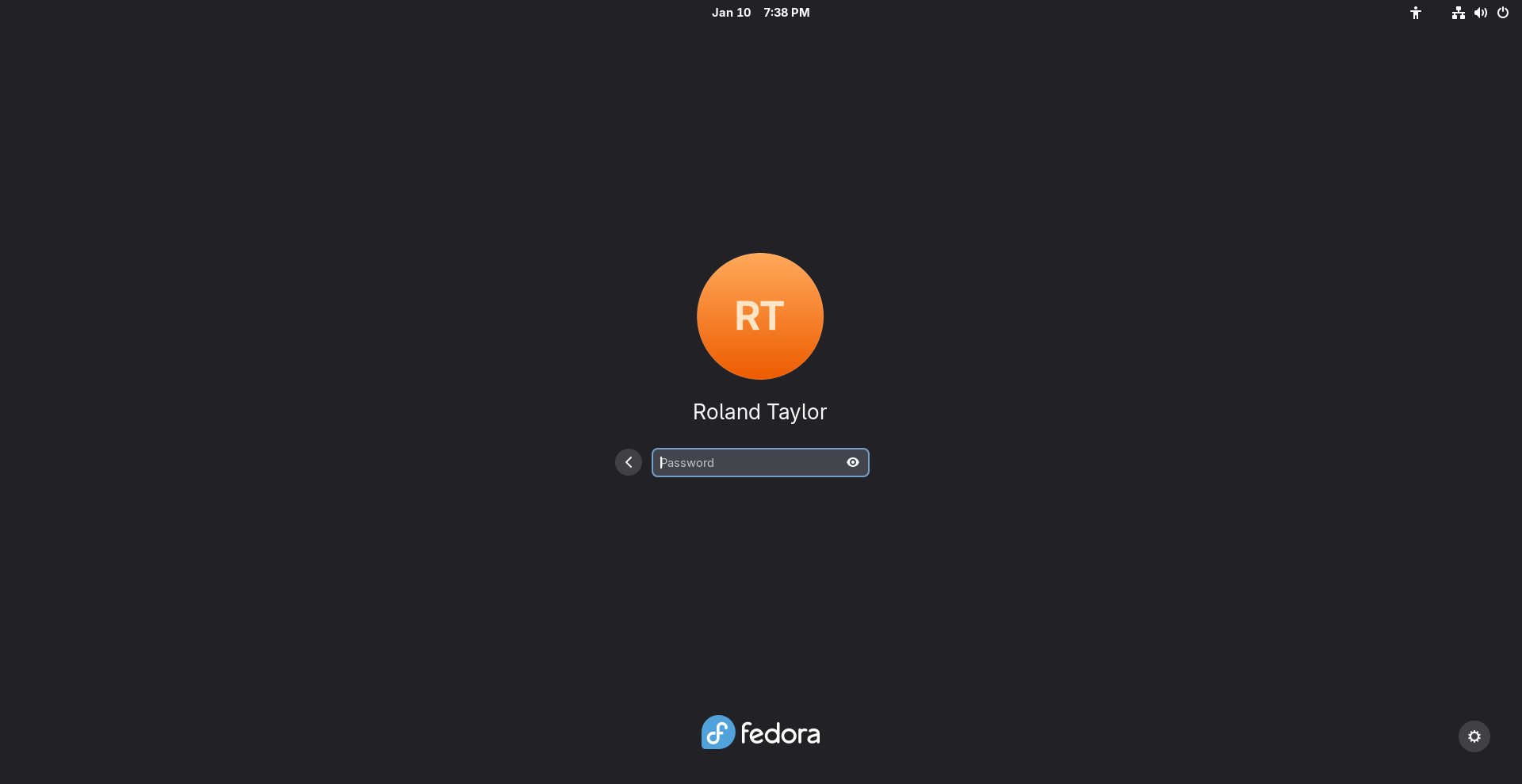
No lie, this one blew me away when I first switched to Linux from Windows. I’d always loved the idea of customising my system’s visuals, and the fact I couldn’t do this easily on Windows was a source of frustration. So to come from a world where I needed to risk malware or pay a fee just to put a wallpaper on the login screen to the full-scale flexibility of Linux has never stopped being amazing.
Not only can you change your wallpaper, but you can change the layout, even swap out the login manager altogether. Don’t like the layout and style of GDM? Try SDDM or LightDM for greater flexibility, or even Ly, if you prefer something terminal-based. As a matter of fact, you can completely ditch the login manager altogether and boot straight to a TTY or desktop environment if you desire.
While you can change your wallpaper on recent releases of Windows, customising your login screen beyond this or changing your login manager altogether is simply not possible. After all, Microsoft wants you to log in with your Microsoft account going forward, so a third-party solution would somehow need to account for this.
3. Changing your desktop environment
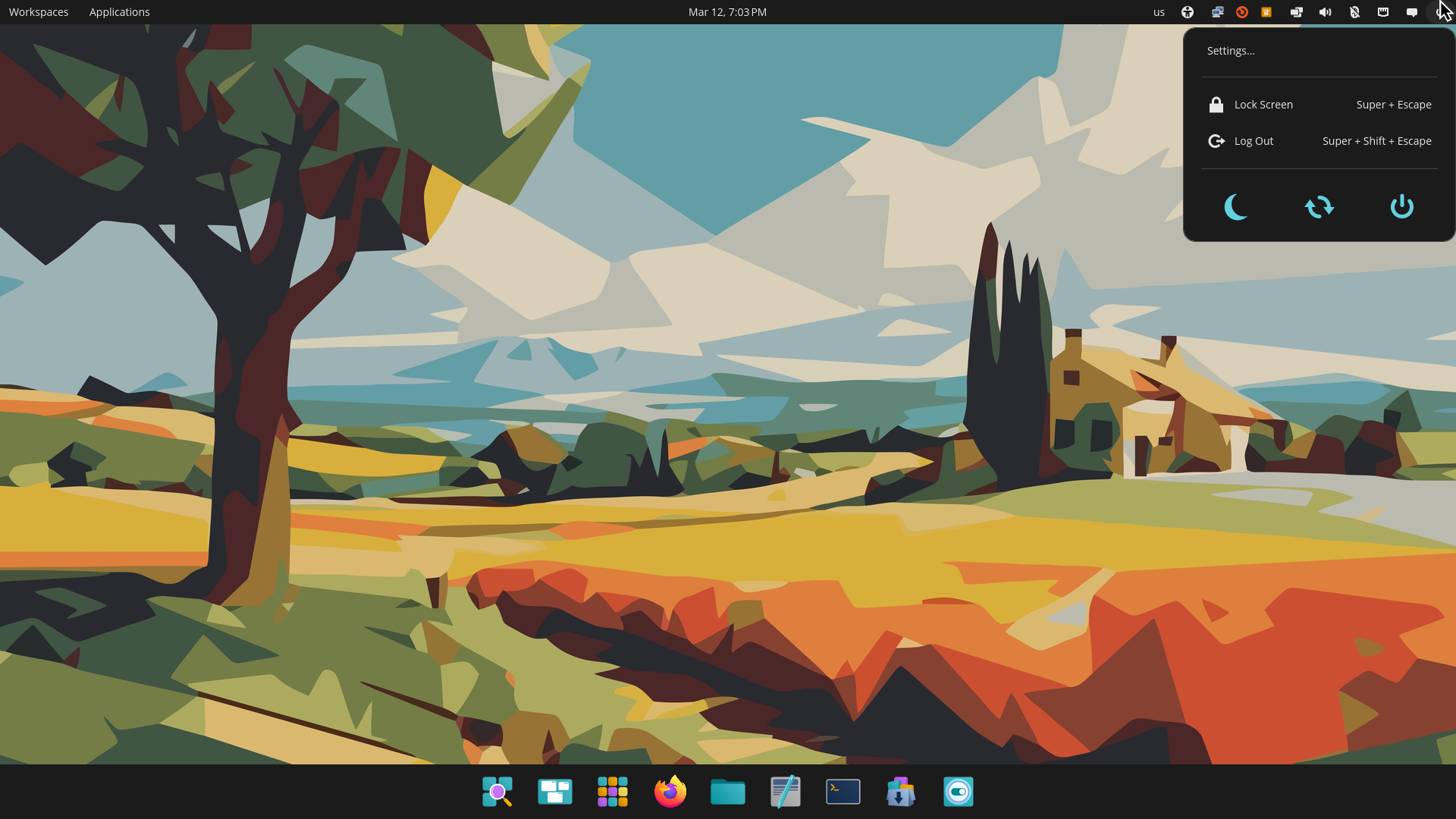
Maybe I shouldn’t even say “desktop environment” here, because let’s be honest — Linux has way more than just desktop environments for us to play with. We’ve got a broad selection of window managers (compositors, with the rise of Wayland), desktop environments, desktop-independent panels, docks, you name it. Whether you want to do minimal bling with Wayfire or Hyprland, or sink your teeth into something beefy with Plasma or GNOME, the choice is yours.
You can customise your layout, app selection, software store, launchers, or whatever you like, and you won’t be penalised for it, nor do you have to pay a dime or risk giving your data to a company that could go defunct and leave you hanging.
Can you change your desktop environment or window manager on Windows? Nope. Sure, you can use third-party tools to achieve some degree of customisation, but these methods are not officially supported and may even violate the operating system’s terms of use. Many of these customisations break standard features in Explorer or other parts of the system and can easily fail when Microsoft releases routine updates.
4. Use the system without a GUI
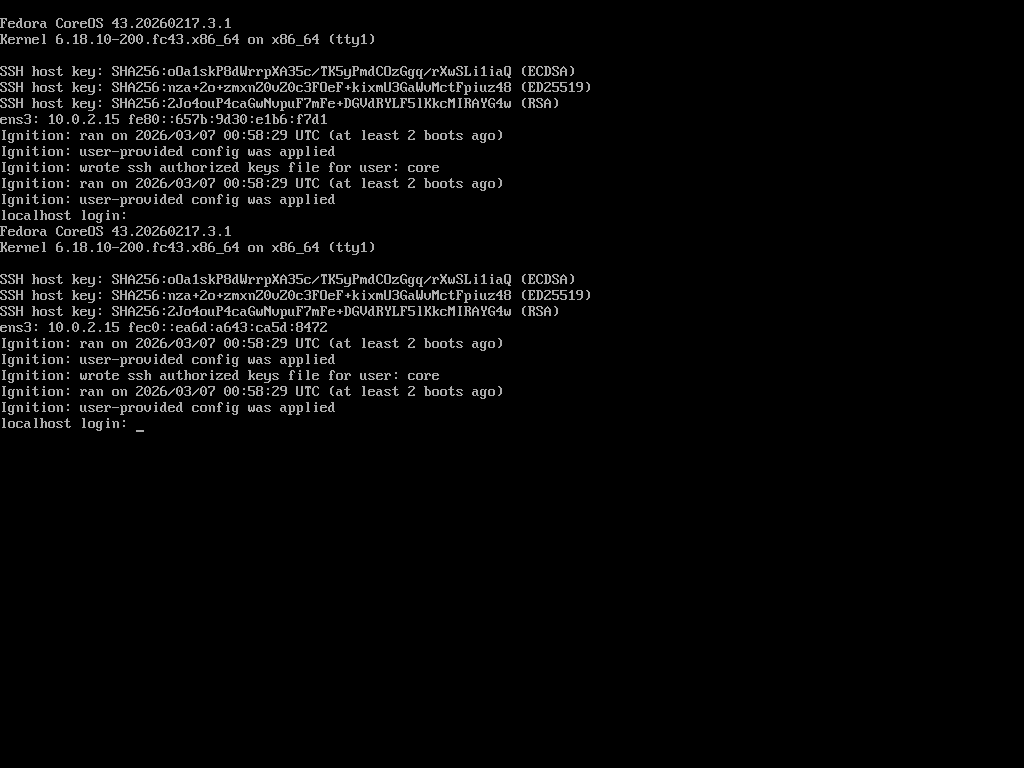
Whether it’s booting to the recovery session, running with the login manager disabled, or using a headless install through SSH, there are many ways you can use Linux on real hardware without ever using a graphical interface of any sort. While this option may not appeal to the majority of “average” users, it’s still a pretty important distinction. You can use Linux as minimally as you need, even if it’s as a temporary solution to bring up your graphical system just as you’d prefer.
For instance, this is the standard way to install Arch, by the way, and you can customise just about any distro to function in the same way even after installation. What makes this possible is the fact that what we know as “Linux” is actually a collection of software: the kernel, GNU utilities, init systems, and more. By choosing exactly what combination of software you’re using, you can set up a minimal system that requires no graphical components whatsoever and still directly or remotely execute software from the system. It’s even possible to set up such a system to display graphics over the network.
In the case of Windows (for consumers), this pathway isn’t supported whatsoever. If something goes wrong, recovery is typically a graphical affair. Even Safe Mode is primarily designed around this. Running Windows as a text-based operating system just isn’t something the average consumer can do.
5. Install it on just about anything

Linux on a fridge? A toaster? A toothbrush? Yes. And it probably can run Doom, too. The reality is, Linux is so flexible and portable, it can run on just about any device with a processor, even a tiny microcontroller. From the world’s most powerful supercomputers to some of the smallest single-board computers and Internet of Things (IoT) devices, Linux has grown to basically power the majority of the digital world. There are even custom distributions for many non-standard devices, from game consoles to smartwatches, and the list just keeps growing.
On the contrary, while Windows has spread to some other devices over the years, it’s not anywhere near the level of portability we have with Linux. You can’t just grab a Windows ARM ISO and install it on a Raspberry Pi. You can’t put Windows on a smart fridge either, unless the manufacturer happens to have an existing agreement and collaboration with Microsoft. Plus, since Windows is objectively not open-source, the community can’t port it on their own.
Linux on the other hand, we can take wherever we want, not only because it’s open-source but also because it was built with portability in mind. It can easily be stripped down and streamlined to fit just about any hardware. That’s a freedom we just don’t have with Windows.
6. Move your Linux install between systems
You might not have ever considered this, but really think about it. Let’s say your current laptop or workstation goes down, maybe because the CPU burnt out or the motherboard got damaged, but the SSD is still working just fine. With Windows, it’s time to get a new licence. You can certainly recover your files, provided your drive wasn’t encrypted, but it’s unlikely you’re sticking that SSD in another system, booting it up, and continuing on like nothing happened. The bad news is, this is getting even harder with the introduction of mandatory Microsoft accounts attached to your system’s TPM chip.
With Linux on the other hand, that’s actually a pretty common workflow. I know this first-hand, because I’ve done it with multiple systems in the past. Sure, if you’ve got proprietary drivers installed, you may need to ensure that you remove them if your hardware differs too strongly, especially in the case of graphics cards.
Yet, Linux won’t just automatically give up and quit if your drivers don’t match your hardware. Instead, it’ll choose a fallback method or fail to a command-line interface until you get that sorted out. It’s a fascinating experience once you actually try it (or are forced to do it).
7. Customize or even swap your kernel
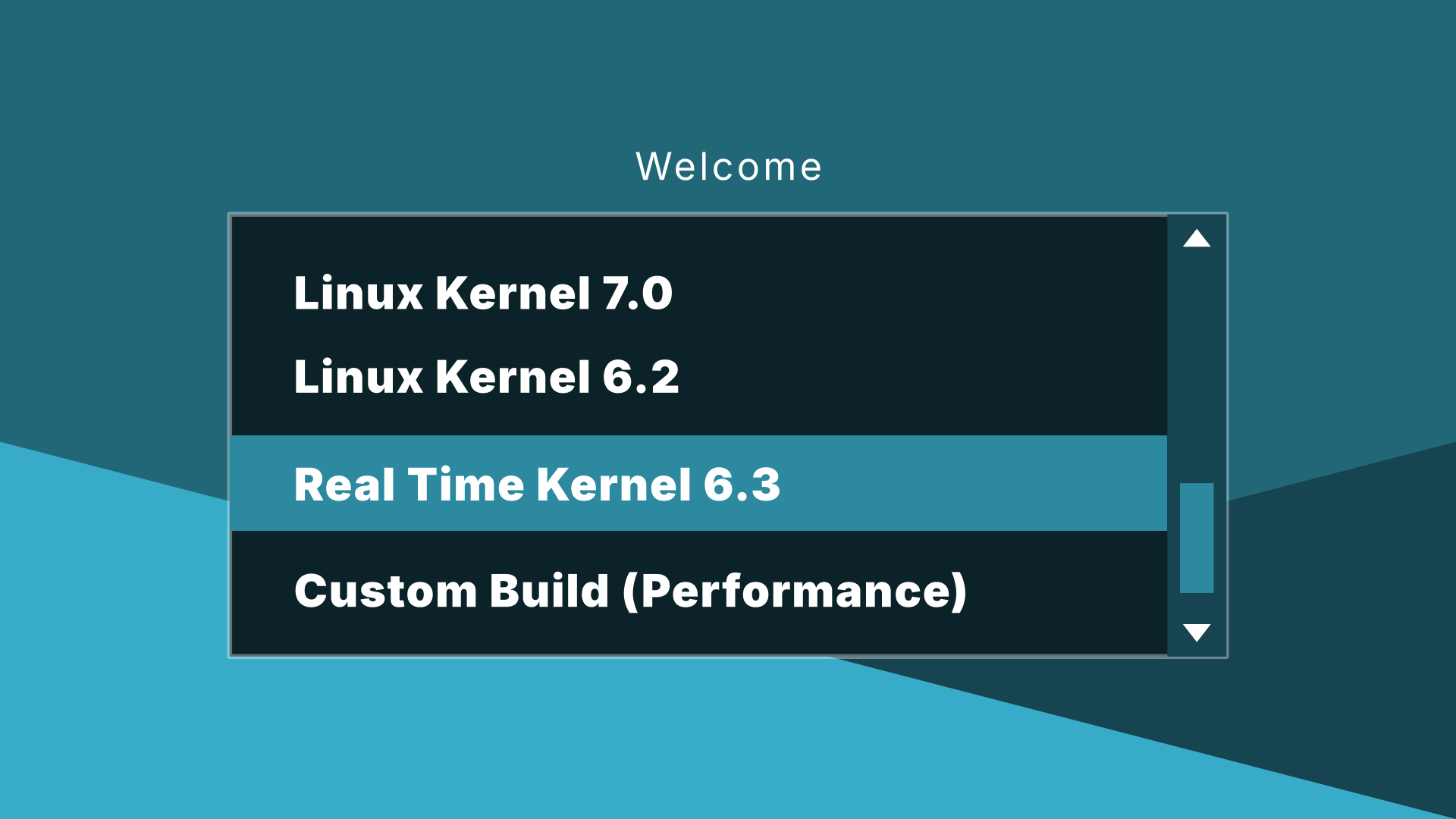
Imagine one day you wake up and decide you need to swap your kernel for a more optimised workflow. It could go something like this:
“Hmm, let’s see here, should I run the Liquorix kernel today or the real-time kernel? How about the mainline kernel? Choices, choices…“
This is one thing long-time Linux users may take for granted, but it’s actually a pretty big deal that we can do this in the first place. Again, this is made possible not only by the open-source nature of the kernel but also by the modular nature of most of the distributions we use. As a result of this modular nature, we can swap kernels any time we need to, especially so long as the distribution we’re using provides a method for doing this.
🗒️
Immutable systems may have different restrictions or methods for changing the kernel.
Why might you need a different kernel? Well, it can be for any number of reasons, but typically, it’s down to two main needs: better driver support and better performance. Newer kernels typically have broader support for new hardware, but sometimes an older kernel may also be needed for a specific device or quirk. Likewise, performance can vary with different kernel versions and build-time configurations.
Needless to say, this isn’t something a normal user can do on Windows beyond applying standard updates. Yet on Linux, it’s something so normal as to not even feel remarkable.
8. Choose different filesystems during installation
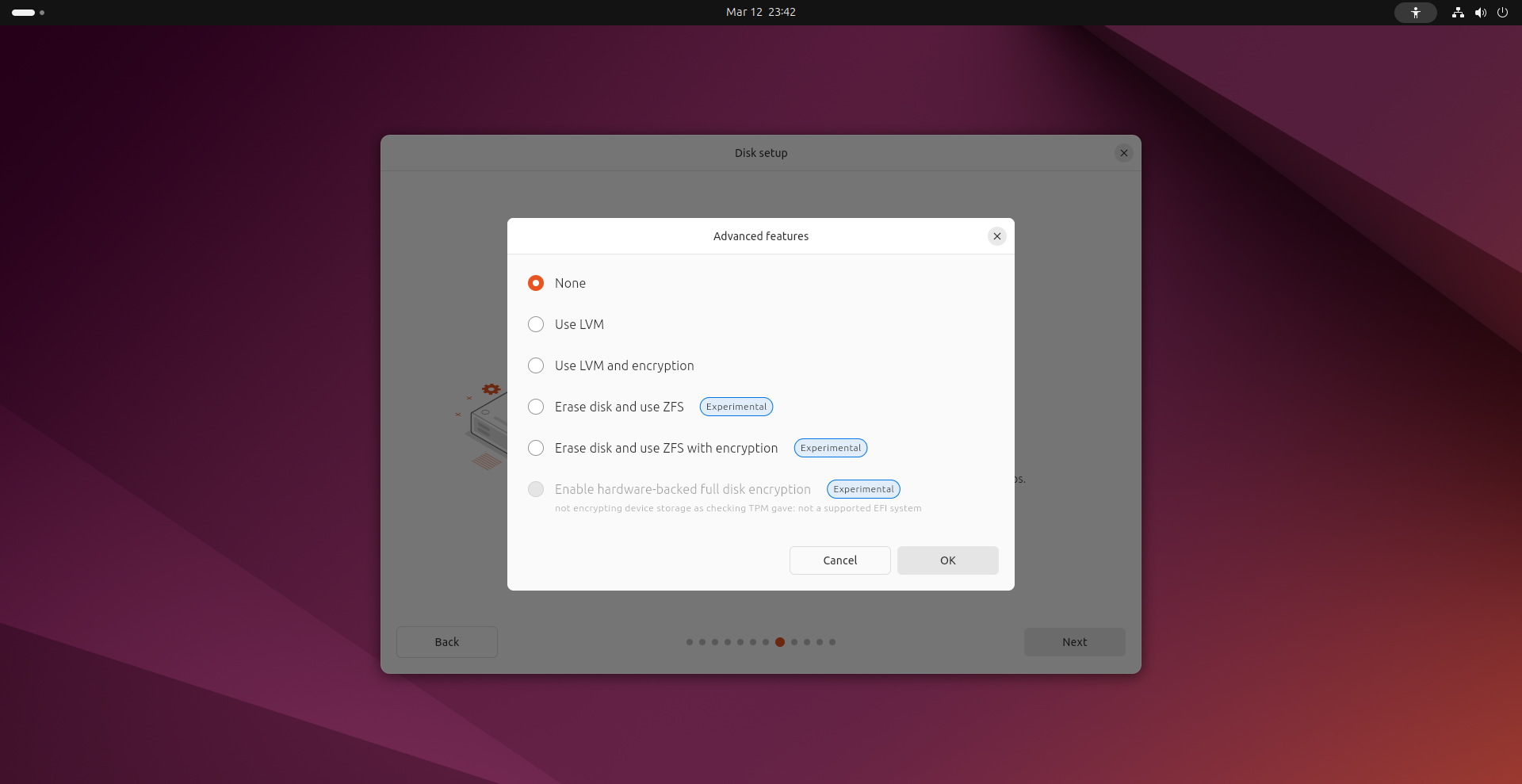
Windows supports a few filesystems for reading/writing files, including the typical FAT and EXFAT filesystems, NTFS, and more recently, ReFS, which is more used for server environments. However, when it comes time to actually install the system your options are pretty limited. You can install your main system on an NTFS filesystem, and with the exception of the FAT32 EFI partition, that’s about it. No other filesystems are supported out the box, and while Windows setup supports loading third-party drivers, this doesn’t cleanly open the door to installing Windows on any non-standard filesystems.
On the other hand, Linux supports many filesystems by default, and most distros give you the option to install on a much broader selection of them. Most offer at least the option of using ext4 or Btrfs, with some, such as Fedora, offering additional options, like XFS. In theory, you can even move your Linux install from one filesystem to another, provided you have the knowhow. For instance, btrfs-convert lets you convert an existing ext2, ext3, or ext4 installation to Btrfs.
9. Revive older hardware
Windows is notorious for its tendency to introduce seemingly unnecessary, forced hardware requirements that stop users from being able to keep using their older hardware, even when testing proves that Windows would run on it just fine. With Windows 11, things have never been worse. Perfectly powerful systems from as recently as 2017 or 2018 are somehow not supported all because of Microsoft’s tighter hardware requirements, including requiring a TPM 2.0 chip, Secure Boot, and other platform features that can sometimes just barely edge a system out.
It gets worse when you consider the bloat that’s been steadily creeping (or pouring) into Windows over the decades. Since users don’t have any right to control what’s in Windows by default or create their own official “Windows distribution”, there’s no way around this.
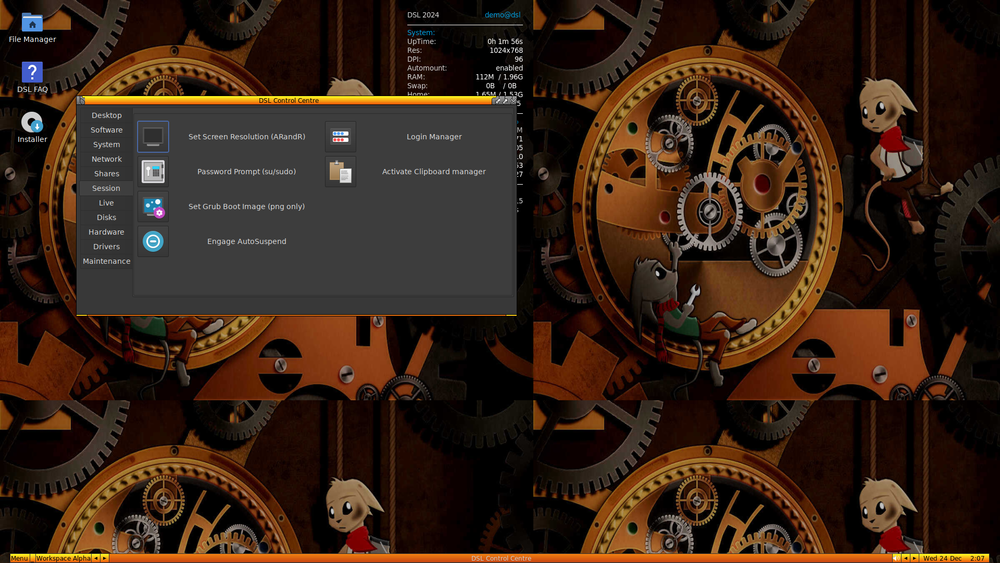
Not so with Linux, as many are discovering, and as you may have seen earlier with Linux running live off a floppy disk. In fact, there are Linux distributions especially built for this very reason, such as Puppy Linux and antiX, which the modern DSL 2024 is based on. Furthermore, Linux can be compiled specifically for older systems, even those with 32bit processors, unlike Windows, which typically drops older hardware with no way back.
10. Swap parts of your stack, as you wish
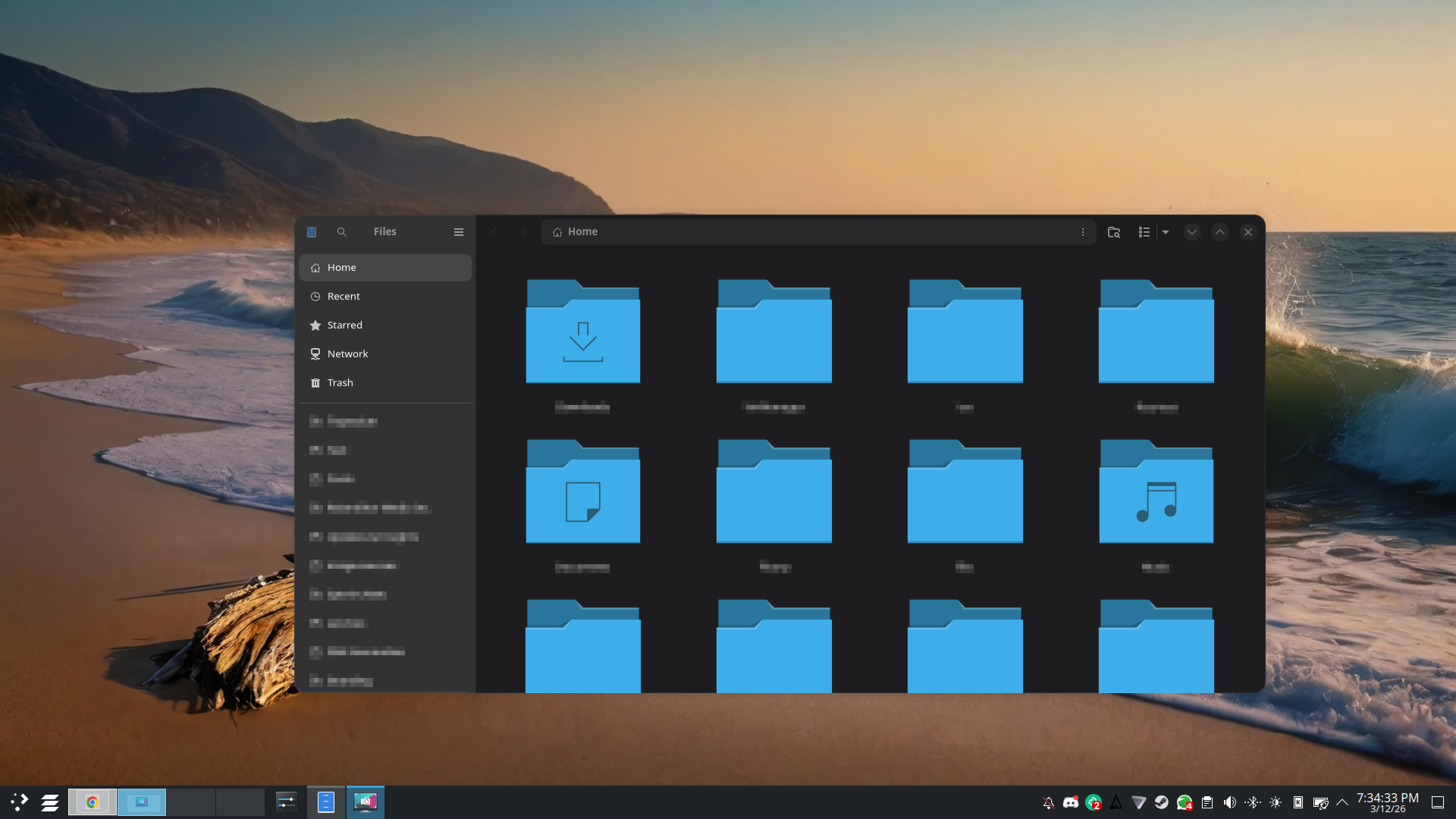
We’ve already talked about how you can swap your desktop environment, login manager, and kernel, but to end off this list, I think we should dig a little deeper. Unlike Windows which basically dictates what your operating system stack is from the ground up and provides few options for change, Linux gives you freedom change pretty much everything. For instance, let’s say you’re running Ubuntu and you really don’t like snaps. Solution? Remove snapd.
You’re probably thinking “But won’t snapd just reinstall itself on the next update?”, and the answer is no, but even if that were the case, you could block the update by locking the package. You can also change your init system, audio system, display system (betwen X11 and Wayland, and now the various forks of X11 that have popped up since it was all-but-abandoned).
Put simply, whatever you don’t like about Linux, technically, you can change it. You just have to know how to do it and what to do if something goes wrong along the way. In some cases, there are even scripts that can automate the process for you, or distributions that do exactly what it is you’re looking for already. For example, there’s Devuan for Debian users who don’t want systemd.
While unofficial “builds” of Windows exist, such as Tiny 11, most of these taking risk by distributing modified ISOs of Microsoft’s intellectual property. It’s legally gray at best, but it’s pretty much the only option for many users.
Final thoughts: The narrative needs to flip

I could’ve kept this list going even longer, but I think the point is clear. While there are legitimate grievances like software that hasn’t been ported yet, or challenges with hardware that vendors haven’t provided drivers for, the reality is that Linux has a lot going for it if you stop to give it a fair shake.
If you’ve not yet tried Linux, maybe now’s a good time to see what all the hype’s about (and I don’t just mean Hyprland, all though that’s pretty sweet too). There’s a lot you can do just fine on Linux that you can’t actually do on Windows, or if you can, it’s definitely not a walk in the park, whereas for us Linux denizens, it’s just another part of daily life.
If you ask my advice, I say go for it: see what you’ve been missing, and you might just get hooked over this side too.

This article first appeared on Read More