

Vykar is a New Open Source Backup Tool That's Faster Than Borg, Restic, and Kopia
If you want to backup your data on Linux, there’s no shortage of reliable options that offer some pretty good functionality. We have Déjà Dup that handles the basics well if you just want a simple GNOME app that protects your files without much fuss.
Timeshift takes a different angle; it snapshots your system so you can roll back after a bad update, though it’s not really designed for personal data backups.
For users who want more control, Borg and Restic have been the standards for years. Both are encrypted, deduplicated, and trusted by a vast community of Linux users.
BorgBase, on the other hand, is a managed repository hosting service for Borg and Restic backups that has been around for almost a decade. Vykar is their newest project—an open source encrypted backup tool that’s worth a look if you’re in the market for something new.
🚧
This tool is not recommended for production use by the developers; proceed with care.
Vykar: Overview ⭐
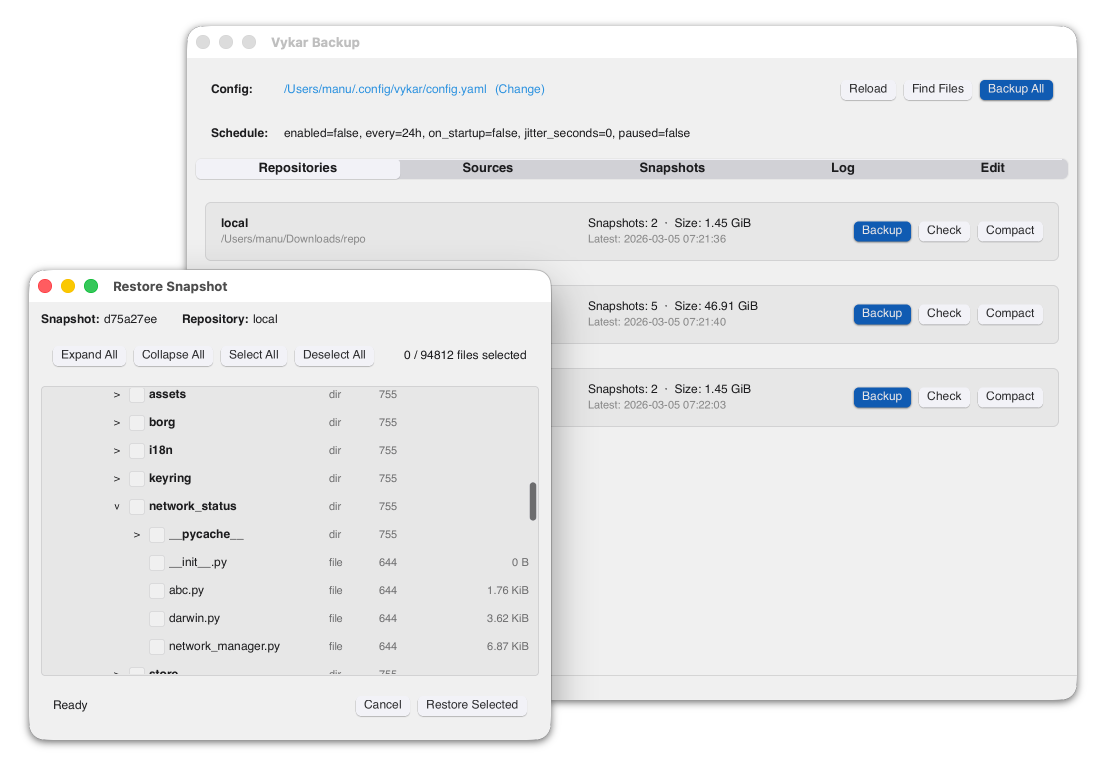
Vykar is an open source, encrypted, deduplicated backup tool written in Rust, developed by the BorgBase team, and released under the GPL-3.0 license. It draws inspiration from the likes of BorgBackup and Borgmatic but uses its own repository format, making it incompatible with existing Borg or Restic repositories.
The whole thing is configured through a single YAML file where you define your repositories, source directories, encryption settings, and retention policy.
Key features include:
- Scheduling via
vykar daemon. - Deduplication is doable via FastCDC.
- Compression support with LZ4 or Zstandard.
- Desktop GUI (
vykar-gui) with system tray support. - WebDAV server for browsing and restoring snapshots.
- Encryption with AES-256-GCM or ChaCha20-Poly1305 (auto-selected), and Argon2id key derivation.
- Concurrent multi-client backups, where multiple machines can write to the same backup repository at the same time.
The desktop GUI deserves a particular mention. Borg relies on third-party tools like Vorta for a desktop interface, and Restic has Backrest, which is also a community project. Vykar ships its own GUI as a first-party component.
It reads directly from vykar.yaml, runs backups on demand, and can sit in the system tray running scheduled backups in the background.
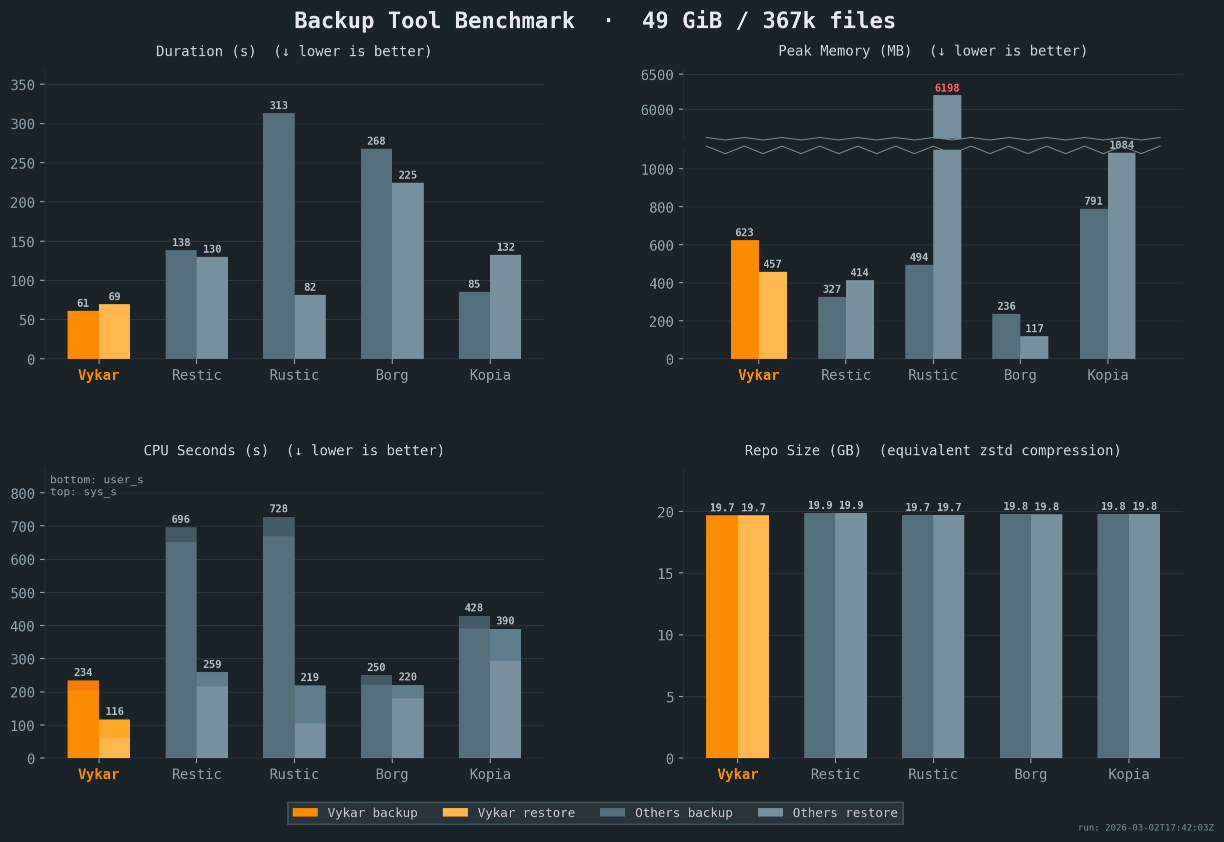
As for the performance, the project’s website has put up a comparison of Vykar against Borg, Restic, Rustic, and Kopia, tested against a 49 GiB dataset of 367,000 files.
📋
These are benchmarks run and published by the Vykar team, not an independent party.
On backup duration, Vykar finished in 61 seconds, Rustic took 313, Borg 268, Restic 138, and Kopia 85. Restore times follow a similar pattern where Vykar does it in 69 seconds, versus 82 for Rustic, 225 for Borg, 130 for Restic, and 132 for Kopia.
CPU efficiency shows the clearest gap. Vykar used 234 CPU seconds for backup, compared to Borg’s 250, Restic’s 696, Rustic’s 728, and Kopia’s 428.
Memory usage is where the picture gets more interesting. Borg uses just 236 MB during backup versus Vykar’s 623 MB. Restic is also lighter at 327 MB. So Vykar is trading some RAM for its speed advantage. This is something to factor in on memory-constrained systems.
Repository sizes across all five tools land between 19.7 and 19.9 GB under equivalent Zstd compression settings, so deduplication efficiency is roughly comparable across the board.
Get Vykar 📥
Before you install, know that Vykar supports four storage backends: the local filesystem, S3-compatible object storage (any provider works), SFTP, and a dedicated REST server.
The installation itself is a one-liner:
curl -fsSL https://vykar.borgbase.com/install.sh | shPre-built binaries for Linux (x86_64 and aarch64, both glibc and musl), macOS (Apple Silicon), and Windows are also available on the GitHub releases page.
From there, you can refer to the quickstart guide for going through the creation of a config file and initializing the backup process.

This article first appeared on Read More