

Form Automation Tips for Happier User and Clients
I deployed a contact form that last month that, in my opinion, was well executed. It had all the right semantics, seamless validation, and great keyboard support. You know, all of the features you’d want in your portfolio.
But… a mere two weeks after deployment, my client called. We lost a referral because it was sitting in your inbox over the weekend.
The form worked perfectly. The workflow didn’t.
The Problem Nobody Talks About
That gap between “the form works” and “the business works” is something we don’t really tend to discuss much as front-enders. We focus a great deal on user experience, validation methods, and accessibility, yet we overlook what the data does once it leaves our control. That is exactly where things start to fall apart in the real world.
Here’s what I learned from that experience that would have made for a much better form component.
Why “Send Email on Submit” Fails
The pattern we all use looks something like this:
fetch('/api/contact', {
  method: 'POST',
  body: JSON.stringify(formData)
})

// Email gets sent and we call it done
I have seen duplicate submissions cause confusion, specifically when working with CRM systems, like Salesforce. For example, I have encountered inconsistent formatting that hinders automated imports. I have also experienced weekend queries that were overlooked until Monday morning. I have debugged queries where copying and pasting lost decimal places for quotes. There have also been “required” fields for which “required” was simply a misleading label.
I had an epiphany: the reality was that having a working form was just the starting line, not the end. The fact is that the email is not a notification; rather, it’s a handoff. If it’s treated merely as a notification, it puts us into a bottleneck with our own code. In fact, Litmus, as shown in their 2025 State of Email Marketing Report (sign-up required), found inbox-based workflows result in lagging follow-ups, particularly with sales teams that rely on lead generation.

Designing Forms for Automation
The bottom line is that front-end decisions directly influence back-end automation. In recent research from HubSpot, data at the front-end stage (i.e., the user interaction) makes or breaks what is coming next.
These are the practical design decisions that changed how I build forms:
Required vs. Optional Fields
Ask yourself: What does the business rely on the data for?
Are phone calls the primary method for following up with a new lead? Then let’s make that field required. Is the lead’s professional title a crucial context for following up? If not, make it optional. This takes some interpersonal collaboration before we even begin marking up code.
For example, I made an incorrect assumption that a phone number field was an optional piece of information, but the CRM required it. The result? My submissions were invalidated and the CRM flat-out rejected them.
Now I know to drive my coding decisions from a business process perspective, not just my assumptions about what the user experience ought to be.
Normalize Data Early
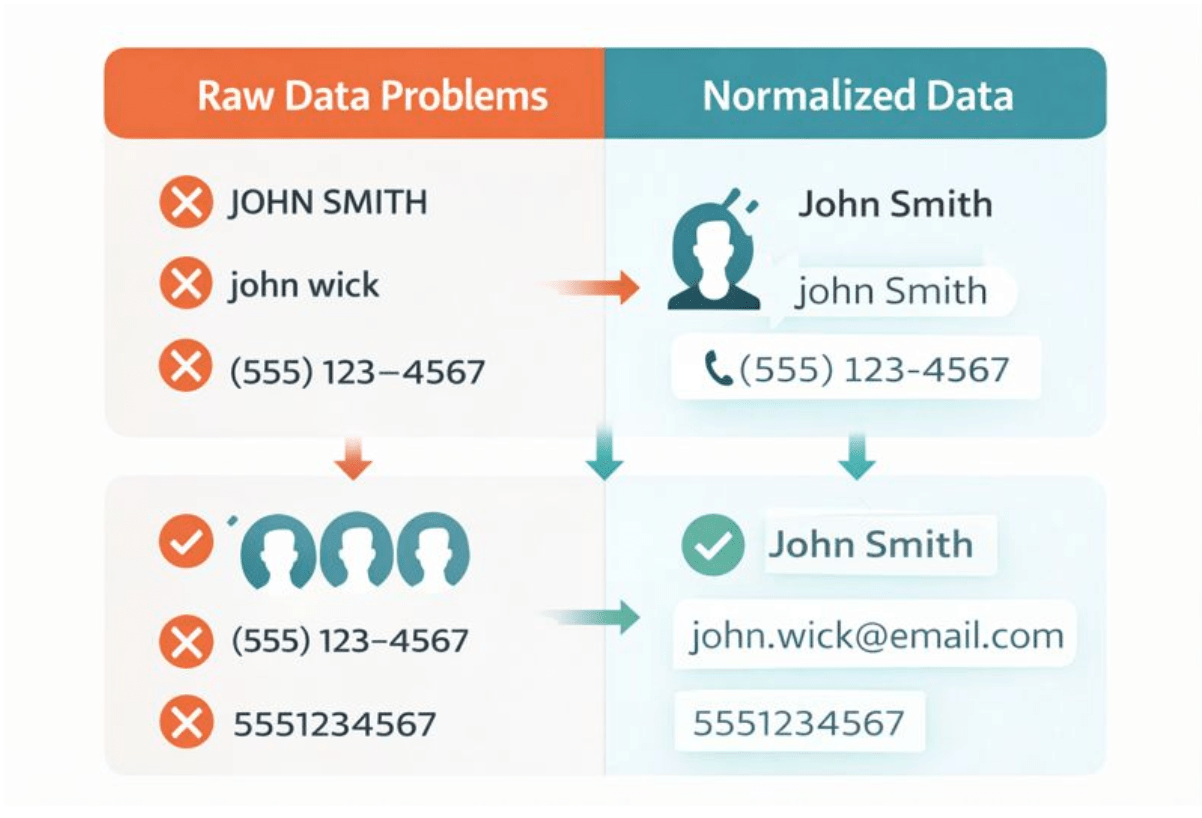
Does the data need to be formatted in a specific way once it’s submitted? It’s a good idea to ensure that some data, like phone numbers, are formatted consistently so that the person on the receiving has an easier time scanning the information. Same goes when it comes to trimming whitespace and title casing.
Why? Downstream tools are dumb. They are utterly unable to make the correlation that “John Wick” and “john wick” are related submissions. I once watched a client manually clean up 200 CRM entries because inconsistent casing had created duplicate records. That’s the kind of pain that five minutes of front-end code prevents.
Prevent Duplicate Entries From the Front End
Something as simple as disabling the Submit button on click can save the headache of sifting through duplicative submissions. Show clear “submission states” like a loading indicator that an action is being processed. Store a flag that a submission is in progress.
Why? Duplicate CRM entries cost real money to clean up. Impatient users on slow networks will absolutely click that button multiple times if you let them.
Success and Error States That Matter
What should the user know once the form is submitted? I think it’s super common to do some sort of default “Thanks!” on a successful submission, but how much context does that really provide? Where did the submission go? When will the team follow up? Are there resources to check out in the meantime? That’s all valuable context that not only sets expectations for the lead, but gives the team a leg up when following up.
Error messages should help the business, too. Like, if we’re dealing with a duplicate submission, it’s way more helpful to say something like, “This email is already in our system” than some generic “Something went wrong” message.
A Better Workflow
So, how exactly would I approach form automation next time? Here are the crucial things I missed last time that I’ll be sure to hit in the future.
Better Validation Before Submission
Instead of simply checking if fields exist:
const isValid = email && name && message;Check if they’re actually usable:
function validateForAutomation(data) {
  return {
    email: /^[^s@]+@[^s@]+.[^s@]+$/.test(data.email),
    name: data.name.trim().length >= 2,
    phone: !data.phone || /^d{10,}$/.test(data.phone.replace(/D/g, ''))
  };
}
Why this matters: CRMs will reject malformed emails. Your error handling should catch this before the user clicks submit, not after they’ve waited two seconds for a server response.
At the same time, it’s worth noting that the phone validation here covers common cases, but is not bulletproof for things like international formats. For production use, consider a library like libphonenumber for comprehensive validation.
Consistent Formatting
Format things before it sends rather than assuming it will be handled on the back end:
function normalizeFormData(data) {
  return {
    name: data.name.trim()
      .split(' ')
      .map(word => word.charAt(0).toUpperCase() + word.slice(1).toLowerCase())
      .join(' '),
    email: data.email.trim().toLowerCase(),
    phone: data.phone.replace(/D/g, ''), // Strip to digits
    message: data.message.trim()
  };
}
Why I do this: Again, I’ve seen a client manually fix over 200 CRM entries because “JOHN SMITH” and “john smith” created duplicate records. Fixing this takes five minutes to write and saves hours downstream.
There’s a caveat to this specific approach. This name-splitting logic will trip up on single names, hyphenated surnames, and edge cases like “McDonald” or names with multiple spaces. If you need rock-solid name handling, consider asking for separate first name and last name fields instead.
Prevent Double Submissions
We can do that by disabling the Submit button on click:
let submitting = false;
  async function handleSubmit(e) {
    e.preventDefault();
    if (submitting) return;
    submitting = true;

const button = e.target.querySelector('button[type="submit"]');
button.disabled = true;
button.textContent = 'Sending...';

try {
  await sendFormData();
    // Success handling
  } catch (error) {
    submitting = false; // Allow retry on error
    button.disabled = false;
    button.textContent = 'Send Message';
  }
}
Why this pattern works: Impatient users double-click. Slow networks make them click again. Without this guard, you’re creating duplicate leads that cost real money to clean up.
Structuring Data for Automation
Instead of this:
const formData = new FormData(form);Be sure to structure the data:
const structuredData = {
  contact: {
    firstName: formData.get('name').split(' ')[0],
    lastName: formData.get('name').split(' ').slice(1).join(' '),
    email: formData.get('email'),
    phone: formData.get('phone')
  },
  inquiry: {
    message: formData.get('message'),
    source: 'website_contact_form',
    timestamp: new Date().toISOString(),
    urgency: formData.get('urgent') ? 'high' : 'normal'
  }
};
Why structured data matters: Tools like Zapier, Make, and even custom webhooks expect it. When you send a flat object, someone has to write logic to parse it. When you send it pre-structured, automation “just works.” This mirrors Zapier’s own recommendations for building more reliable, maintainable workflows rather than fragile single-step “simple zaps.”
Watch How Zapier Works (YouTube) to see what happens after your form submits.

Care About What Happens After Submit
An ideal flow would be:
- User submits form
- Data arrives at your endpoint (or form service)
- Automatically creates CRM contact
- A Slack/Discord notification is sent to the sales team
- A follow-up sequence is triggered
- Data is logged in a spreadsheet for reporting
Your choices for the front end make this possible:
- Consistency in formatting = Successful imports in CRM
- Structured data = Can be automatically populated using automation tools
- De-duplication = No messy cleanup tasks required
- Validation = Less “invalid entry” errors
Actual experience from my own work: After re-structuring a lead quote form, my client’s automated quote success rate increased from 60% to 98%. The change? Instead of sending { "amount": "$1,500.00"}, I now send { "amount": 1500}. Their Zapier integration couldn’t parse the currency symbol.

My Set of Best Practices for Form Submissions
These lessons have taught me the following about form design:
- Ask about the workflow early. “What happens after someone fills this out?” needs to be the very first question to ask. This surfaces exactly what really needs to go where, what data needs to come in with a specific format, and integrations to use.
- Test with Real Data. I am also using my own input to fill out forms with extraneous spaces and strange character strings, such as mobile phone numbers and bad uppercase and lowercase letter strings. You might be surprised by the number of edge cases that can come about if you try inputting “JOHN SMITH ” instead of “John Smith.”
- Add timestamp and source. It makes sense to design it into the system, even though it doesn’t necessarily seem to be necessary. Six months into the future, it’s going to be helpful to know when it was received.
- Make it redundant. Trigger an email and a webhook. When sending via email, it often goes silent, and you won’t realize it until someone asks, “Did you get that message we sent you?”
- Over-communicate success. Setting the lead’s expectations is crucial to a more delightful experience. “Your message has been sent. Sarah from sales will answer within 24 hours.” is much better than a plain old “Success!”
The Real Finish Line
This is what I now advise other developers: “Your job doesn’t stop when a form posts without errors. Your job doesn’t stop until you have confidence that your business can act upon this form submission.”
That means:
- No “copy paste” allowed
- No “I’ll check my email later”
- No duplicate entries to clean up
- No formatting fixes needed
The code itself is not all that difficult. The switch in attitude comes from understanding that a form is actually part of a larger system and not a standalone object. Once you think about forms this way, you think differently about them in terms of planning, validation, and data.
The next time you’re putting together a form, ask yourself: What happens when this data goes out of my hands?
Answering that question makes you a better front-end developer.
The following CodePen demo is a side-by-side comparison of a standard form versus an automation-ready form. Both look identical to users, but the console output shows the dramatic difference in data quality.
References & Further Reading
- “2025 State of Email Marketing Report” (Litmus)
- “Form Design Best Practices for Lead Capture” (HubSpot)
- “How to set custom error messages for your HTML forms” (Kevin Powell, YouTube)
Form Automation Tips for Happier User and Clients originally published on CSS-Tricks, which is part of the DigitalOcean family. You should get the newsletter.
This post first appeared on Read More