
During your journey around the world of Linux, you might’ve come across riced-up builds that look and feel like something out of a sci-fi novel. And if you wondered, why can’t I have this on my system?, then you wouldn’t be alone.
Many of those builds have something like Niri or Hyprland sitting on top of a Linux distribution that plays nice with such heavy customization. But setting those up is a bit of work, and not everyone might be up for it.
That is where pre-configured distros and scripts like Garuda Linux, Omarchy, ArchRiot, etc. come into the picture. With this article, we will be taking a look at Dank Linux, a desktop shell suite that can transform your system into a slick Hyprland one.
Dank Linux: Hyprland Premium?
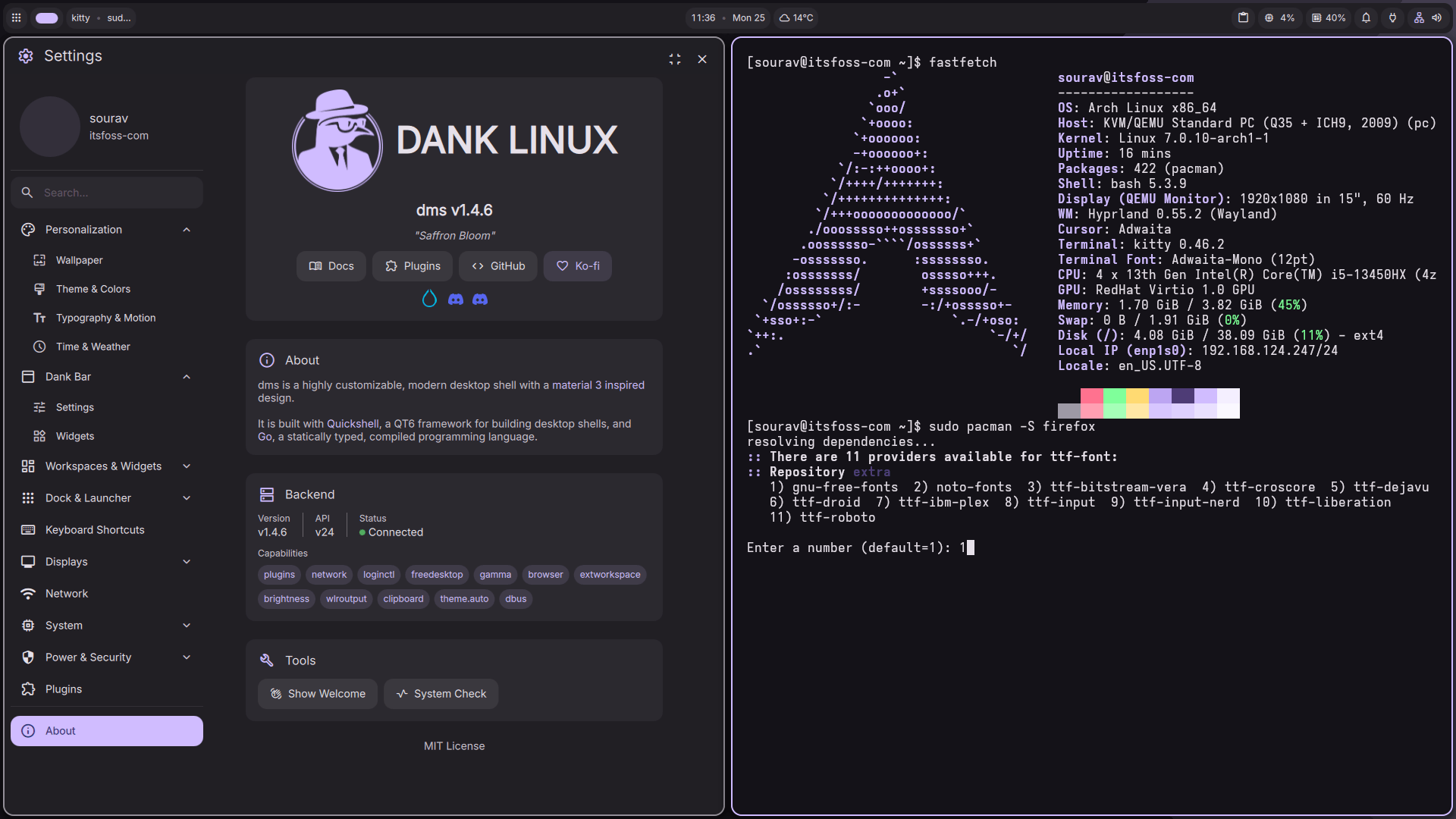
Okay, that might be a bit overstated, but using Dank Linux will make you feel that.
Here, you don’t need to pay extra for Hyprperks, and instead, you get a tailored Hyprland desktop experience powered by DankMaterialShell (dms), which is a desktop shell built with Quickshell and Go.
It brings panels, a notification center, a lock screen, an app launcher, media controls, and automatic wallpaper-based color theming into one package.
Currently at v1.4.6 “Saffron Bloom“, the MIT-licensed project is actively developed, with the installer supporting Arch Linux (incl. derivatives), Fedora (incl. derivatives), Ubuntu, Debian, openSUSE, and Gentoo (requires systemd), with both x86_64 and ARM64 hardware covered.
Installation was okay
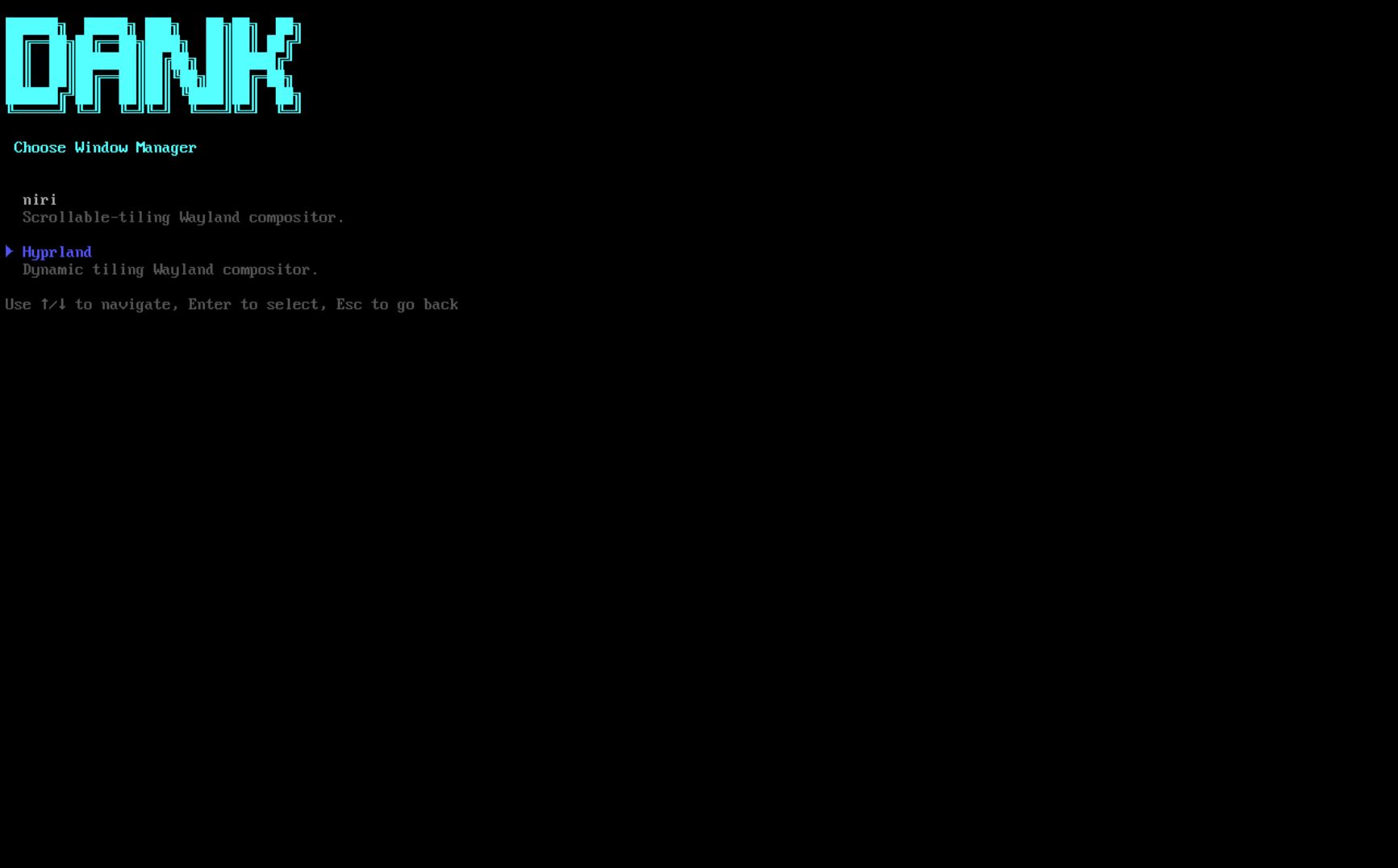
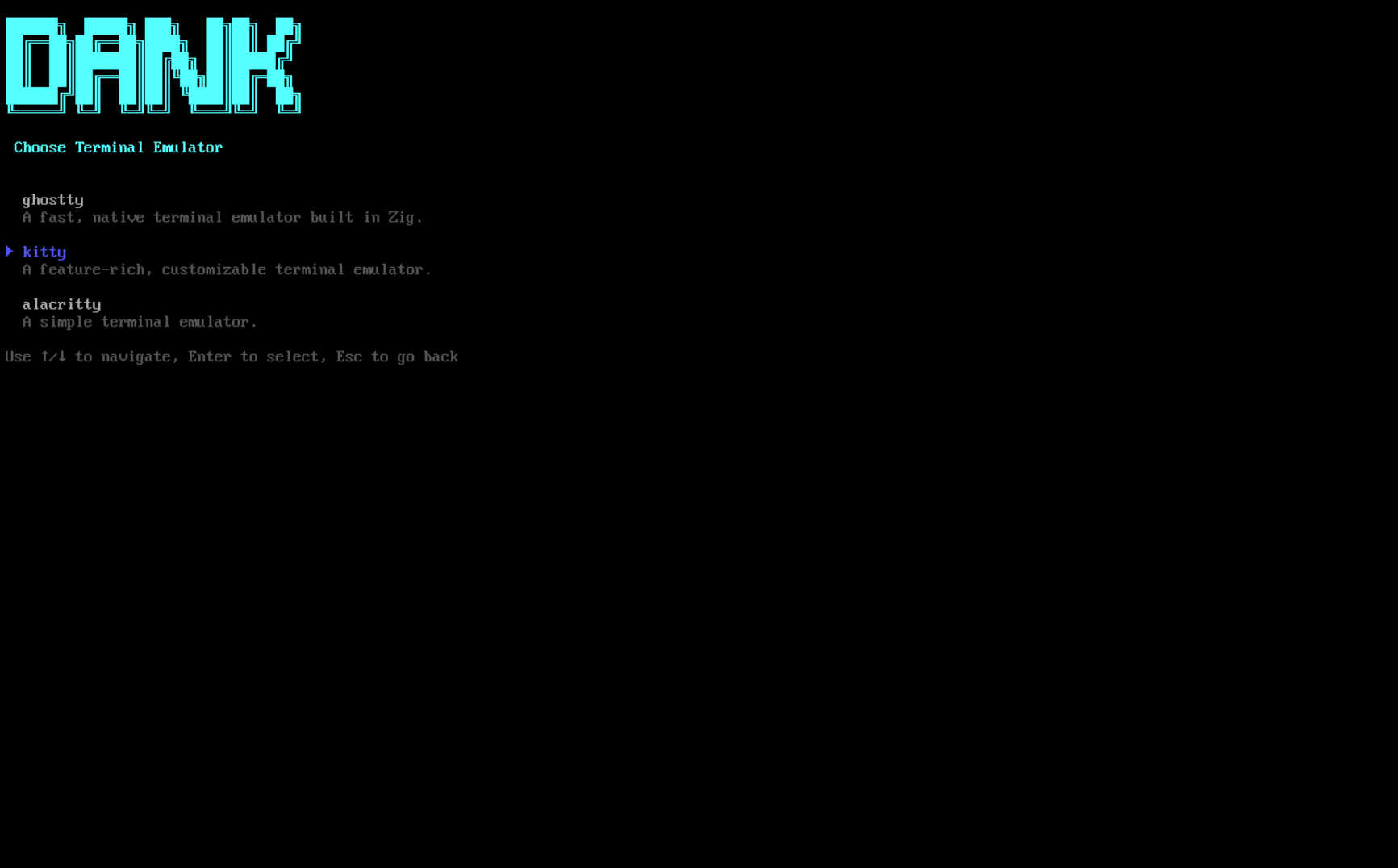
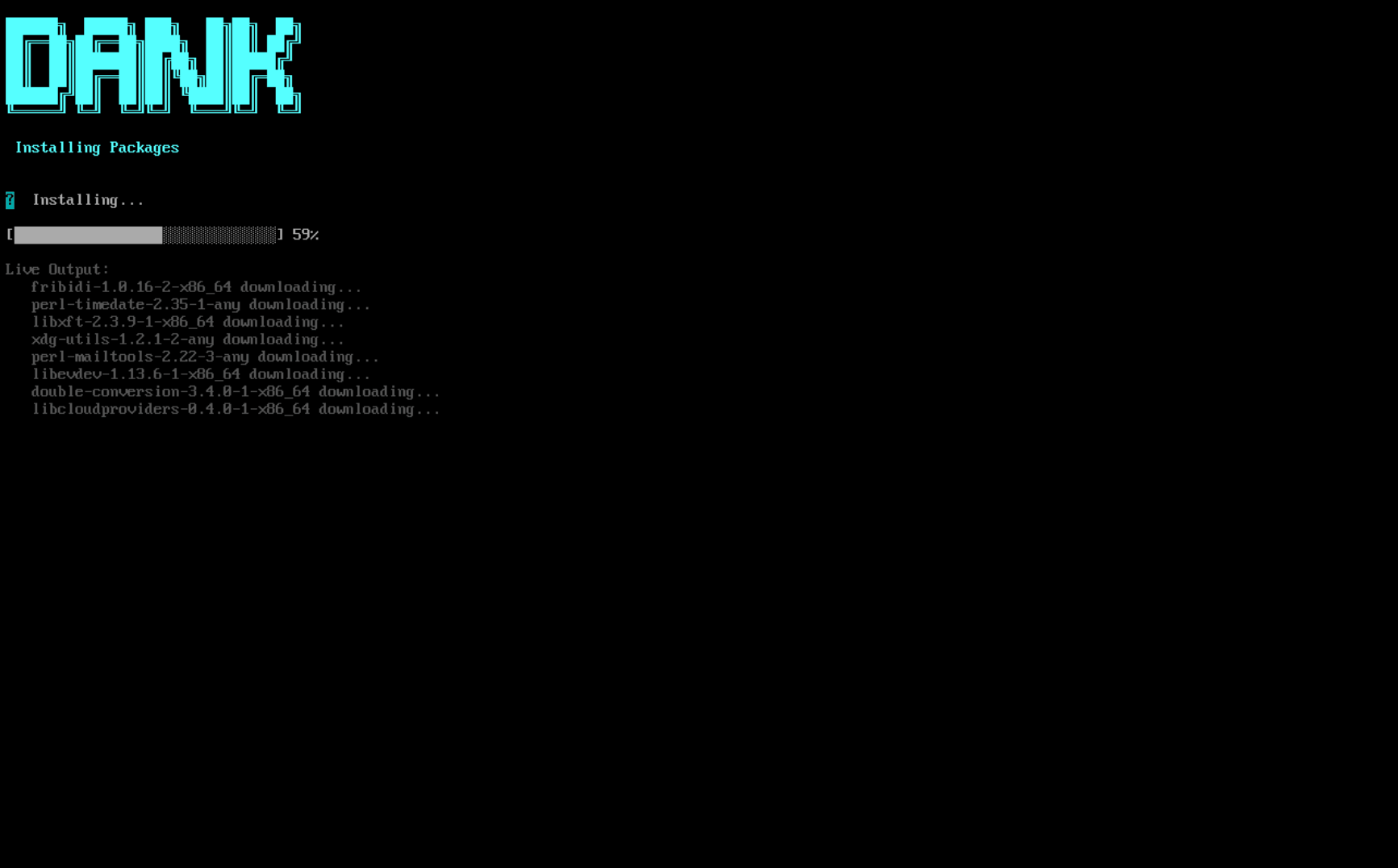
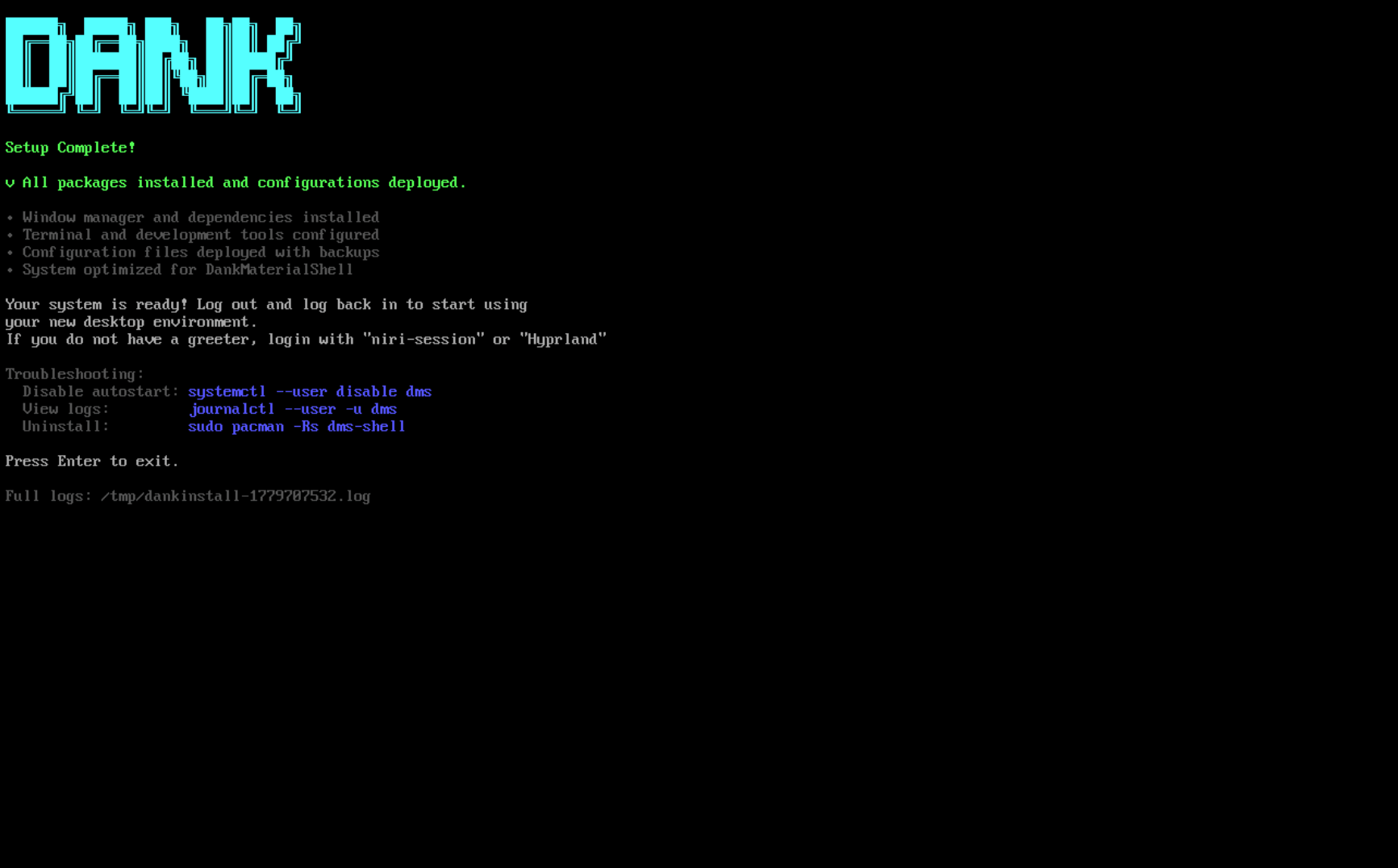
There were a few steps in-between that are not shown here.
After setting up a minimal Arch Linux virtual machine, I ran the cURL script to get Dank Linux installed. The installer asked me to configure a few preferences, like the privilege escalation tool (I went with sudo), the compositor, and the terminal emulator.
I initially picked Niri as the compositor, but after installation, the session would hang on startup due to some bug. I tried a few fixes, but none worked, so I reran the installer and switched to Hyprland with Kitty as the terminal.
After entering my password and letting the installation finish, rebooting left me at a TTY login screen. The system didn’t automatically boot into Hyprland, so I had to run the following command to get into the Dank Linux session:
hyprland– Super+Space opens the app launcher.
– Super+Q quits the active window.
– Super+Left Mouse moves windows around.
– Super+Right Mouse resizes them.
The desktop experience was lovely
Once in, you will notice that the installation is quite minimal, with only a limited set of applications shipped out of the box.
To get close to my usual Linux workstation setup, I had to separately install Firefox for browsing, LibreOffice for documents, Nemo as a GUI file manager, and VLC for audio and video playback.
Launching them was easy via the application launcher, with the top bar showing the active window title, a clock, a calendar, weather info, system resource usage, battery status, network connectivity, and quick access to notifications and settings.
Window tiling works cleanly, with windows snapping into a neat layout without any fussing around from my side. That said, the settings menu is where things get interesting in terms of customization.
You can pick a Material Design color theme, let the shell pull one automatically from your wallpaper, or set a custom one. Font changes apply across the shell from the ‘Typography & Motion‘ section, and you can enable a dock if a top bar is not your thing.
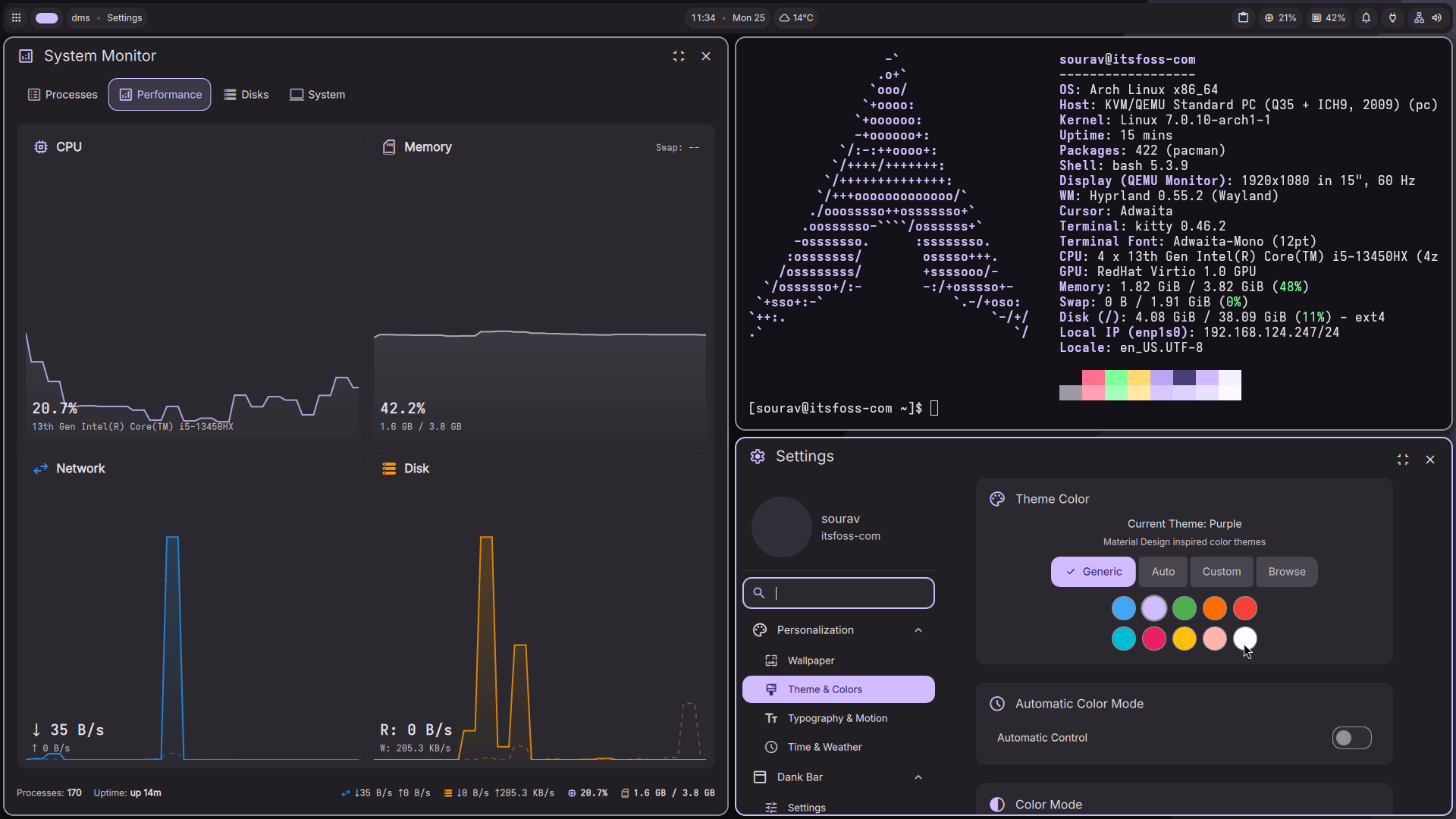
The top bar itself is configurable, and you can even swap out the app launcher logo. Similarly, the quick access options are reorderable, so you can arrange them to match how you actually work.
Though this last one was a bit wonky during my testing, refusing to slot the buttons where I wanted them to.
Audio and video playback worked without any issues. I pulled up a YouTube video in Firefox, and it played back smoothly, with no tearing or stuttering worth noting given this was running inside a virtual machine.
What made it nicer was the ‘Media‘ panel sitting in the top bar. It picks up whatever is playing and shows the title, the source, and a progress bar, along with buttons to skip, pause, or resume playback.
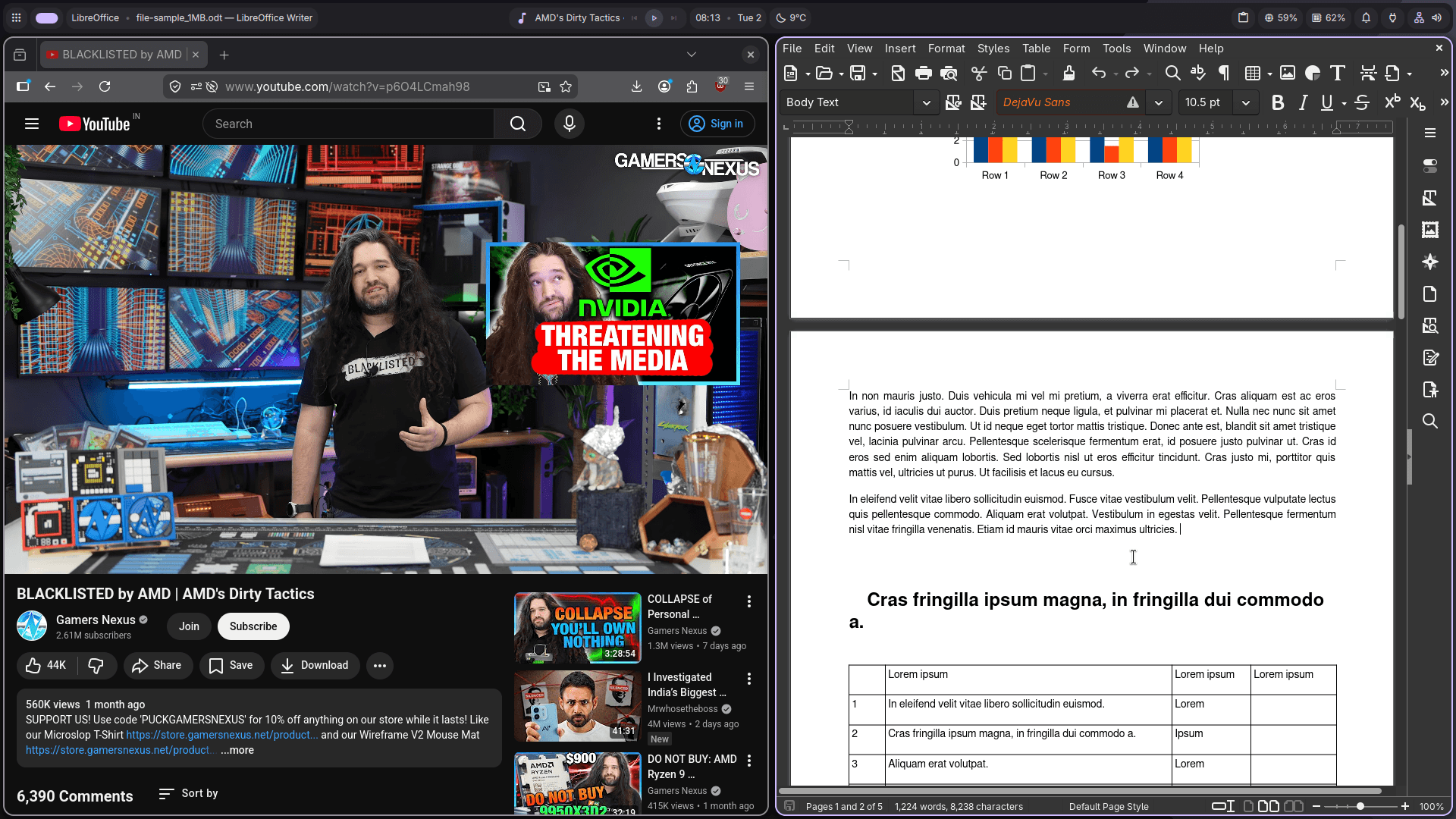
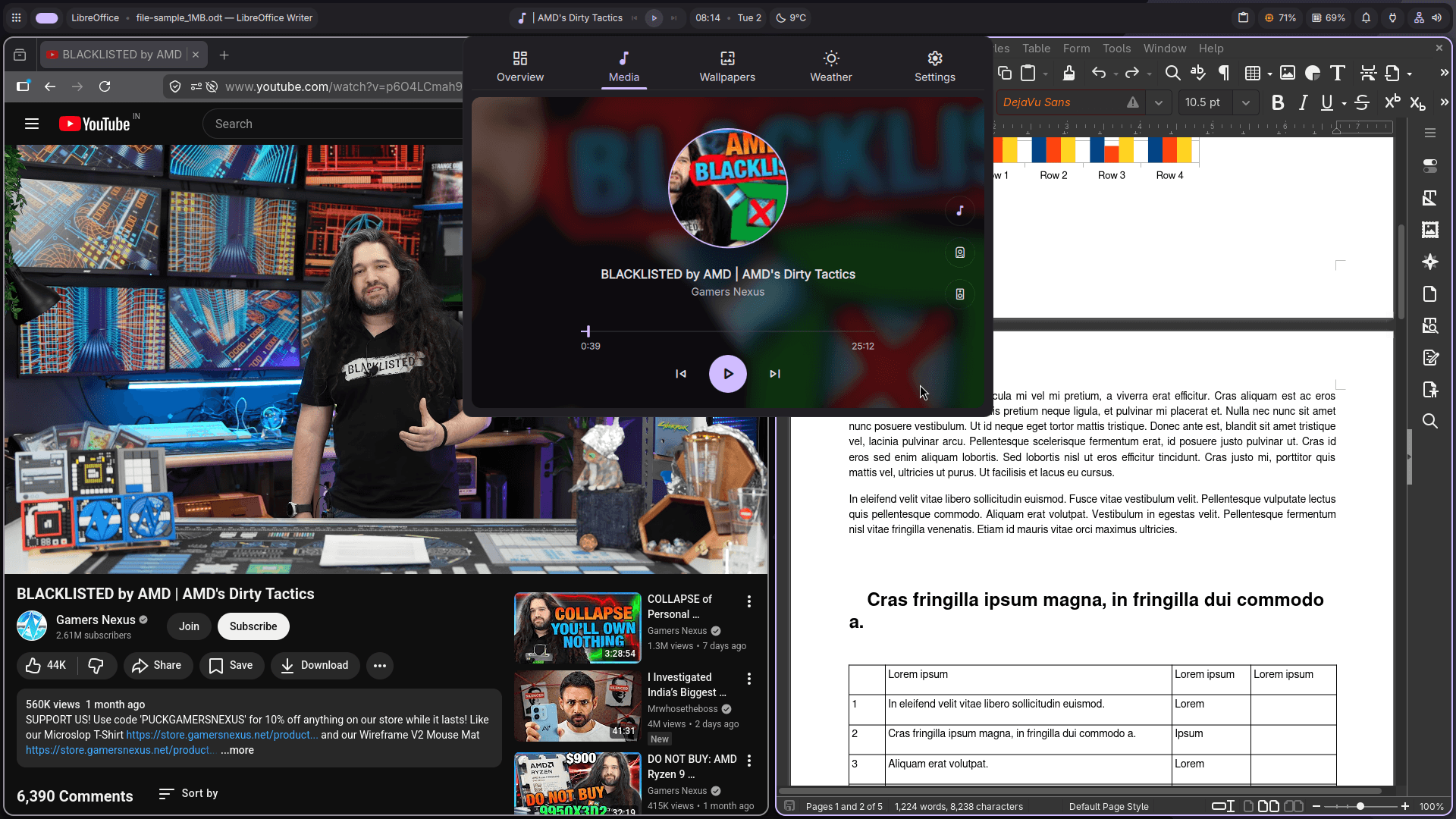
For documents, I grabbed a sample ODT file and opened it in LibreOffice Writer. Formatting text, rearranging content, and saving the file all worked as expected. Nothing surprising there.
Plus, it was good to see that the Wayland clipboard and app integration was working well during edit sessions.
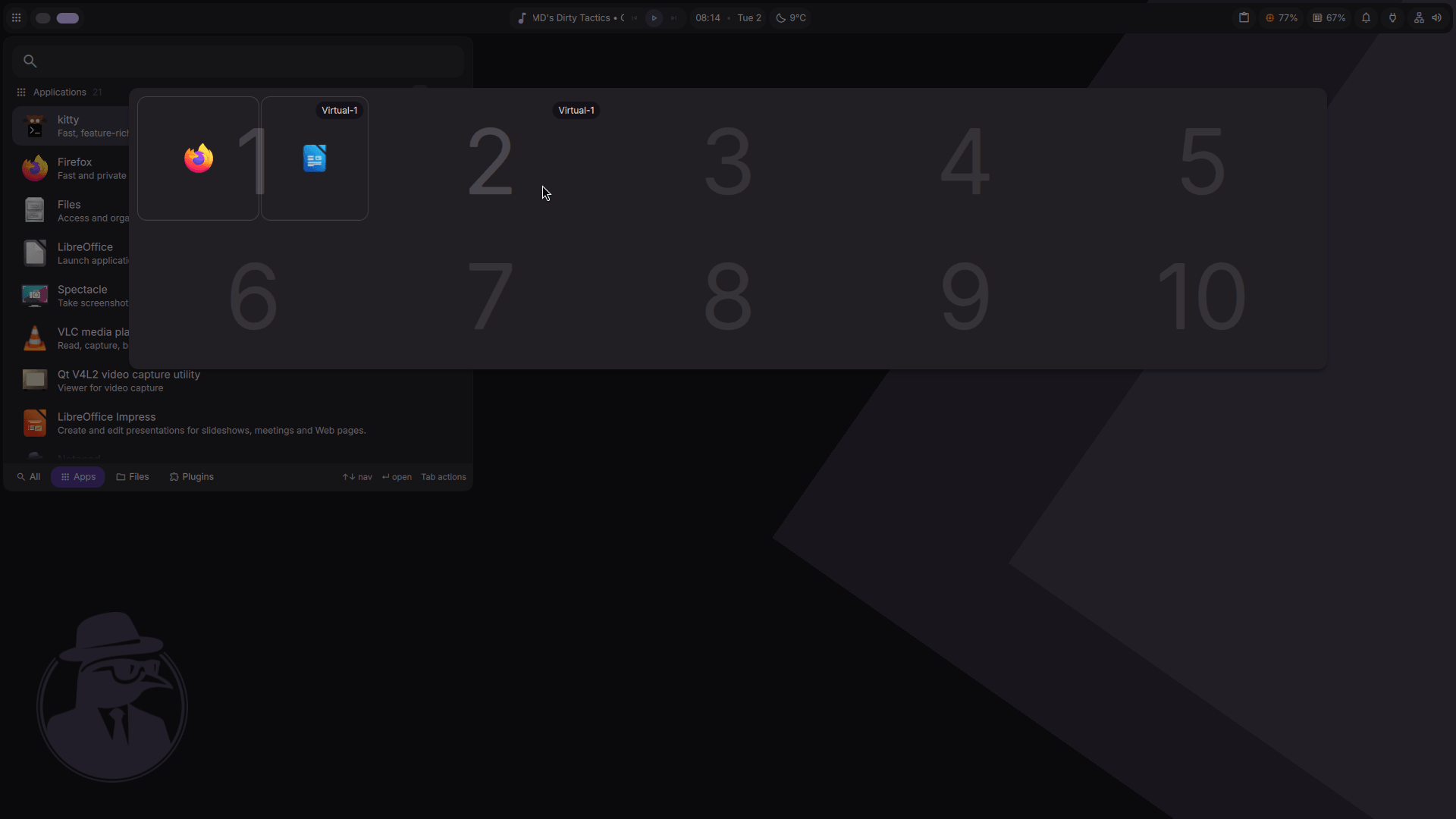
The workspace switcher is another area where Dank Linux does well. You get 10 workspaces out of the box, and the switcher gives you a view of what is open across each one.
From the settings menu, you can choose what the workspace switcher indicator shows, whether that’s workspace names, running app icons, or both, along with tweaking the overall appearance and enabling reverse scrolling direction.
Small stuff, but having all of that in a GUI menu rather than being buried in a config file can make a real difference in day-to-day use.
Get Started
On a supported distribution, you simply need to run the following cURL script to get Dank Linux:
curl -fsSL https://install.danklinux.com | shThough I highly suggest you go through the instructions for dankinstall to prepare your base system properly before making the switch.

This article first appeared on Read More