

2FA UX patterns: Designing setup flows for SMS, authenticator apps, and biometrics
Each popular 2FA method in modern digital products, including SMS OTP verification, TOTP authenticator apps, and biometrics have different user flows for configuration, verification, and recovery; however, each 2FA flow has a standard pattern that users are usually familiar with.
2FA user flows should use the highest possible security to protect the user account, but also should be simple, transparent, and painless for users to help them adapt to 2FA as a general security requirement. It’s a good designer’s responsibility to optimally balance security and usability with a better UX flow design in the popular 2FA method integration:
Setup and verification flows by method
2FA configuration and verification processes have standard user flow patterns that your digital product design can adopt to improve both security and convenience:
SMS OTP verification
SMS 2FA flow involves registering a 2FA phone number and proving the user’s identity through a 4 or 6-digit OTP:
Configuration flow
The configuration user flow uses the following standard flow pattern by registering a 2FA phone number:
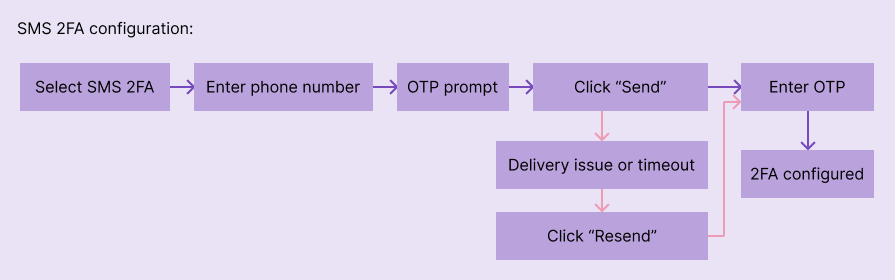
- Select the SMS OTP verification as the 2FA method.
- Authenticate with the account using login credentials (as a security requirement).
- Enter a valid phone number and continue (OTP is now delivered).
- Enter or copy-paste (if the user is on the same device) the OTP. Resend is available for SMS delivery issues or timeouts.
- 2FA setup is successful.
Verification flow
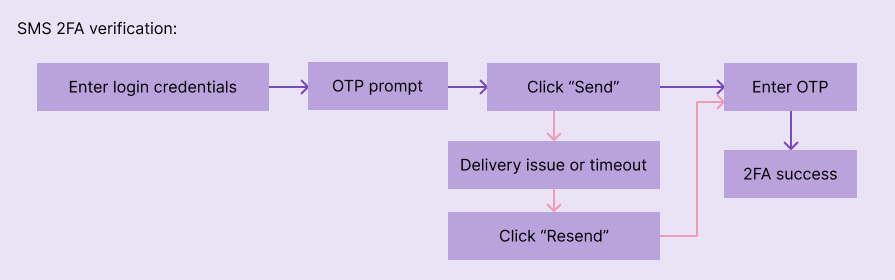
The SMS OTP verification flow is almost the same as the configuration setup, but the phone number is automatically fetched from the product backend:
- Enter login credentials.
- Sees the 2FA prompt. Clicks to send OTP, or the product sends it automatically.
- Enter or copy-paste the OTP.
- Authentication is successful.
Common UX pain points
- User delays — The user may misplace the phone or forget the phone number used for 2FA, so the app can ask the user for confirmation before sending OTP and display the last two digits of the phone number.
- Copy-paste errors — The user should be able to copy-paste the OTP instantly. You should use the standard PIN format (4-digit or 6-digit) or autofill (or auto-verify) if your product is a mobile app
TOTP authenticator apps
TOTP authenticator app 2FA flow helps the user configure and use a preferred authenticator app for authentication:
Configuration flow
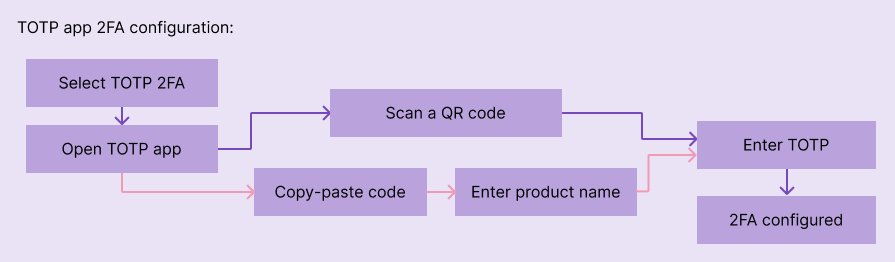
An authenticator app and the product backend need a shared secret to enable TOTP verification, so the user has to register your product in a user-preferred authenticator app by scanning a QR code or entering the secret code manually:
- Select the TOTP authentication as the 2FA method.
- Authenticate with the account using login credentials (as a security requirement).
- Scan the QR code or copy-paste the secret code (if on the same device) to create a new entry using the authenticator app. The authenticator app starts displaying TOTP for the specific product.
- Enters the TOTP.
- 2FA setup is successful.
Verification flow
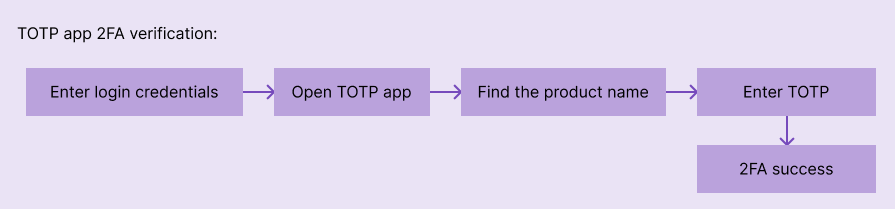
The user has to enter the current TOTP by looking at the authenticator app for verification:
- Enter login credentials
- Sees the 2FA prompt. Open the TOTP authenticator app, find the product name, and enter the current TOTP
- Authentication is successful
Common UX pain points
- Configuration friction — The user needs to download an authenticator app and add the product to activate 2FA, so designers should implement a smooth, descriptive, step-by-step setup flow to reduce friction
- TOTP interval issues — TOTP updates every 30 seconds, so the code getting expired while typing is a common problem, but the UX can be improved with copy-paste support, auto-focus, and auto-submission
Biometric authentication
Biometric verification flows help users configure and use fingerprint or facial recognition for authentication:
Configuration flow
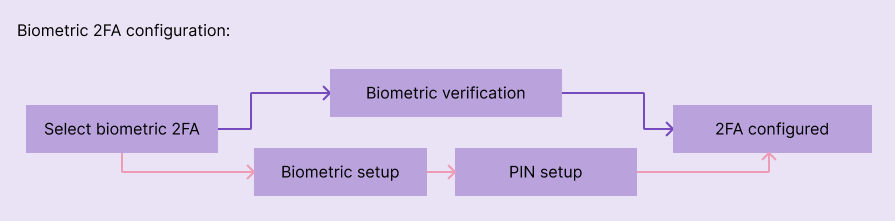
The configuration flow is instant if the user has already configured the biometric setup. Otherwise, the user has to go through an OS-dependent configuration flow:
- Select biometric verification as the 2FA method.
- Authenticate with the account using login credentials (as a security requirement).
- If biometrics are already configured, the user only has to confirm biometrics. Otherwise, the user has to go through the OS-native biometric setup with OS-specific UX.
- 2FA setup is successful.
Verification flow
Verification flow checks the user’s identity with biometric verification:
- Enter login credentials.
- OS-native 2FA prompt asks the user to touch the fingerprint sensor or look at the camera for facial verification.
- Authentication is successful.

Common UX pain points
- Physical verification issues — Fingerprint verification is challenging with dirty or wet hands, and facial recognition may fail when the face is covered and in dark areas. Suggesting a secure alternate 2FA for the current login attempt if biometric verification repeatedly fails is a common solution
- Security concerns — Users may fear using biometrics since biometric data cannot be reset. Sticking to OS-native biometric flows and educating the user with learn more links are common solutions for this
Handling failures and edge cases
Once configured, 2FA authentication can fail, or the user can lose access to it, too, so handling these scenarios in a user-friendly, effective, and secure way is crucial:
- OTP delivery issues — SMS OTP delivery may fail or face delays, so your 2FA flow should include a way to resend the OTP action and use an alternate 2FA method
- Lost or broken device — A lost or broken 2FA-configured device should prevent the user from accessing the product. Offering a 2FA method like recovery codes or using a recovery 2FA method (e.g., email) are common solutions
- Network latency — Slow networks can make 2FA interaction problematic, especially with timeouts, but this can be solved with optimized network requests, minimal 2FA UI, and recommending offline OOTP methods
Dos and Don’ts
| Factor | Do | Don’t |
|---|---|---|
| OTP entry design | Autofocus and autosubmit. Mask or use a separate input per digit. Enable pasting | Make it too small. Use plain text inputs |
| Fallback methods | Offer a clear, direct recovery path | Make it complicated with generic or verbose intructions |
| 2FA methods selection | Let users choose several preferred 2FA methods | Force the user to adapt to only one |
| Skipping 2FA | Support skipping 2FA securely for convenience on trusted devices, etc. | Overwhelm users with 2FA or mindlessly skip 2FA (creates security loopholes) |
| Security education | Use concise 2FA security benefits. Provide links for learning more | Use technical or cyber security jargons |
FAQs
How many retries should I allow for SMS OTP?
3 is recommended
How many resends should be allowed for SMS OTP?
2 is safest and also convenient
Should QR codes be shown by default or on request?
Depends on the device. If the user is on a desktop computer, showing the QR is recommended. If the user is on mobile, show the secret code instead, so the user can copy-paste it to the authenticator app
The post 2FA UX patterns: Designing setup flows for SMS, authenticator apps, and biometrics appeared first on LogRocket Blog.
This post first appeared on Read More