

Kombai AI: The AI agent built for frontend development
For any frontend developer, the challenge is well-known. You receive a perfect Figma design and a clear plan for the user interface. However, turning that design into a working, responsive application takes time and effort. It involves manually converting every component, style, and interaction into clean, maintainable code. This step has often slowed down development because it is time-consuming and can lead to mistakes, distracting you from the important business logic behind the application. What if you could automate this process without losing quality?

This article will introduce Kombai, an AI tool designed to solve this problem. Kombai converts Figma designs directly into high-quality, ready-to-use code. It connects design and development by automating UI code generation, focusing on quality, readability, and easy compatibility with modern frontend technologies.
What is Kombai AI?
Kombai is an AI agent specifically created for frontend development. Unlike general coding assistants, it focuses solely on converting visual designs into code. You can provide it with Figma designs, images, or written prompts, and it will produce clean, component-based code for frontend frameworks like React. Whether you’re creating a complex dashboard or a simple landing page, Kombai can turn your visual ideas into working code.
What makes Kombai unique is its specialization. While many AI tools try to handle a wide range of programming tasks, Kombai focuses only on the frontend. It understands the details of component structure, responsive design, stacks, and best practices for user experience. Because of this focused approach, Kombai generates code that is not only correct but also well-organized and scalable, much like a senior frontend developer would write.
How Kombai differs from generic AI coding assistants
Many tools claim to convert design to code, but Kombai actually delivers on this promise. It combines unique features that focus on quality and gives developers more control. It’s not just about speed; it’s about creating code that you can use and maintain easily.
High-fidelity Figma interpretation
Kombai’s deep learning models can understand designs like a human developer. Designers do not need to follow strict naming rules or create perfectly structured layer groups in Figma. The AI recognizes how elements relate to each other, finds logical groups, and considers common design mistakes. This allows it to work with real-world design files, not just clean, AI-friendly versions, and create highly accurate code representations.
Production-ready code quality
- Clear and reusable components – Kombai finds repeated patterns and organizes them into clear React components. This helps create a clean and easy-to-manage codebase from the beginning.
- Responsive design automatically – It uses modern CSS tools like Flexbox and Tailwind utilities to build flexible layouts. This avoids fixed pixel sizes that can cause problems on different screen sizes.
- Wide support for frameworks and libraries – Kombai works with over 25 popular frontend libraries and frameworks, such as Tailwind CSS, Material-UI (MUI), and Shadcn UI. It generates code that fits well with your existing setup and meets its specific best practices.
An agentic, task-based workflow
- Planning – Before it writes any code, Kombai shows you an editable plan for your review. You can adjust its approach as needed.
- Visual preview – Once it generates the code, Kombai creates a sandbox server so you can see a live preview of the component or page in isolation.
- Error-fixing – Kombai is designed to find and fix common compilation and runtime errors, ensuring the code you get is functional and a good starting point.
Benefits of using Kombai
Using Kombai in a development workflow provides benefits that go beyond simply speeding up coding. These benefits are seen throughout the whole product development process, from the initial handoff to the final launch:
- Faster development time – The biggest advantage is the significant reduction in time spent on manual UI coding. By automating design conversions, developers can focus on more complex tasks, like managing states, integrating APIs, and handling application logic. This speed helps teams deliver features and make changes more quickly.
- Better design to code consistency – Kombai serves as an excellent translator, ensuring the final coded product closely matches the Figma design. This reduces the small inconsistencies that often occur during manual coding, resulting in a more polished and professional-looking application. It also decreases the back-and-forth communication needed between designers and developers.
- Improved collaboration – The handoff process becomes clearer and easier. Designers can trust that their vision will be reflected in the final product, while developers get a clean, organized starting point. This shared understanding leads to a more efficient and cooperative team atmosphere.
- Safety and control – Another advantage of Kombai is its focus on the frontend. It works in a secure environment and does not interact with your backend logic, databases, or essential infrastructure. This adds a layer of safety, allowing teams to use AI tools without risking unintended impacts in other parts of their system.
Performance comparison
Kombai, a domain-specific agent, shows clear advantages over general-purpose AI agents like Gemini 2.5 Pro and Sonnet 4 in real-world frontend tasks. It consistently produces more reliable and accurate results.
- Code review success – In code reviews, Kombai’s code meets 72% of review criteria, far higher than Gemini 2.5 Pro (50%) and Sonnet 4 (39–50%). This reduces the time developers spend fixing issues.
- Feature implementation – Kombai achieves a 43% success rate for feature implementation, outperforming Gemini 2.5 Pro (17–30%) and Sonnet 4 (24–29%).
- Compilation success – With a 96% compilation success rate, Kombai far exceeds competitors that range between 46% and 70%, meaning its code runs correctly from the start.
Here’s how the numbers compare across models:
| Metric | Kombai | Gemini 2.5 Pro + Agent¹ | Sonnet 4 + Agent¹ | Gemini 2.5 Pro + Agent¹ + MCPs² | Sonnet 4 + Agent¹ + MCPs² |
|---|---|---|---|---|---|
| Code Review Success | 72% | 50% | 39% | 30% | 50% |
| Feature Implementation | 43% | 30% | 24% | 17% | 29% |
| Compilation Success | 96% | 61% | 70% | 46% | 64% |
¹ Agents include Aider or OpenAI agents. ² MCPs (Multi-Context Prompts) include Context7 and Framelink.
Integration and setup
Kombai helps you work more efficiently by fitting right into your existing setup in popular coding environments like VS Code, Cursor, and Windsurf. It works alongside other coding tools, allowing it to serve as a specialized assistant for frontend tasks within the larger development process.
Setting up Kombai is easy. Once installed, Kombai automatically identifies the project’s framework and structure by scanning the repository, which means you don’t have to configure anything manually. For Figma integration, you can paste a Figma file link directly into the Kombai dashboard or use the in-app plugin to access the design. You can choose specific pages or frames to convert, and you will see a live preview before the code is generated.
Project setup
To follow along, you’ll need:
- A code editor (VS Code, Cursor, Windsurf, Trae)
- Basic knowledge of React and JavaScript
- Node v18+ installed
We’ll start a React app with Vite and use Tailwind CSS:
npm create vite@latest
npm install tailwindcss @tailwindcss/vite
Update vite.config.js with:
import { defineConfig } from "vite";
import react from "@vitejs/plugin-react";
import tailwindcss from "@tailwindcss/vite";

export default defineConfig({
  plugins: [react(), tailwindcss()],
});
Replace the contents of index.css with:
@import "tailwindcss";
Kombai setup
Either visit the Kombai website, select the code editor of your choice. Install the Kombai plugin, or you can go to your code editor extensions and search for the Kombai plugin. You will be instructed to authenticate your account. You will then be provided with 500 credits for free.
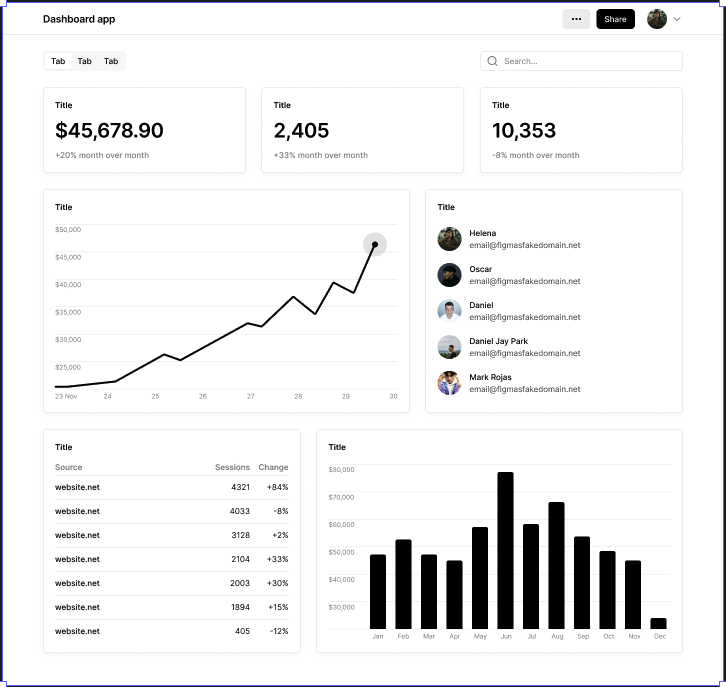
We will supply Kombai with this Figma design so it will replicate it into React, Shadcn, and Tailwind v4 code:
In the Kombai interface, we can see a few key points:
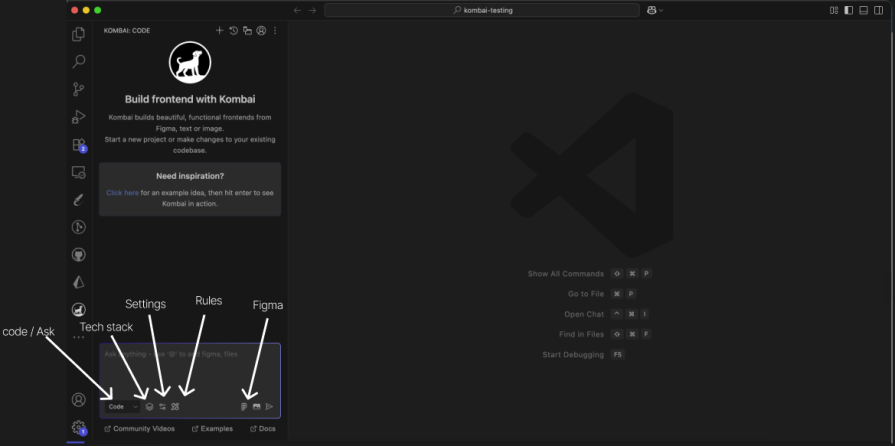
- Code – Use this mode whenever you code. It helps you complete tasks from start to finish
- Ask – Use this mode whenever you want to pose a question
- Tech stack used – To configure your tech stack, which includes your framework (React 19 Typescript, API framework, and state management (Zustand, Tanstack Query), router (React Router v7), component library (Shadcn),styles (Tailwind v4), icon pack (Lucide)
- Setting – Use this to set up quick instructions
- Rules – Use these to set persistent instructions for Kombai using rules and
Agents.mdfiles - Figma – Use this to connect your Figma and enter the Figma design URL
First, click on the Tech stack used, configure it to the tech stacks you are familiar with, click on the Figma icon, connect your account, and supply it with the Figma URL.
After adding the URL, ensure you provide it with a proactive prompt. For example, for charts, you can instruct it to use Recharts, and proceed.
Kombai will analyze the Figma file and identify component hierarchy, generate responsive React components with proper TypeScript types, implement interactive states (hover, focus, loading), ensure accessibility compliance with ARIA labels, and optimize for performance with proper lazy loading.
Review and save. Run npm run dev on your terminal. Here’s our output: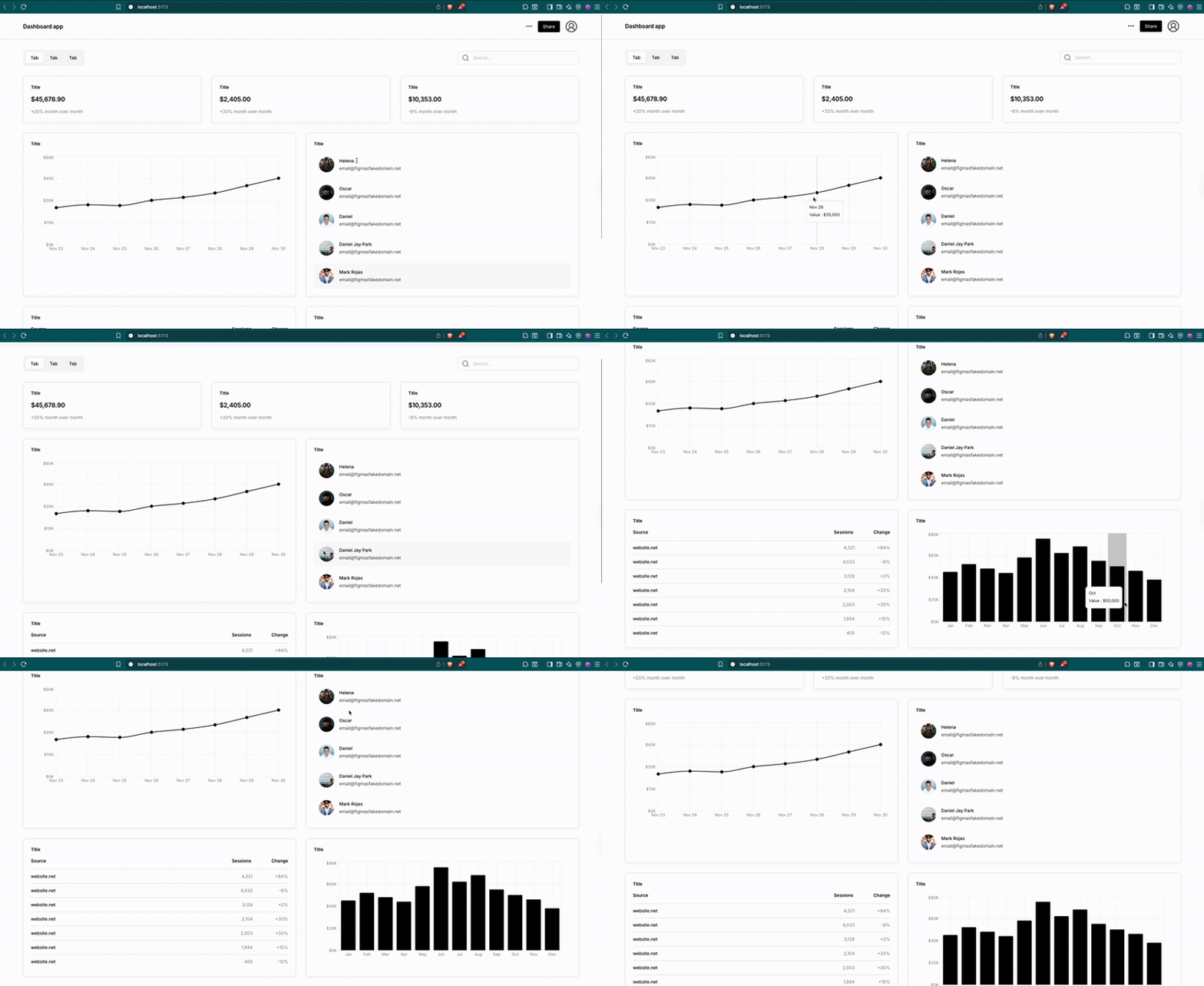
You can see it is almost identical to our Figma design.
Best practices for using Kombai AI
Start with clear requirements
Be specific about what you need. The clearer your instructions, the better Kombai performs. Include detailed component specs, accessibility guidelines, expected performance, and browser compatibility requirements. The more context Kombai has upfront, the more accurate your output will be.
Iterate and refine
Kombai thrives in an iterative workflow. Begin with an initial code generation, review the results, and identify what needs improvement. Provide focused feedback, test updates, and repeat the cycle, much like guiding a junior developer to refine their work.
Leverage context
Whenever you ask for help, include all relevant details. Reference existing components, attach Figma links or mockups, and specify your tech stack versions or constraints. Context allows Kombai to understand your project environment and deliver code that fits seamlessly.
Real-world use cases and examples: From theory to practice
Kombai is a powerful tool for real-world tasks, not just a simple prototype. It can handle many complex jobs and is suitable for production-level work.
Below is a table showing specific use cases that Kombai has successfully completed:
| Use case | Input | Technical stack | Features and description |
|---|---|---|---|
| Add features to a large OSS repo | Figma Design, Texts | React 19, TypeScript, Ant Design | Adds a functional “Roles and Permissions” page to a 0.5M+ LOC repository. |
| Build a website builder from scratch | Texts | React 19, TypeScript, Mantine, Emotion | Creates a production-ready frontend for a website template editor. |
| Create a website using DatoCMS | Figma Design, Texts | React 19, TypeScript, MUI v7, Emotion | Builds a modern, responsive website with dynamic content from a CMS. |
| Create a habit tracker app | Texts | React 19, TypeScript, Shadcn, Tailwind v4 | Full app with 5 tabs, dark mode, monthly/weekly views, and habits. |
| Create a team settings page | 2 Figma files, 5 images, texts | React 19, TypeScript, MUI v7, Emotion | Complex UI with team management, search, sorting, and bulk select. |
| Create an inventory dashboard | 1 image, texts | Next 15, Shadcn, Tailwind v4 | Multi-tab dashboard with inventory, analytics, and catalogs. |
| Create an EdTech portal page | Figma Design, 4 images, texts | Next 15, Mantine, CSS Modules | Reuses headers/sidebars while adding new course sections. |
These examples highlight Kombai’s flexibility, from working with a headless CMS to adding complex features to large existing codebases. For instance, when creating a landing page, Kombai accurately identified the project’s framework, installed necessary tools like Tailwind CSS, and fixed common setup issues. This led to a finished product that was both ready for launch and responsive. Using Kombai can save a lot of time; a task that usually takes a developer 4–6 hours can be done in under 30 minutes with its help.
Conclusion
Kombai represents a major step forward in frontend development tools. Rather than acting as a general-purpose coding assistant, it delivers a focused, domain-specific solution to one of the most time-consuming parts of modern web development, turning designs into production-ready code.
By generating clean, maintainable, and framework-aware components, Kombai helps developers move faster without compromising quality. It also strengthens collaboration between design and engineering teams, ensuring design fidelity and reducing rework.
As AI becomes a standard part of the development workflow, Kombai shows that the future isn’t about replacing developers – it’s about empowering them to build smarter, faster, and more consistently than ever before.
The post Kombai AI: The AI agent built for frontend development appeared first on LogRocket Blog.
This post first appeared on Read More