

Exploring spec-driven development with the new GitHub Spec Kit
If you’ve used an AI coding assistant before, you’ve probably experienced vibe coding.
You start with an idea, throw a high-level prompt at the AI, and wait to see what comes out. Sometimes it’s close. Sometimes it’s completely off. Either way, it often takes several rounds of tweaking to get what you actually want.
That endless loop of prompting, generating, and fixing can get frustrating fast. But what if your AI coding assistant actually understood your project — your goals, constraints, and architecture right from the start?
That’s where GitHub Spec Kit comes in. It’s a new open-source toolkit that brings structure to the chaos of vibe coding.
In this article, we’ll explore how Spec Kit helps you move from “let’s see what happens” to spec-driven development, and we’ll walk through building a small e-commerce bookstore app to see it in action.
Prerequisites
To follow along, you need to have the following:
- Basic understanding of software development
- Familiarity with command-line tools like PowerShell, Bash, or Shell
- A local development environment with Git installed
- Access to an AI coding assistant like GitHub Copilot, Claude, Cursor, or a similar assistant that Spec Kit supports
What is GitHub Spec Kit, and what is spec-driven development?
Spec Kit is a set of tools and a methodology for communicating with AI coding assistants more effectively. At its core, spec-driven development is an approach where you define your project’s goals, architecture, and constraints up front in structured documents or “specs.”
By giving the AI a persistent understanding of your project, every piece of generated code stays aligned with your intent and overall architecture, resulting in more consistent and maintainable output.
With Spec Kit, you create a single source of truth that the AI coding assistant can refer to at any time. This source of truth includes:
- A constitution – A set of non-negotiable principles for your project
- Specifications – A detailed description of what you want to build
- Technical plans – The “how” of your project, including architecture and dependencies
- Task lists – A breakdown of the work to be done
By providing this context, you ensure that your AI coding assistant stays on the same page as you, producing consistent, high-quality results.
Setting up Spec Kit
Getting started with Spec Kit is easy. The recommended way to install it is with uvx – an experimental package manager from the creator of uv.
On Windows, you can install UVX by running the following command:
powershell -ExecutionPolicy ByPass -c "irm <https://astral.sh/uv/install.ps1> | iex"
Then install specify with:
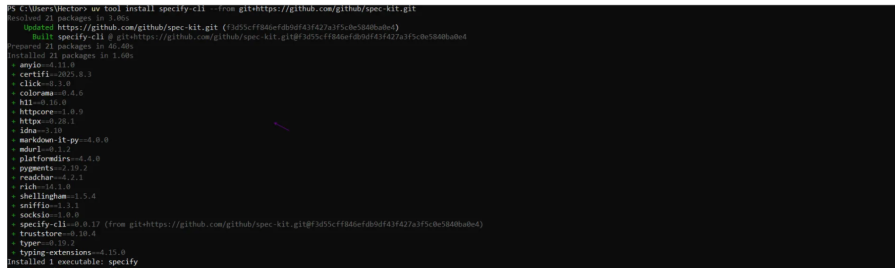
uv tool install specify-cli --from git+https://github.com/github/spec-kit.git
This will install the Spec Kit CLI tool, which you can use to create new projects and manage your specs.
If the installation was successful, you should see a similar screen to this:
Creating your first project with Spec Kit CLI
Let’s create a new project to see Spec Kit in action.
Run the following command in your terminal:
specify in it spec-kit-demo
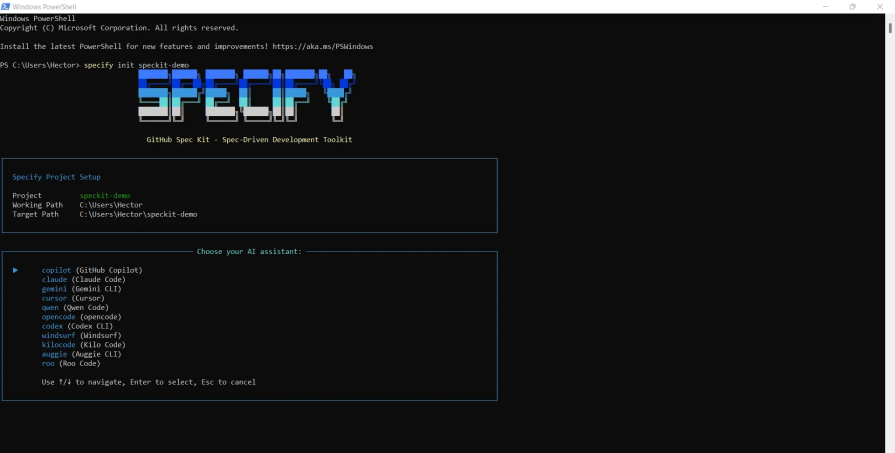
The CLI will guide you through an interactive setup process, allowing you to select your preferred AI agent.
At the time of writing this article, you can choose between:
You also get to choose your preferred script type:
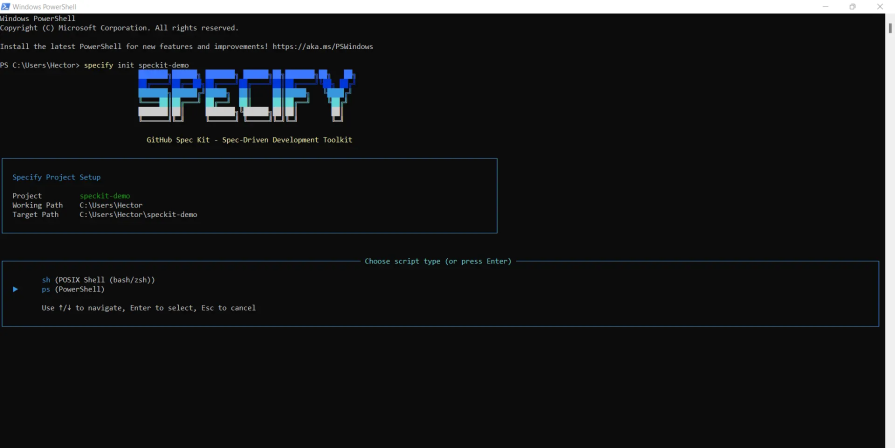
In my case, I chose PowerShell for the script type and GitHub Copilot for the AI assistant.
Once the setup is complete, you’ll see a new project scaffolded for you, structured like this:
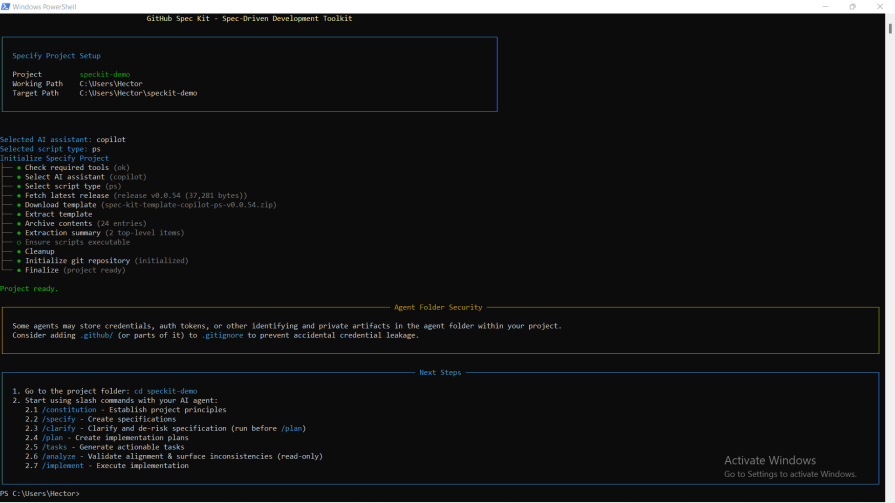
It’s time to open the project folder and start setting up the specifications for our app.
Understanding the slash commands in Spec Kit
Let’s take a quick look at the seven slash commands that power Spec Kit. Each one represents a key stage in the spec-driven workflow — from defining your project’s core principles to generating the final implementation:
/constitution
Defines the non-negotiable rules for your project. Other commands refer back to this file to stay aligned with your core principles.
Example prompt:
Fill the constitution with the following, based on the template: Create a React app with TypeScript and Tailwind CSS.
/specify
Outlines what you’re building. This is where you describe the features, pages, and user flow.
Example prompt:
/specify Build a single page that displays a list of products fetched from an API.
/clarify
Helps refine and resolve any ambiguities from the specification before moving on to planning. This step ensures that both you and your AI assistant share the same understanding of the project scope.
/plan
Translates your specifications into a concrete implementation plan — components, architecture, and dependencies.
Example prompt:
/plan Use a ProductListPage component to fetch data and a ProductCard component to display each product.
/tasks
Breaks the overall plan into manageable chunks of work for the AI assistant to execute.
/analyze
Validates your specs and plans to ensure consistency and logical alignment before implementation.
/implement
Kicks off the actual build process based on the defined tasks and context.
While /clarify and /analyze aren’t always required, they’re great for learning how SpecKit interprets and validates your instructions — especially in more complex projects.
Establishing your project constitution
Next, we’ll set the ground rules for our project by defining its Constitution — the foundation that guides every decision moving forward.
I already have a prompt prepared for this step, which you can find below:
Fill the constitution with this based on the template.
This project will be a single-page application built with React and Vite. We'll use React Router for navigation between pages.
For styling, we'll use Tailwind CSS for a utility-first approach.
All code will be written in TypeScript.We will use Axios for making API calls to a mock API for book data.
State will be managed using a combination of useState,useReducer, and the Context API for the shopping cart.
I’ll start by running the /constitution command, followed by the prompt, like this:
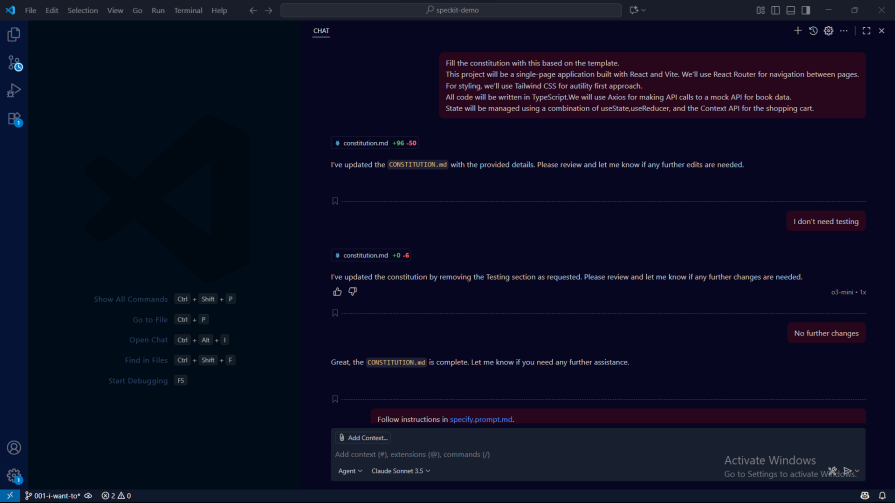
With the prompt we provided, Spec Kit automatically populated the constitution.md file.
This file acts as a stable foundation — the unchanging framework that guides every decision in our project.
Next, we’ll move on to creating the specification.
Writing your first specification
Remember, the /specify command defines what we’re building.
Here’s the prompt I’ll be using for our project’s specification:
/specify I want to build the front end for a bookstore.
The application should have three main pages: a product listing page, a product detail page, and a shopping cart page.
The Product Listing Page will display a grid of books fetched from a mock API. Each book in the grid should show its cover image, title, author, and price.
When a user clicks on a book from the listing page, they should be navigated to a Product Detail Page for that book. This page will show a larger image of the book cover, the title,author, a longer description, and an Add to Cart button.
The Shopping Cart Page will display all the books that have been added to the cart. For each item in the cart, it should show the book's title, price, and quantity.
The user should be able to change the quantity of each book and see the total price of the cart update automatically.
There should also be a Remove from Cart button for each item.
When you run the command, Spec Kit generates a spec.md file containing all the project specifications.
Here’s what it looks like in GitHub Copilot:

Next, I ran the /clarify command, which highlighted several areas in the specification that needed more detail or clarification:
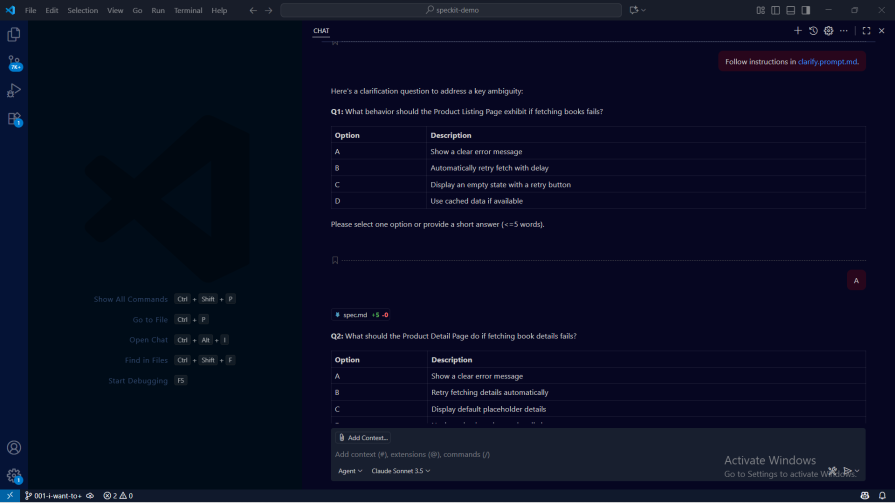
It then prompted me with a few clarification questions to fill in missing details:
- What should the product listing page do if fetching books fails?
- What should happen if fetching book details fails on the product detail page?
- What’s the minimum quantity allowed in the shopping cart?
- How should the shopping cart page handle failed updates, such as quantity changes or item removals?
- Should the shopping cart persist between sessions?
After answering these questions, Spec Kit confirmed that everything looked good and suggested moving on to the /plan command — which we’ll run in the next section.
Creating technical plans from specifications
This is where things get a bit more technical. Here, we define our technology stack, dependencies, and key architectural decisions.
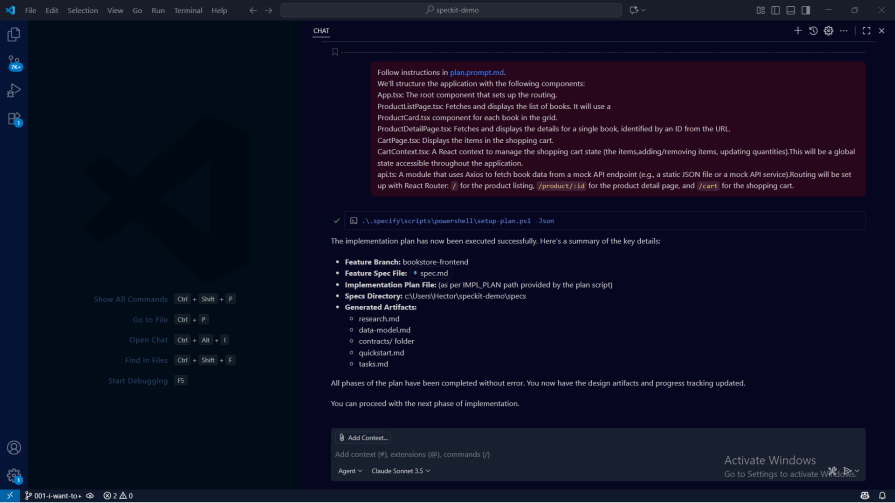
Let’s dive in with the prepared prompt:
/plan We'll structure the application with the following components:
App.tsx: The root component that sets up the routing.
ProductListPage.tsx: Fetches and displays the list of books. It will use a
ProductCard.tsx component for each book in the grid.
ProductDetailPage.tsx: Fetches and displays the details for a single book, identified by an ID from the URL.
CartPage.tsx: Displays the items in the shopping cart.
CartContext.tsx: A React context to manage the shopping cart state (the items, adding/removing items, updating quantities). This will be a global state accessible throughout the application.
api.ts: A module that uses Axios to fetch book data from a mock API endpoint (e.g., a static JSON file or a mock API service). Routing will be set up with React Router: `/` for the product listing, `/product/:id` for the product detail page, and `/cart` for the shopping cart.
Here’s how it looks in VS Code:
Next, we’ll use the /tasks command to break the work into smaller, manageable chunks for the AI agent.
Breaking down work into manageable tasks
Let’s run the /tasks command along with our prompt:
/tasks you can now run tasks.
This is how it appears in the editor:
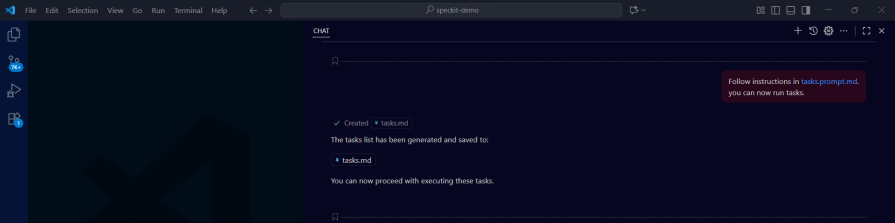
It created the tasks.md file that contains the tasks the AI agent will go through to complete our project.
The /tasks command is particularly useful because it gives the AI agent clear, step-by-step guidance to follow.
Next, we could run the /implement command to start building the project — but for the sake of learning, let’s first explore the /analyze command.
Analyze
The /analyze command checks for consistency, making sure the defined tasks align with the plan and original specification.
Let’s give it a try using the following prompt:
/analyze
It read the following files:
It then validated the files against:
It returned a few recommendations, but since they weren’t critical for this demo project, I decided to move ahead and run the /implement command.
Implementing your spec-driven project
The /implement command guides the AI agent in implementing our project by using the generated task list.
We will run the /implement command with this prompt:
/implement
This will start implementing our project:
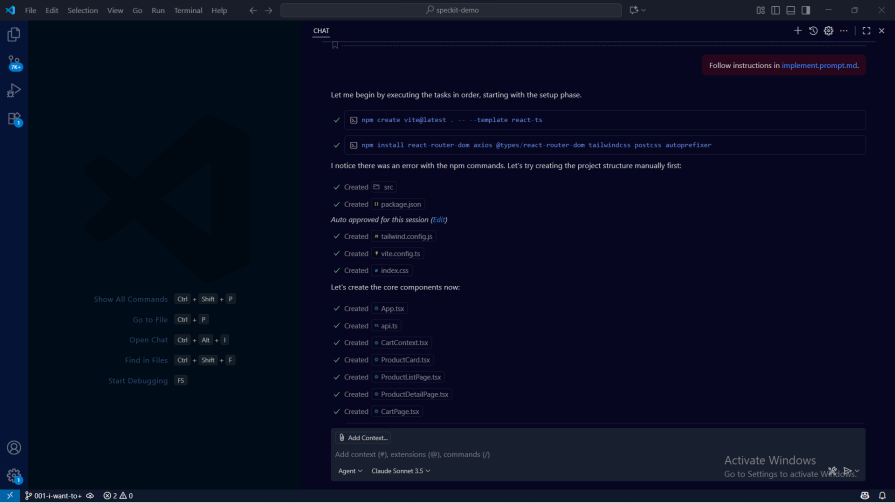
This step takes a bit of time, as we now hand things over to the AI agent to do its work.
After a short wait, we finally have our first spec-driven, vibe-coded app up and running:
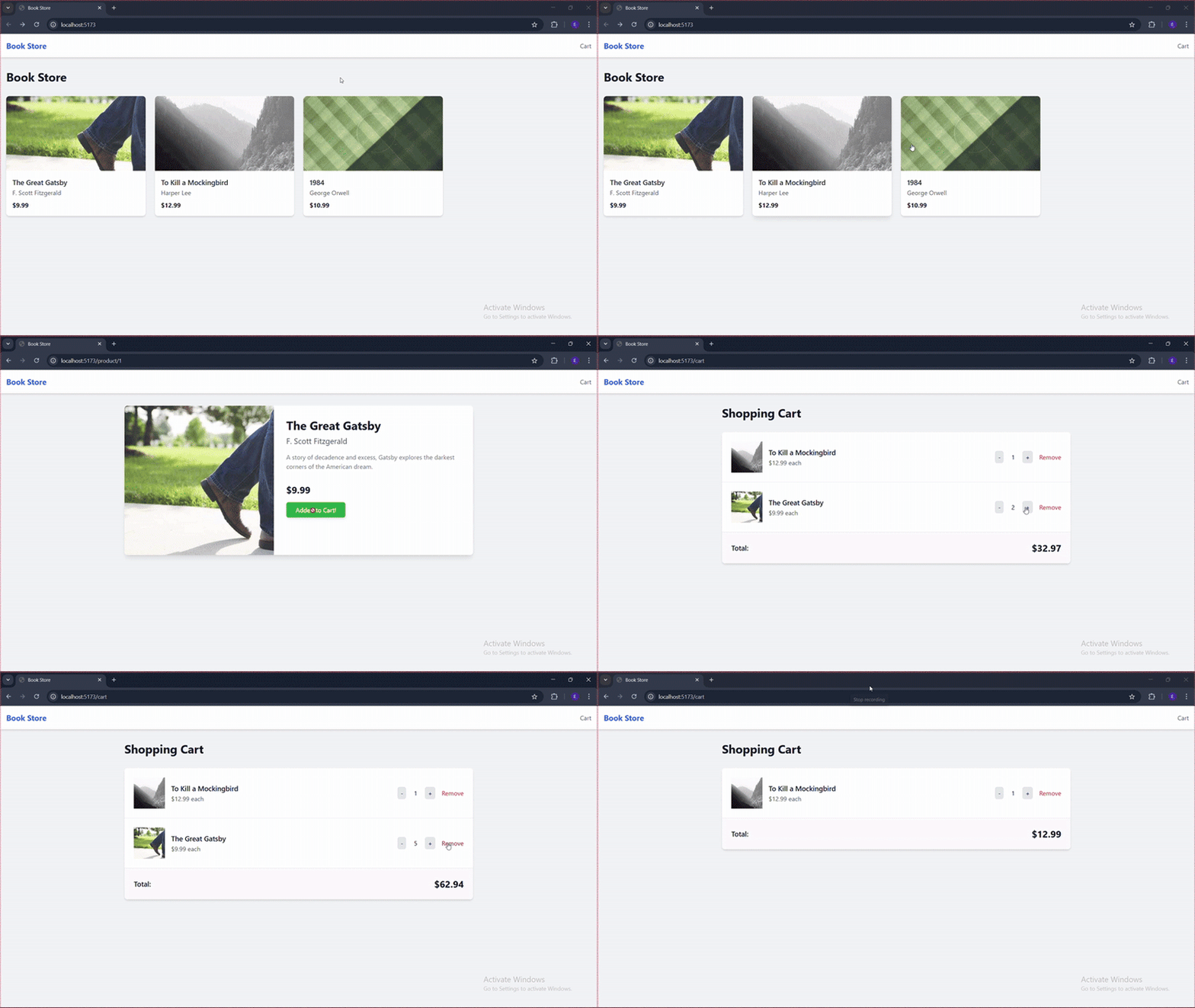
Why Spec Kit matters
Here are some great benefits you can get from Spec Kit:
- Consistency across all interactions – Instead of starting from scratch with each prompt, Spec Kit maintains a persistent understanding of your project. Every AI interaction references the same constitution, specifications, and technical plans, ensuring consistent output that aligns with your project’s goals
- Ease of collaboration – Multiple developers can work with the same AI assistant using the same project context. New team members can quickly understand the project by reading the spec files, and the AI will generate code that matches the established patterns and conventions
- Built-in quality assurance – The
/analyzecommand acts as a quality gate, ensuring your specifications, technical plans, and task breakdowns are consistent with your constitution. This catches misalignments before they become implementation problems - Reliable AI workflows – As AI coding assistants evolve, your project specifications remain constant. You can switch between different AI tools (Copilot, Claude, and Cursor) while maintaining the same project context and quality standards
Conclusion
GitHub’s Spec Kit offers structure to the chaotic nature of vibe coding.
By establishing a constitution, specifications, and a plan, you can guide your AI coding agent to generate code that is consistent with your project’s goals. As we’ve seen with the bookstore example, Spec Kit’s commands provide a logical workflow starting from defining the project’s foundation to implementing the final features.
The post Exploring spec-driven development with the new GitHub Spec Kit appeared first on LogRocket Blog.
This post first appeared on Read More