

Multi factor authentication design: Security meets usability in UI/UX design
Authentication is a daunting (but necessary) part of engaging with most digital products. Users don’t want to have to log in, remember passwords and other login credentials, reset them when they don’t remember them, ensure that they’re secure, and so on. And paying for a password manager seems unfair since it doesn’t really bring any joy.
But as UX designers, we can make the user’s authentication experience painless by offering the best authentication methods and providing good authentication UI/UX design.
With the rise of passkeys, biometric authentication, and stricter security regulations, designing MFA flows that are both secure and user-friendly has never been more critical. So, in this article, I’ll share what I know about the different types of user authentication, their advantages and disadvantages, and how you can implement them.
Editor’s note: This article was updated on January 21, 2026, to include the latest best practices and insights on multi-factor authentication (MFA). To make it easier to explore specific aspects of MFA in detail, we’ve created a series of companion articles that address common questions, including:
- What are the common security risks in MFA design?
- What are the best authentication methods for modern apps?
- What are the accessibility considerations when designing MFA?
- What are the key challenges in scaling MFA for large organizations?
These articles break down each topic with practical tips, examples, and guidance for product teams and designers.
Email and password
The oldest form of user authentication, email and password, is still the most common form today, although its user experience isn’t great.
You’ve probably experienced it firsthand, too. Remembering and typing email addresses and passwords is very error-prone, especially on handheld devices. Some users mitigate this by using a password manager, but many others don’t. And those who do, still need to log in to their password manager.
That being said, email and password are more secure than most other authentication methods (hence why they are still used), so let’s look at how we can leverage that benefit.
Enforce strong passwords
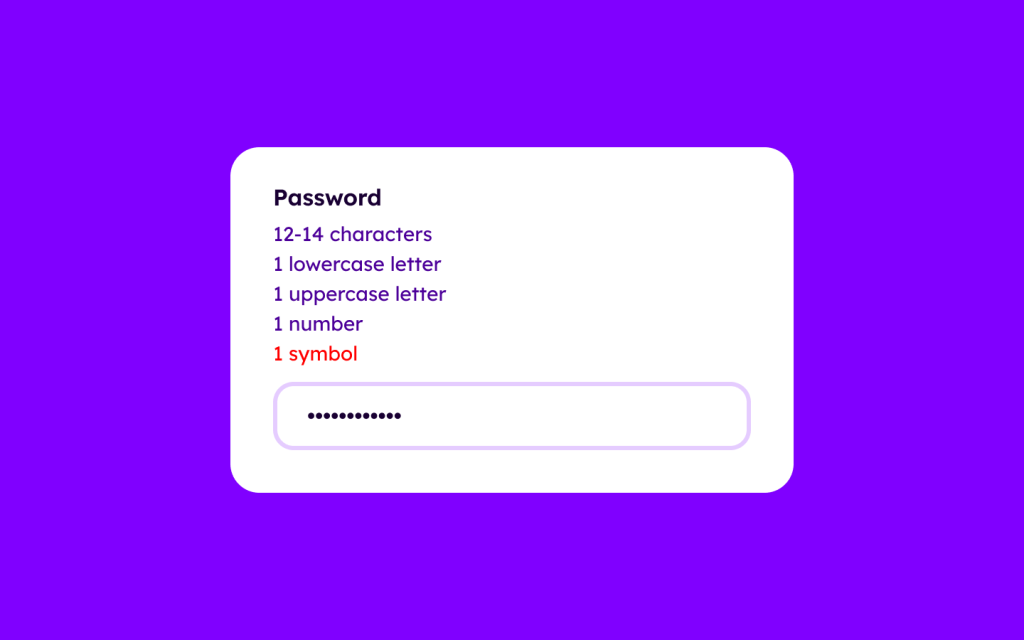
Brute-force attacks (a hacking method that systematically tries all possible password or key combinations to gain unauthorized access) get easier and easier every day, so the minimum password length needs to increase to compensate for that. Currently, a combination of 12-14 lowercase letters, uppercase letters, numbers, and symbols is the sweet spot between security and usability:
Limit the number of login attempts allowed
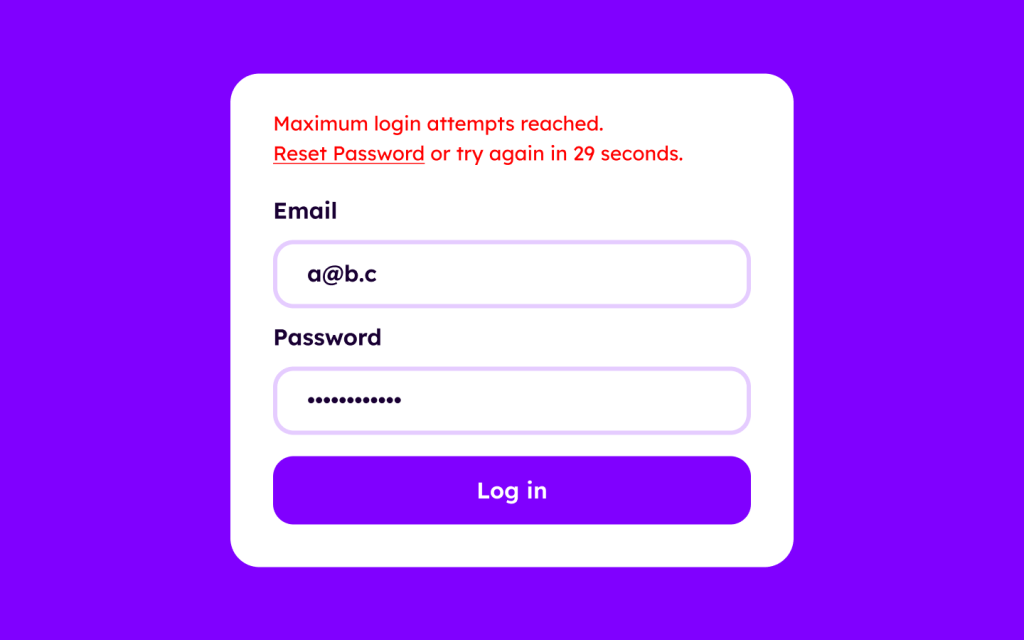
Brute-force attacks are easy even with 14-character passwords. Which is why we must limit the number of login attempts allowed within a certain timeframe. While this is developer territory, UX designers need to account for this scenario when designing alert messages for login UIs:
Let forgetful users reset their password
In addition to letting forgetful users reset their password, I also recommend encouraging users to reset their password every 4 months or so, regardless, so that it becomes obsolete if leaked:
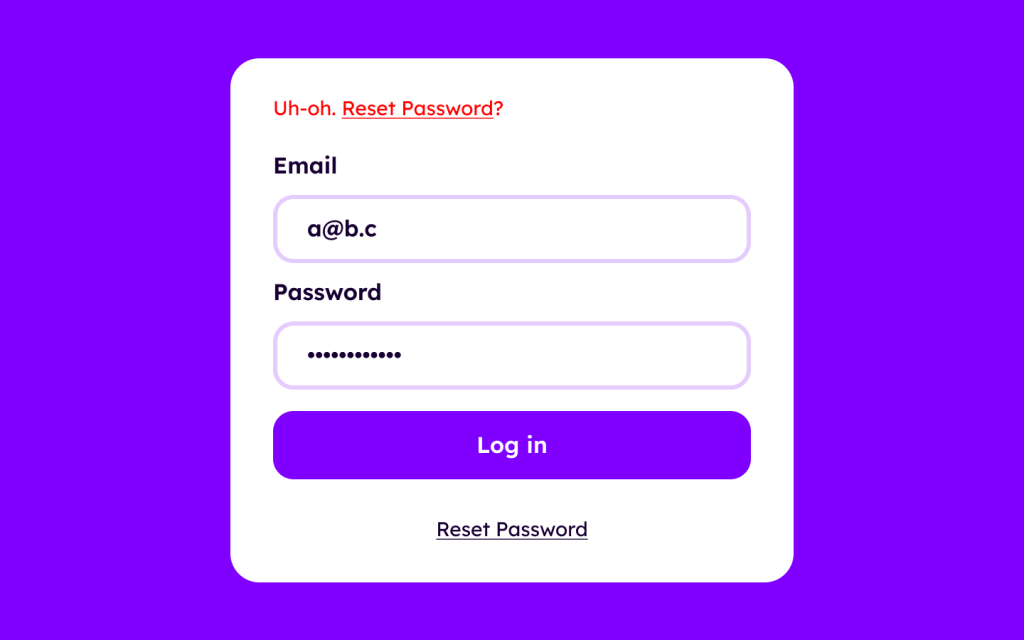
For security reasons, the former should require email verification. The latter should be an in-app reminder to prevent attackers from phishing (a cyberattack where scammers trick people into revealing sensitive information).
2FA and multi factor authentication design
Next, let’s look at passwordless methods of authentication — two-factor authentication and multi factor authentication design patterns.
Two-factor authentication (2FA), sometimes called two-step verification, or if offering more than two methods, multi factor authentication (MFA), is an extra layer of security. These layers aren’t secure enough by themselves, but work well with email and password.
One-time passwords and magic links
One-time passwords (OTPs) and magic links are types of passwordless authentication. It’s simple — users state their identity with their email address or phone number, and then the product sends an email/SMS/WhatsApp/etc. to it to verify said identity:
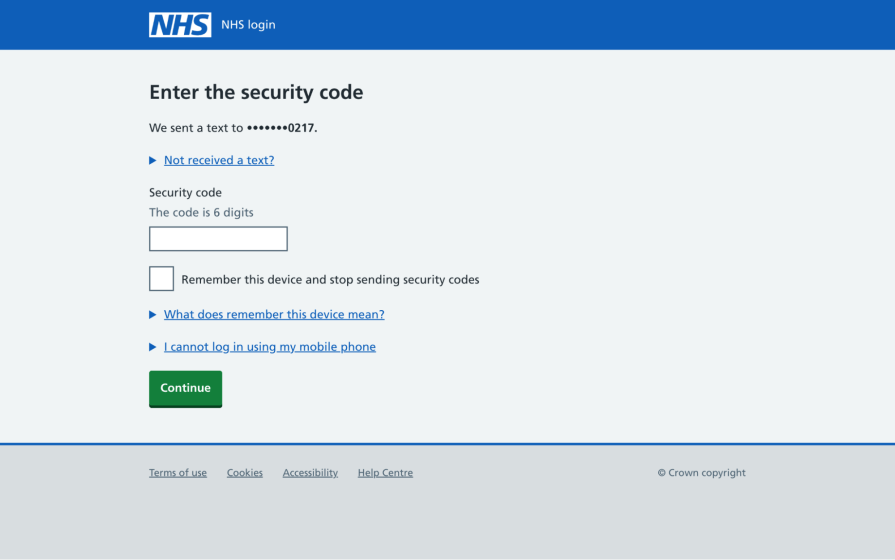
While magic links might seem like the most user-friendly of the two because the user only needs to switch apps and then click on a link, most handheld devices have a feature that grabs OTPs for you, making OTPs the better option in this scenario:
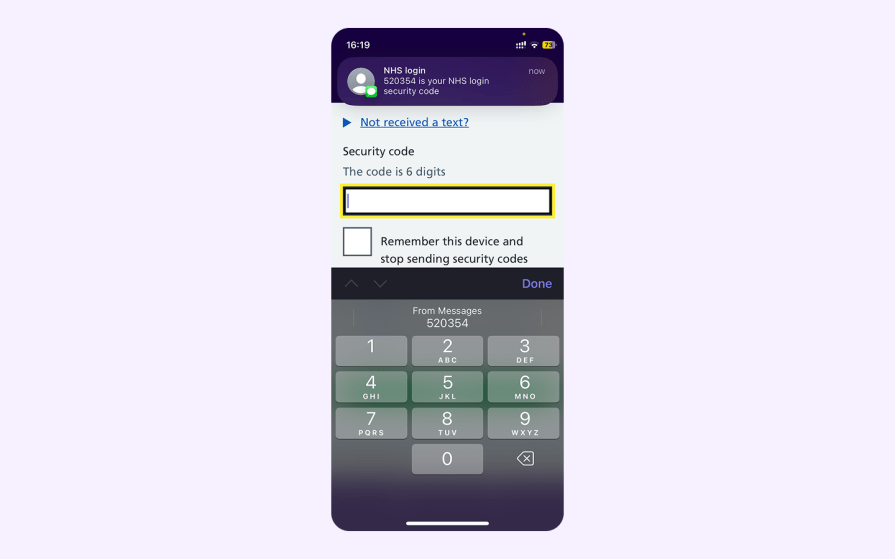
However, the problem with OTPs and magic links is their lack of security — if the user’s device gets stolen, the thief can easily access their OTPs and magic links, and thus their account.
Perhaps not if their device and passwords are secure.
But there’s no way of knowing whether they are or aren’t. So, we have to assume that they aren’t. Therefore, while OTPs and magic links are user-friendly, they’re also (relatively) insecure, so avoid them if handling user data that’s sensitive.
If you opt for OTPs or magic links — SMS is better than email and WhatsApp, which are more hackable and require internet connectivity.
Tell users how to auto-delete their OTPs and magic links
Some users hate OTPs and magic links because they end up with a graveyard of expired OTPs and magic links in their inboxes, not realizing that many devices have a delete-after-use feature. Tell them about it.
Set OTPs and magic links to auto-expire
OTPs and magic links should automatically expire after 5 minutes or so, so that they’re more likely to be useless in the wrong hands. Don’t worry — if users miss the opportunity to use the OTP or click on the magic link, they can request a new one.
Again — this is developer territory — but as a UX designer, you’ll need to account for the scenario with clear alert messages:
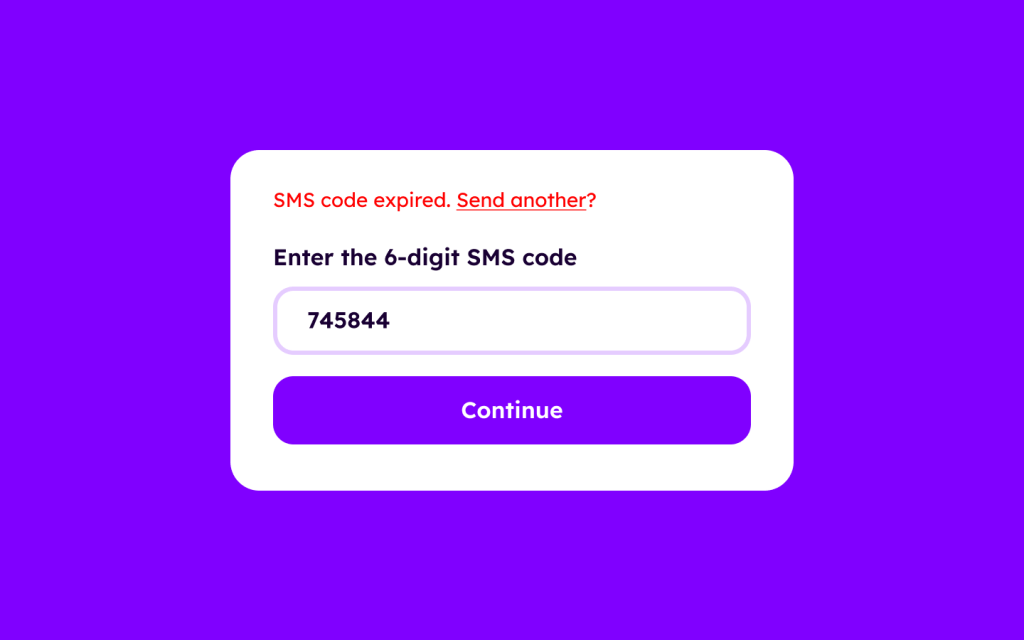
Limit the number of attempts allowed for this too.
Authenticator apps
Authenticator apps are similar to OTPs in that users need to provide a one-time password. Look at this example:
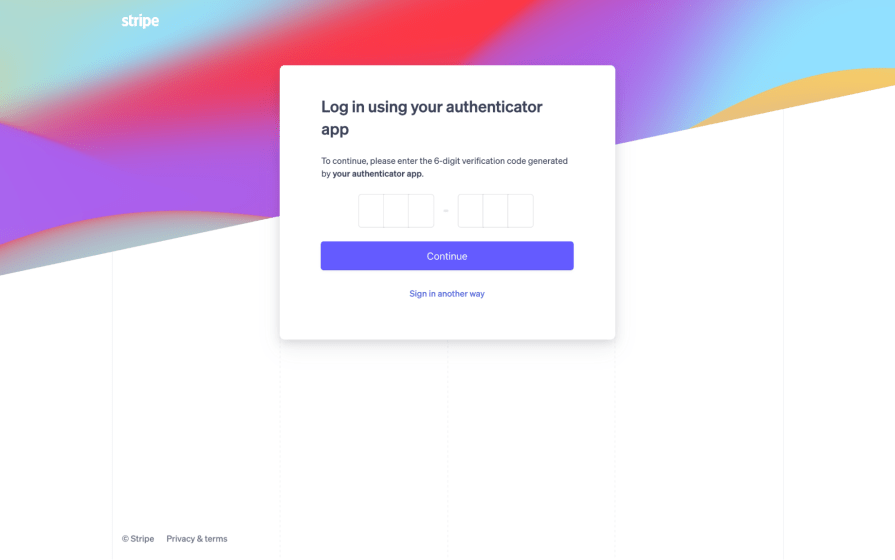
There’s a bit of setup involved, but after that, the authenticator app provides a time-based code every few seconds, which makes them impossible to brute-force and, thus, safer than OTPs.
When presenting this option, though — clearly explain to those unfamiliar with the technology how it works, what’s required of them to set it up, and how authenticator apps can be used with many products (so it’s a worthwhile investment of their time).
Tap-to-login
If your product is cross-platform, you can utilize tap-to-login. This is when a user logs into your product on one platform but receives a request to approve the log in via a companion app on another platform:
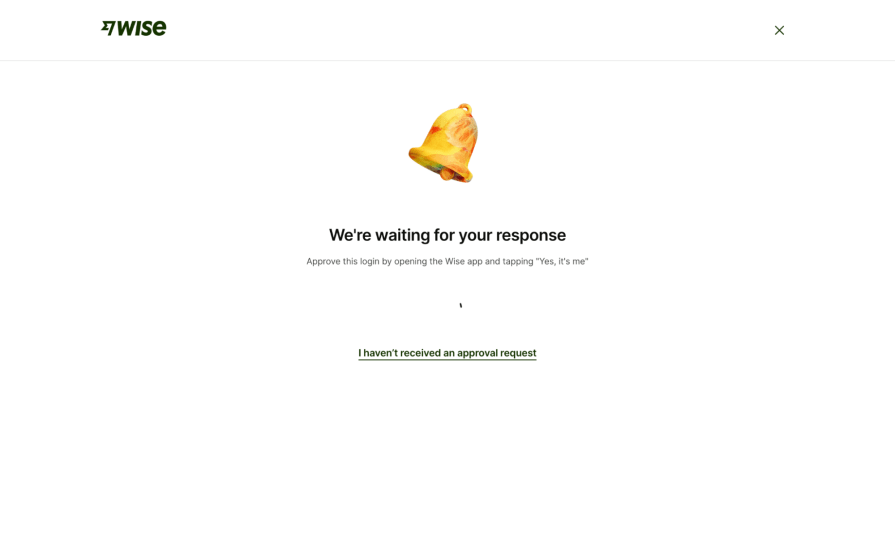
As far as multi factor authentication design goes, tap-to-login is the most user-friendly option because it only involves tapping, but it obviously isn’t available to products that don’t have cross-platform companion apps.
Biometrics
Biometric authentication includes face and fingerprint verification (voice verification is rare because it can’t be used in silent environments). They’re easy to implement as the device’s operating system does all of the work.
Many devices, however, don’t have certain (or any) biometric capabilities. So, realistically, this one’s for handheld devices — even Apple computers don’t use Face ID, although they do use Touch ID (as shown below):
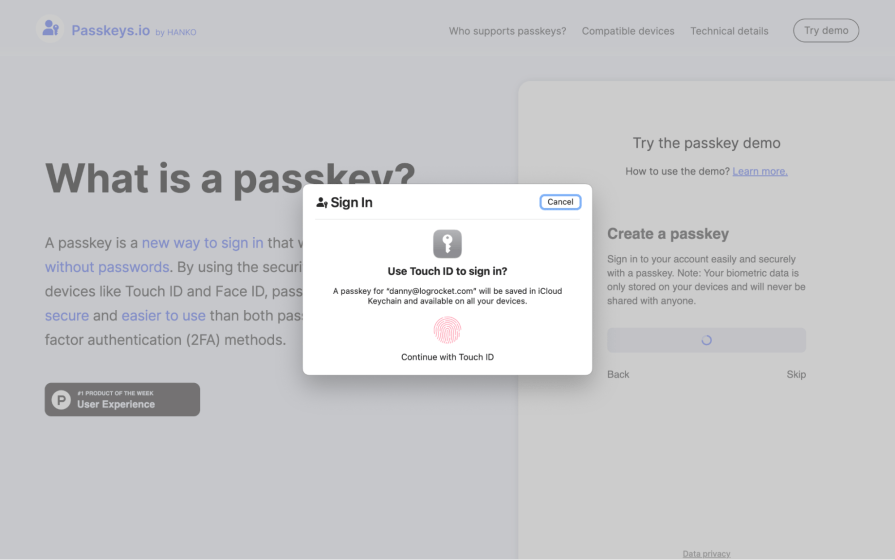
It’s typically a subsequent MFA step so that in the event of illegal recording, phishing, or robbery, cyberattackers would still require the email and password to log in.
Security aside, it’s also a neat method of verification that doesn’t require typing (like tap-to-login, but more accessible).
Passkeys
Passkeys are lengthy, random cryptographic keys. They’re basically super strong passwords that are different for every product, so if an attacker were to steal a passkey, it wouldn’t work on any other product. Users don’t even learn what their passkey is, so they can’t reveal it to anyone either.
There are actually two parts to a passkey — the public key (which is more akin to a lock) is stored on the product’s server, and the private key (that unlocks the lock) is stored in a super secure vault on the user’s device. When the user logs in, the product sends the public key to the user’s device, which verifies three things:
- The app/website (this prevents phishing attacks)
- The user (using their biometrics, PIN, or password)
- That the public and private keys are cryptographic pairs
That’s right, the user’s device does the authorization — it doesn’t send the private key to the server for the product to do it, preventing the private key from being intercepted. Instead, it sends a time-based or event-based signature, which basically means that it’s valid for one login only, making it useless to attackers if they were to steal it.
For you to do
Public keys and private keys are also useless to attackers — they’d need both (among many other things) to compromise a user’s account.
They’ve kind of thought of everything, right?
Passkeys are a cross-platform open standard, so web browsers, operating systems, password managers, and even USB security keys can store passkeys securely and lock them behind whatever native security measures users set up.
UI designers only need to create a “Sign in with a passkey” button; the server just needs to store the public key, followed by the operating system, web browser, etc., and handle the rest. This means, to give just one example, that fingerprint verification can now be used on the web.
If you want to see how they work in practice, check out this passkeys demo:
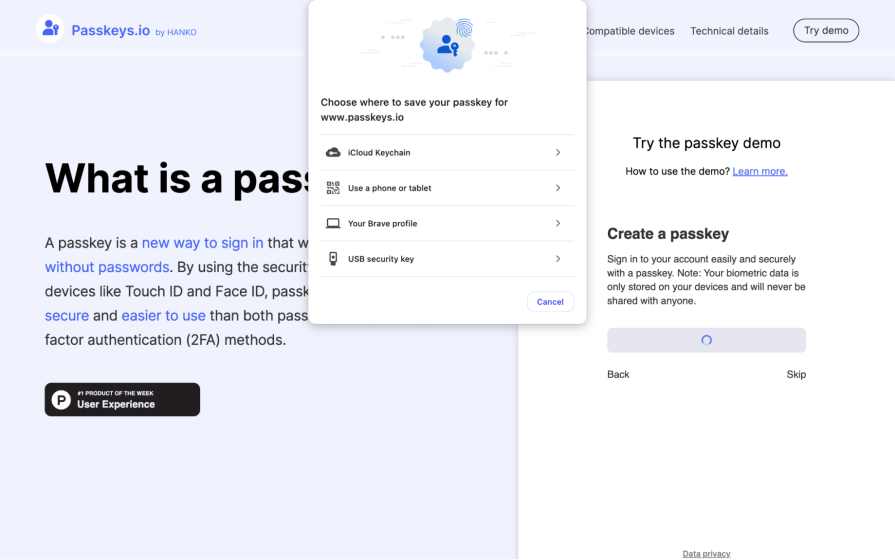
You must remember that if the user loses their passkey, they lose access to their account. However, ‘synced’ passkeys can be copied to other devices using a QR code and Bluetooth or stored in the cloud. In addition, different devices can have their own ‘device-bound’ passkeys.
Either way, remind users of what passkeys they have whenever they log in, especially if they only have one, and, of course, what happens if they don’t manage their passkeys effectively.
Authentication UI/UX design best practices
Design good input fields
Typing alphanumeric passwords or even just numerics can be a pain, especially on handheld devices. But you can mitigate this pain with good UI design. Good input fields have:
- Labels, so users know what the field is for
- Placeholders, to provide an example value
- The correct ‘type’ (e.g.,
email), so that front-end validation works out-of-the-box, that passwords get redacted, and that the appropriate keyboard format pops up (communicate these to devs during handoff) - Clear, contextual, front-end validation
Provide backup codes
Stolen/lost phone? That’s no problem; that’s what backup codes are for.
Backup codes are long, alphanumeric values that can be used as MFA-bypassing passwords for one time only to get users back into the product, where they can then renew all of their security settings.
Products typically provide a few backup codes at a time (don’t worry, they’re much harder to brute-force than ordinary passwords because of their length and complexity):
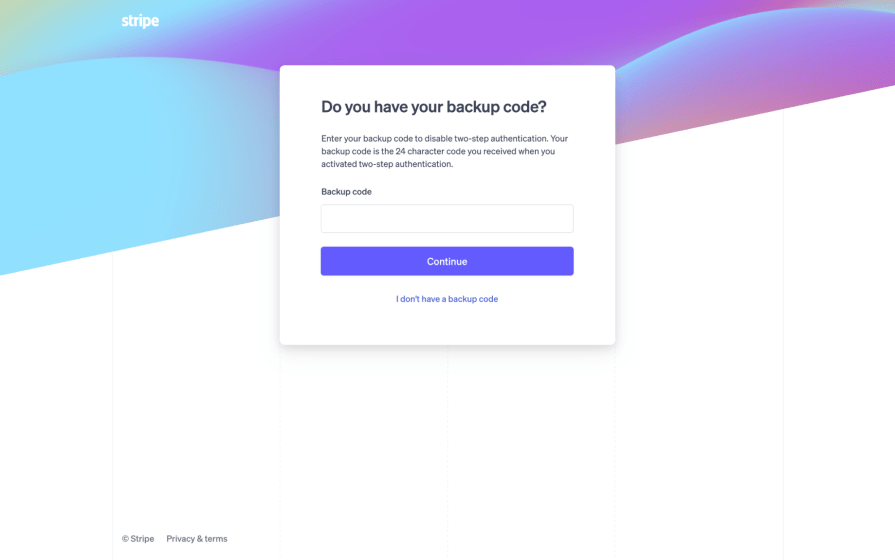
Recommend that users print them, not store them digitally.
Also, allow users to refresh them and recommend that they do so (despite their length and complexity, they are still passwords that can be leaked).
Reaffirm unrecognized logins and new security actions
In the event that a user’s account is compromised remotely, chances are that it’ll be from an unrecognized location, web browser, platform, or device. Therefore, sending them a quick “Unrecognized login: was this you?” email is a very effective way to help users review their account’s activity, take action, and ultimately mitigate the problem.
You should also do this for key security actions, such as when an MFA method is set up or disabled, when a backup code is used, when a password is changed, and so on.
If a user’s device gets stolen, they’ll probably still have access to their emails on another device, so email is definitely the right way to contact them about this sort of thing.
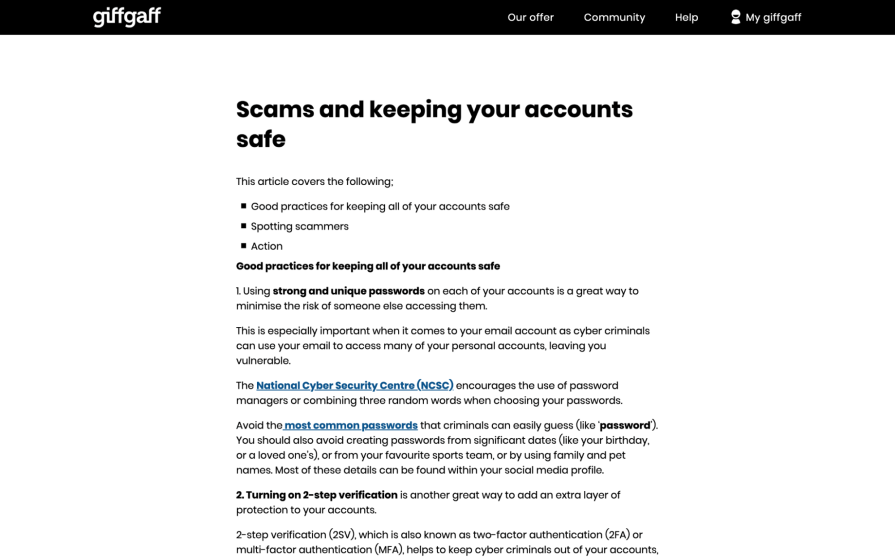
Provide good security tips
Providing good security tips doesn’t just help users keep their accounts safe. It also helps users understand and care about the security of their accounts, as well as to take the necessary security measures that might seem like an inconvenience if we told users to take them without explaining why.
This should include:
- How to avoid phishing scams
- How to create secure passwords
- How to review and refresh security settings, as well as reminders to do so
- How you will and won’t communicate with them, and what sort of information you’ll ask and not ask during communications
Look at how giffgaff does it:
Conclusion
Security and usability should not be at odds in authentication design. Users expect a seamless experience, but they also need protection from ever-evolving threats. By implementing strong authentication methods — whether through passkeys, biometrics, or well-designed multi factor authentication — we can strike the right balance between security and convenience.
As UX designers, our role is to ensure that security measures do not become barriers but rather enablers of a smooth, intuitive experience.
Thoughtful UI/UX design can make authentication feel less like an obstacle and more like an effortless part of the user journey. With the right approach, secure access can be both effective and user-friendly, reinforcing trust without compromising usability.
Take these things away:
- Prioritize frictionless authentication — Implement passkeys, biometrics, or passwordless authentication to reduce cognitive load
- Make security intuitive — Use clear affordances, progressive disclosure, and inline guidance to help users navigate authentication easily
- Reduce user effort — Minimize unnecessary steps, autofill credentials where possible, and allow seamless sign-in across devices
- Communicate security effectively — Provide feedback when authentication succeeds or fails, and explain why certain measures are in place
- Consider accessibility — Ensure authentication flows are inclusive by supporting screen readers, voice commands, and alternative verification methods
- Balance security with usability — Use risk-based authentication and adaptive security measures to offer stronger protection only when necessary
By applying these principles, designers can create authentication experiences that foster trust, enhance security, and improve overall user satisfaction.
For deeper dives on MFA design, check out our articles on security risks, best methods, accessibility, and scaling MFA.
The post Multi factor authentication design: Security meets usability in UI/UX design appeared first on LogRocket Blog.
This post first appeared on Read More