
2FA drastically improves user account security by adding a second layer of protection to primary login credentials. 2FA requires configuration, management, and additional steps during authentication, so improving UX while strengthening security is a must to avoid user frustrations. An optimal balance of usability and mandatory security requirements creates a secure and frictionless 2FA flow.
The following 10 usability heuristics guide you in designing secure and frictionless 2FA for any digital product:
Why heuristics matter in 2FA UX?
In UI/UX design, heuristics are well-established principles and practices to create user-friendly, usable product designs. There are no strict rules in 2FA UI/UX design, but designers should follow 2FA usability heuristics to create usable, familiar, learnable, smooth 2FA verification, recovery, and configuration flows, while strengthening overall application security.
Examples for poor vs. effective 2FA patterns
Adhering to heuristics creates an effective 2FA UX for users, and neglecting heuristics causes poor UX:
| Poor | Effective | |
|---|---|---|
| Offering mandatory hardware keys for 2FA configuration for a general productivity app Problem: Limited 2FA choices | Displays multiple 2FA choices, including SMS, TOTP authenticator app, biometrics, and hardware keys, with concise explanations for each option | |
| SMS OTP is sent immediately after entering login credentials, a timeout is set for a few seconds, and there is no resend option Problem: Accessibility and delivery issues | OTP is sent after displaying the last two digits of the phone number on user confirmation. A resend option is available, and the OTP expires in a few minutes |
Top 10 heuristics for 2FA UX
The following 10 2FA usability heuristics help you design frictionless, secure, and effective 2FA flows:
1. Onboard with a progressive setup flow
In each 2FA configuration flow, the user has to perform different, progressive tasks, so we should offer a step-by-step configuration UI for simplicity. Here are generic steps that you should include in any 2FA configuration for enhanced usability and security:
- Onboarding — Educate the user about the specific 2FA method
- Linking — Entering a phone number, scanning a QR code, or plugging in hardware keys for 2FA registration
- Verification — Verify 2FA device with OTP or TOTP
- Recovery setup — Downloading backup codes or recommending setting up any recovery method
2. Provide method choice with explanations
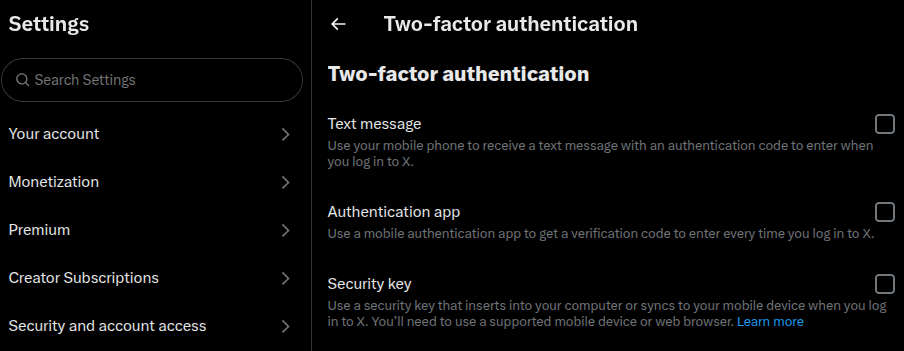
Offer several 2FA methods, at least two or more options, selecting from SMS, TOTP authenticator app, biometrics, and hardware keys, and let the user select preferred methods.
Add concise explanations for each method, also using an onboarding explanation with learn more links, so even if the user isn’t familiar with a specific 2FA method, they can quickly learn and adapt to it through your product.
3. Offer pre-checks for device/browser compatibility
Not all users use the latest up-to-date device to access your product — they can use low-end devices and reasonably old browsers. Showing compatibility messages at the end of the configuration wizard or greying out without explanations aren’t good practices as they confuse or frustrate users.
Display only 2FA options that the user’s device or browser supports. e.g., hiding the biometrics option if the device doesn’t support biometric verification.
4. Avoid unnecessary repetition across sessions
Avoid 2FA when the security risk is very low to improve user convenience. Skipping 2FA on devices that the user often uses to access the product, also known as trusted devices, is common on most products. On trusted devices, digital products often skip 2FA even if the user logs out, unless risk assessment results are changed.
5. Surface fallback paths without hidden menus
2FA methods can fail, so offer a clear initialization point for a secondary 2FA flow, and if that fails, offer access to a 2FA recovery flow. Never hide these options under hidden menus and frustrate users, especially when their mood is changed with the fear of account lock-in. Disclose secondary and recovery options progressively for security purposes and to avoid user decision-making challenges.
6. Use language that clarifies, not confuses
2FA involves cryptography, hardware devices, and operating system-level security features, but don’t use their technical jargon to describe security features or user flow steps. Use simple, non-technical language to describe 2FA in a way that everyone understands.
Here is an example:
- Do: Use an authenticator app to generate one-time codes for two-factor authentication
- Don’t: Use a TOTP app to strengthen 2FA security with the RFC 6238 TOTP algorithm
7. Support biometric and hardware keys where possible
Biometrics offers the most convenient user verification method. No OTPs, copy-paste, typing— the user just needs to look at the camera or touch the fingerprint sensor, regardless of the device type. Modern hardware keys have proven security over all other 2FA methods. Support biometrics for convenience and hardware keys for users who are extra careful about online security.
8. Respect accessibility principles
Design 2FA prompts and flows with accessibility in mind to help everyone secure their accounts regardless of their abilities. Here are some accessibility factors that are so important in 2FA design:
- Optimized text and UI element contrast
- Keyboard navigation
- Resend OTP options and reasonably long timeouts
- OTP autofill and copy-paste support
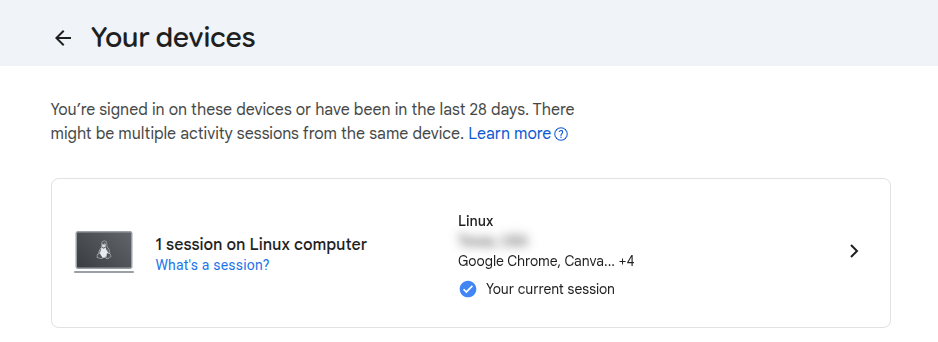
9. Let users review and revoke trusted devices
Create a new section or page in the user settings to review and revoke trusted devices. This helps users to block account access for a specific device if it is lost or stolen.
10. Minimize friction without weakening security
Improve user productivity by reducing user interaction with 2FA activities without weakening security. Here are some common ways to do so:
- Optimized timeouts — Balance convenience and security for OTP and session timeouts
- Multiple 2FA methods — Users can choose based on convenience and security
- Auto-filling and auto-verification — Autofill and auto-verify SMS OTPs if your product is a mobile app
Metrics to evaluate usability
- Configuration abandonment rate — If more users move away without configuring 2FA, there is a usability issue in the 2FA configuration flow
- Code entry success rate — If more users enter the OTP or TOTP code correctly in the first attempt, the 2FA prompt’s usability factor is high
- Session drop-off during recovery — If more users abandon the process when they are in the middle of a 2FA recovery flow, the recovery flow’s overall usability is low
Summary: Heuristics vs. risk mitigation
Mitigate security risks based on the following security implications while implementing heuristics:
| Heuristic | UX benefit | Security implication |
|---|---|---|
| Simplified flows | Higher completion rate | Avoid skipping mandatory security safeguards |
| Session persistence | Less re-auth fatigue | Risk if the device is shared |
| Extended timeouts | Accessibility benefits | Avoid too long timeouts to minimize bruteforce attack risk |
| Skipping 2FA | Productivity benefits | Never skip 2FA on untrusted devices or on suspicious activity |
| Multiple recovery options | Recovery flexibility | Risk if weak methods are used |
FAQs
How often should 2FA prompts appear?
Minimum as possible. A general product may ask once on a new personal device and again only if there is a security risk
Should we check the “trust device” option by default?
Should be checked on personal devices to reduce friction
Is the 2FA prompt used only with login?
No, you can use it to secure sensitive features, e.g., before processing a financial transaction
The post 10 usability heuristics for designing secure and frictionless 2FA appeared first on LogRocket Blog.
This post first appeared on Read More