
WordPress websites seem to grow more complex each year. We add a multitude of plugins and write custom code. And now we’re adding various flavors of AI to the mix.
It’s risky to apply these features to a production website without proper testing. As such, a staging site is crucial to ensure everything works. This enables you to catch bugs before they impact users. It also allows you to experiment with new features.
What is a staging site? It’s a copy of your production website that lives elsewhere. Common examples include a separate install on your web host or a local installation. The content doesn’t necessarily have to match. However, the site’s theme and plugins should be included to ensure an apples-to-apples comparison.
This guide will introduce you to how staging sites work, ways to implement them, and tools for building them. Soon, you’ll have everything you need to set up the perfect testing environment.
Does Your Web Host Offer Staging Environments?
Before we go any further, note that many web hosts offer staging environments. Some allow you to clone your production site with a click, making the process a piece of cake.
Beyond the convenience of this setup, there are a few other advantages. The first is that the hosting configuration is the same. You have the same server architecture, and can usually run the same versions of PHP and MySQL (or MariaDB, depending on what your host offers).
It’s also possible to change versions when needed. You can use this functionality to test PHP upgrades and make any necessary adjustments.
Another big plus is that you can often sync your websites across environments. This is a great solution for launching a redesign or shipping new features.
Best of all, hosts do the behind-the-scenes work to ensure your staging site works. They’ll assign a temporary URL, saving you from performing a search-and-replace in the database.
A host-based staging site is usually the best option. It’s easier and has all the features you’ll need.
Local Hosting Tools
Hosting your staging site locally is another worthwhile option. You get the speed and privacy of running WordPress on your device. Even better, there are tools for spinning up new sites in a jiffy. From there, you can use a backup plugin to copy your production site and import it locally.
Here are a few tools that you can use to build a local staging environment:
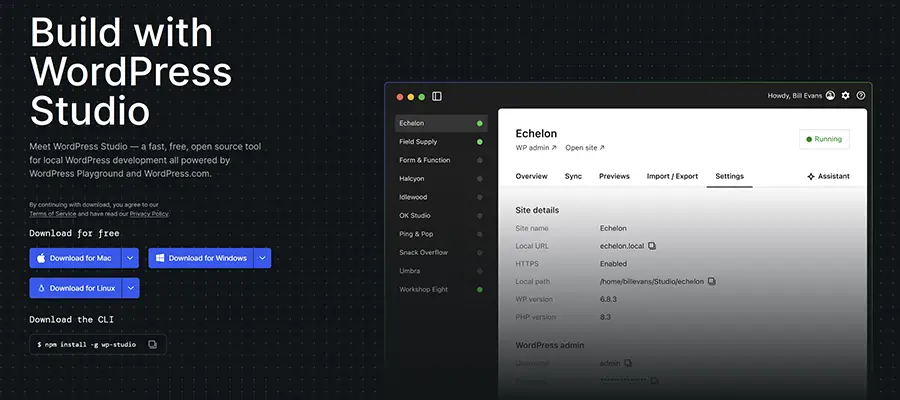
Studio
Studio is a free and open-source local development environment from WordPress.com (a sponsor of Speckyboy). The app uses WordPress Playground to help you create new sites on demand with no dependencies. If you use WordPress.com or Pressable for hosting, you can also sync your local sites.
Local
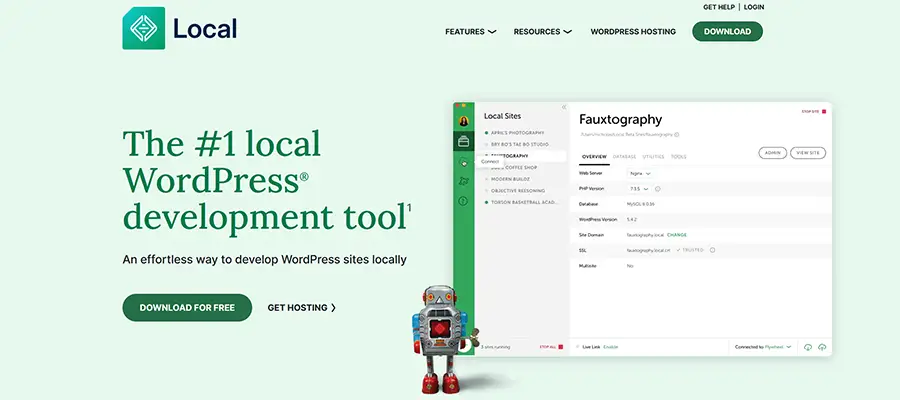
Local offers one-click WordPress installations and a host of other goodies. You can use SSH or WP-CLI to manage your sites via the command line, create live links to share with others, and hot-swap PHP versions for testing. The app also syncs with sites hosted on Flywheel and WP Engine.
MAMP and XAMPP
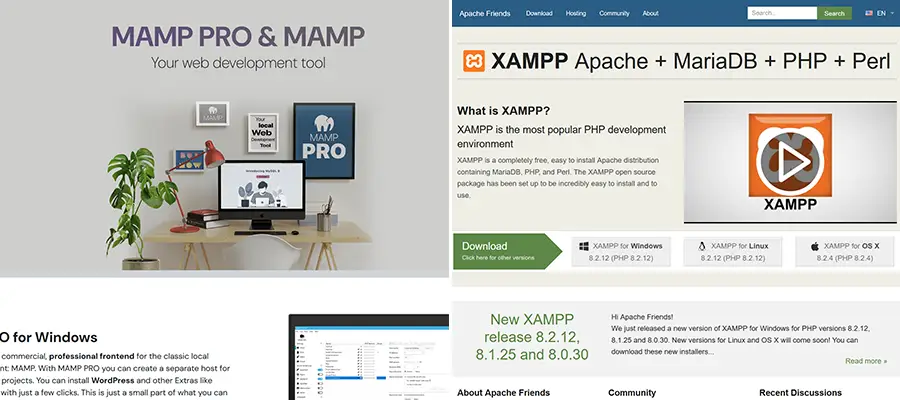
We’ll lump these two apps together, as they are similar in scope. Both are local server environments that work on multiple operating systems. XAMPP will install an Apache/MariaDB/PHP/Perl stack. MAMP lets you choose from Apache or NGINX, along with a MySQL/PHP/Perl/Python/Ruby stack. Consider them both a bit more hands-on than the other local apps in this roundup.
WordPress Staging Plugins
Finally, we’ll introduce you to some plugins that will help you create a staging environment. Some will create a separate WordPress install on your existing host, while others connect to third-party services. You’ll also find plugins that pack up your site so that you can upload it elsewhere.
WP STAGING
WP Staging provides flexibility for how and where to create a staging environment. The plugin will clone your site to a subdirectory on your existing host. But you can also download a package to use locally or remotely. It also doubles as a daily backup plugin.
WPvivid
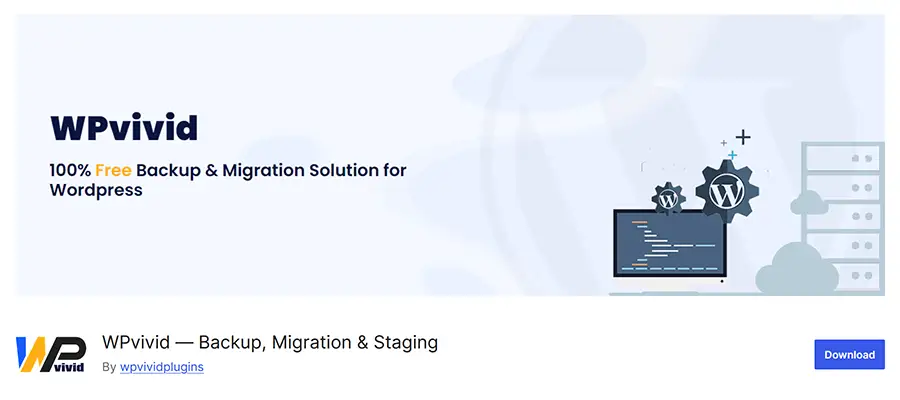
Create a custom site backup with WPvivid and migrate it to a subdirectory on your web host or other remote server. You can even send your site’s files to cloud services like Amazon S3, DigitalOcean Spaces, Dropbox, and Google Drive. There’s also a 1-click restore feature for rolling your site back to a previous version.
InstaWP Connect
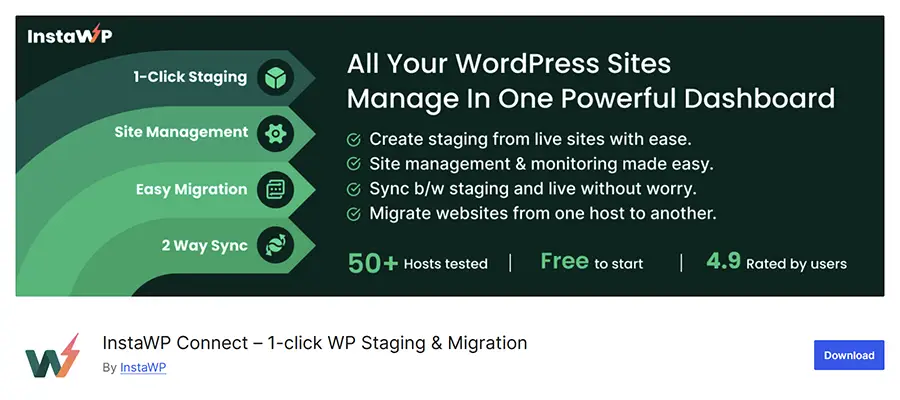
InstaWP is a WordPress cloud service for rapid site building and deployment. You can use the InstaWP Connect plugin to copy your production website to the platform. From there, you can sync content between environments – perfect for testing new items before launch. Note that you’ll need an InstaWP account to use their service.
BlogVault
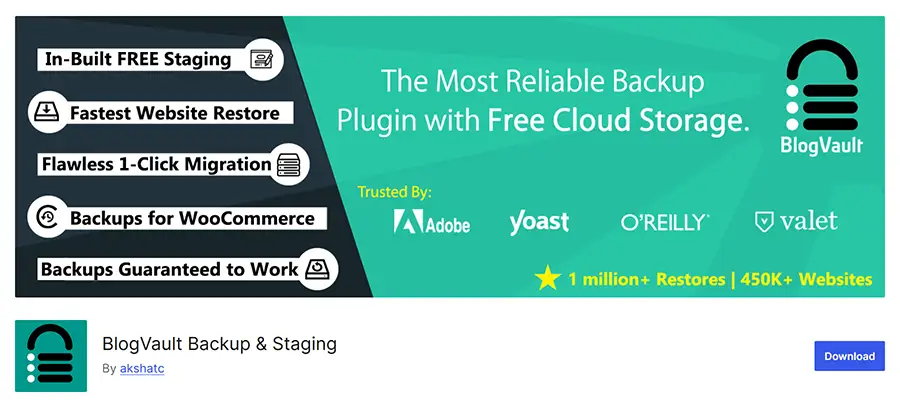
You can use BlogVault to create a staging backup to their cloud service. Make changes on staging and merge them back to your production site. The plugin also supports migrating your site to another host and will create incremental backups as you make changes. Note that BlogVault offers a 7-day free trial – you’ll need to pay for long-term access.
A Better Way To Test WordPress
A staging environment is a must-have for any mission-critical WordPress website. It’s a safe place for testing, troubleshooting, and experimenting. In addition, it provides peace of mind in knowing your work won’t negatively impact users.
The tools above will give you a great start, but some go the extra mile. Features such as site syncing and backup restoration make your job that much easier. The more automation you can bring to the process, the better.
Don’t take chances with your live website! Staging environments have never been easier to build and use. Find the tool that fits your needs and create your own personal safety net.
The post Best WordPress Staging Site Tools & Resources in 2026 appeared first on Speckyboy Design Magazine.
This post first appeared on Read More