

Designing drag and drop UIs: Best practices and patterns
Drag-and-drop is an intuitive way for users to interact with digital products because it mimics real-world actions, like moving a card. In this article, we’ll discuss how to design drag-and-drop interactions effectively in user interfaces and its use in different contexts, including Kanban boards in tools like Trello, list applications such as Apple Notes and Notion, and canvas tools like FigJam and Miro.

We’ll also cover various implementations, design considerations, accessibility, and implementation across platforms like mobile, desktop, and tablets. So let’s explore this feature in detail.
Editor’s note: This article was rewritten by Edward Chechique on 2 July 2025 to expand on insights from the original post, exploring why and when to use drag and drop, adding real-world examples, discussing platform-specific considerations, and providing accessibility implementation tips.
What is the drag and drop pattern in UI design?
Drag and drop is one of those interactions that just makes sense. Whether you’re on a desktop using a mouse, or on mobile swiping with your fingers, the idea is simple. You grab something, move it, and drop it somewhere else. Just like in real life.
That’s what makes this interaction pattern so powerful. It brings that physical, intuitive feeling into digital interfaces. Pick something up, move it, let it go — and even better, the pattern is the same across desktop and mobile.

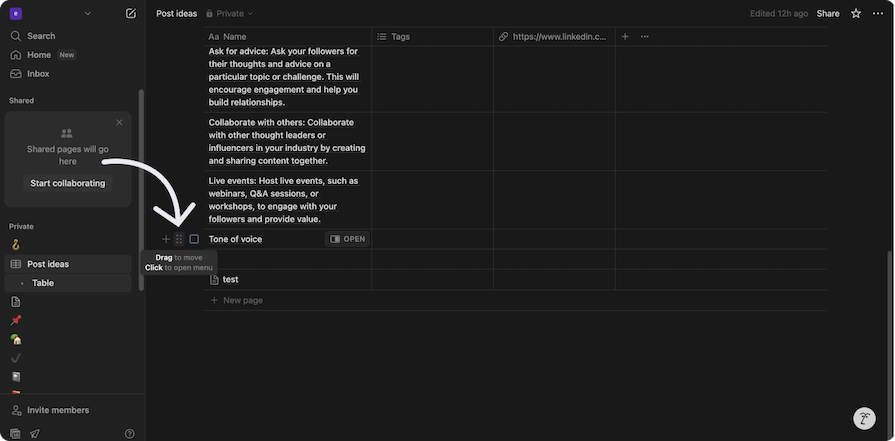
You’ve seen it in task tools like Trello or Jira, where you move tasks between columns. Or in note apps like Apple Notes, when you reorder items:
Canvas-based tools like FigJam or Miro take it even further. You move elements freely around the screen, arranging things however you want. It’s not classic drag and drop in the technical sense, but it feels very similar.
Maybe the most common case for this interaction is the file upload feature. Drag and drop is a common UI pattern that allows users to select an element, drag it to the upload zone, and then upload it to the software, something we see in almost every app.
In the end, this pattern works so well because it borrows from real-world behavior. It makes the screen feel more human, direct, and engaging.
When to use (and not use) drag and drop
Users are already super familiar with drag and drop. In some apps, especially task managers or anything with file handling, it’s not just a nice-to-have — it’s expected. People assume it’s there.
Think of it like buying a car. You don’t ask if it comes with air conditioning. You just expect it. Same with drag and drop. If your product deals with tasks, files, or rearranging content, your users will look for that interaction without thinking twice. It’s part of the standard now.
You should use drag and drop for:
- Task management with a Kanban structure
In task management apps like Trello or Jira, where drag and drop fits naturally into the kanban-style interface. It helps users feel comfortable because the interaction is familiar and intuitive - Real-time feedback and visual confirmation
When you want users to see changes in real time. For example, when someone moves a file from one folder to another and sees it update in the interface, it confirms the action and builds trust - Layout customization

It works really well in interfaces where users need to customize layouts to fit their specific needs. Think about tools like Figma, Photoshop, or Illustrator, where users can drag panels or tools around to create their ideal workspace:

- Interactive menus with more control
If you want users to open or close a menu interactively, instead of pressing a button, they can grab the menu edge and drag it to the side to close it. This gives them more control. On the other side, another great example is Figma’s left-hand sidebar. You can drag it to the right to reveal more layers of information - Flow creation and idea mapping

For creating and organizing flows. Apps like FigJam use drag and drop to let users build diagrams, map out ideas, and move things around the canvas freely. It makes the whole process feel smooth and simple:
Even so, there are some use cases where users don’t expect the drag and drop capability, or even where it might detract from the user experience. Avoid drag and drop in these situations:
- When the task doesn’t match the pattern
If the task isn’t something users normally do with drag and drop, don’t force it. For example, submitting a form is typically done with a button. That’s what users expect. It wouldn’t make sense to drag the form into a “submit” zone - As the only option on mobile
You can use drag and drop on mobile, but it should never be the only way to complete a task. Always support it with a simple interaction. For example, if users need to move items from a list, offer a menu option - For critical actions
Avoid drag and drop for delete, confirm, or pay. These actions need to be clear and intentional. Drag and drop can feel too casual or uncertain for high-stakes tasks - When precision is required
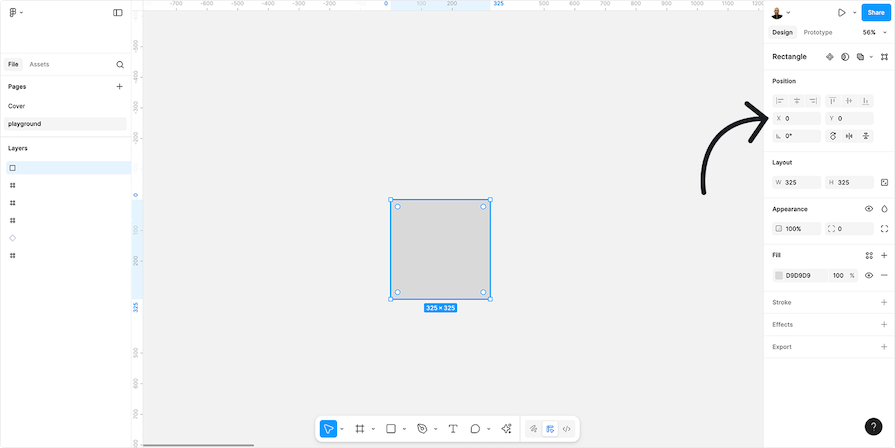
If a task needs pixel-perfect placement, drag and drop might not be enough. For example, positioning an element at coordinates like0,0on a canvas is hard by hand. In these cases, always offer number inputs (X and Y, along with Z if it’s 3D) so users can place elements exactly where they need them
In situations where drag and drop isn’t the best option, here are some alternatives:
- Opening and closing menus — Always include a button that lets users open or close the menu easily, especially on mobile
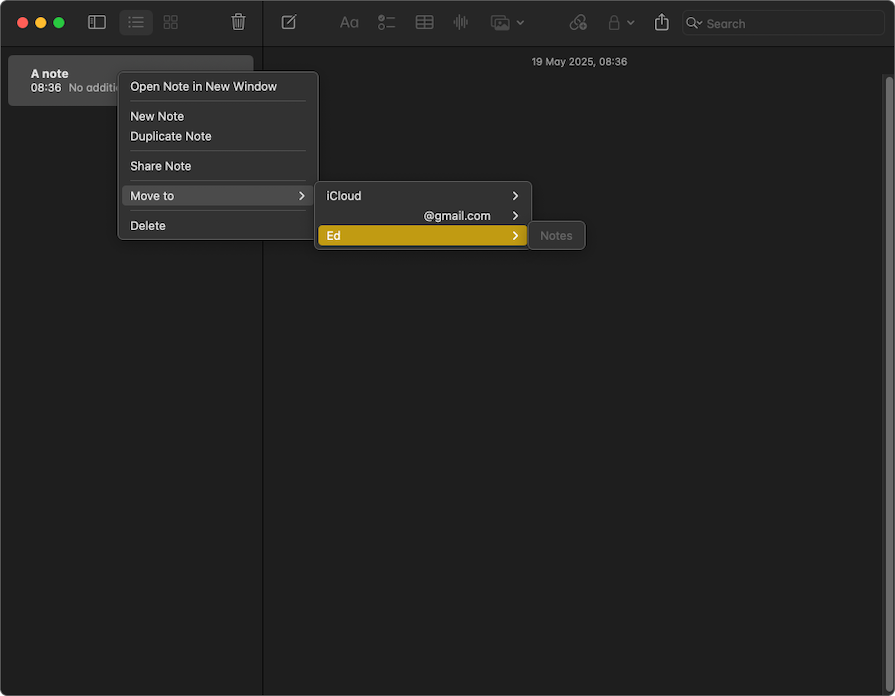
- Moving files on the screen — Offer a menu with move options so users can place files more accurately without drag and drop:

- Organizing lists — Include up and down buttons to reorder items, which is often simpler and more accessible
- Batch actions — Let users select multiple items at once, then choose the target location from a menu instead of dragging everything manually
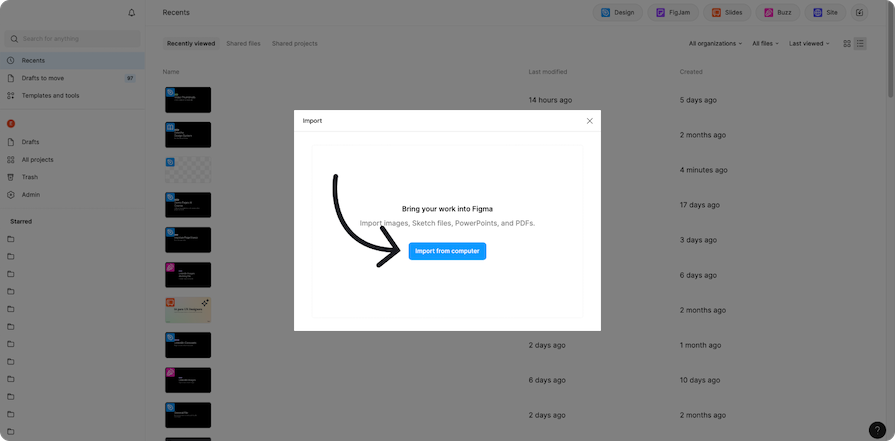
- Uploading files — Add a button that opens the file picker window, so users can select files directly instead of dragging them in:

UX best practices for drag and drop
Let’s go over a few best practices that can help you make drag and drop feel smooth, intuitive, and actually useful for your users:
- Provide clear visual clues for the user, like icons such as dots or handles, to indicate which elements are draggable:
- Show different states during interaction. For example, use a hover effect on the desktop to show that an item is selectable, change the cursor to a hand when the user grabs an element, and highlight the drop area. You can use color, shadow, stroke, or animation to make it clear

- Make the drop zone large enough so that even if the user doesn’t drop the item in the exact spot, it still works. This prevents frustration. Here’s an example of how Slack provides a large drop zone to make file upload easier:

- Test the experience on different devices to make sure the interaction works everywhere
- Add an undo option, either with a button or using the familiar Control + Z shortcut, so users can easily correct mistakes
- For critical actions, include a confirmation step. For example, if drag and drop is used to delete an item, show a confirmation modal before completing the action
- If a user drags an element to the wrong place, block the action and give immediate visual feedback. If you prefer not to block it, at least show a message explaining what went wrong. But in most cases, preventing an action is the better choice
- Use a small onboarding interaction or tooltip to show users that drag-and-drop is available. It’s not always obvious the first time someone opens the app
Drag and drop and accessibility
Accessibility guidelines can help make drag and drop interactions easier for everyone. This type of interaction can be challenging for people with disabilities, so it is important to ensure it is smooth and user-friendly.
Keyboard navigation support
Keyboard support for drag and drop isn’t just a nice-to-have. It’s essential for people who can’t use a mouse. Some users depend on the keyboard to get around, and if your product leaves them behind, that’s on you.
Here’s how an appropriate user flow with proper keyboard navigation support should look like:
- User uses the
Tabkey to move between elements - When the user focuses on a draggable item, a clear focus state is shown to indicate it’s ready to be interacted with
- Tapping the spacebar or
Enterkey will select the focused item - Once selected, users should be able to move the element using the up, down, left, and right arrow keys
- To drop the item, they can press the spacebar or
Enterkey again - If they want to cancel the interaction, pressing the
Escapekey should exit drag and drop mode immediately
In the example below, you can see how I use the keyboard to move to an item in the list:
- I use the
Tabkey to navigate to the item - Select the item with the
Enterkey - Move the item down with the keyboard
This is a simple example of how keyboard navigation works on a page. It uses a simple list, like those found in task or reminder apps:

Check out the example here and try it out for yourself.
Screen reader support
To make drag and drop accessible for screen reader users, you need to implement ARIA attributes. This set of attributes helps assistive tech, like screen readers, understand what’s happening in the user interface. It adds the extra layer of meaning that standard HTML can’t always provide.
For example:
- Use
aria-grabbed="true"to show the element is selected - Use
aria-dropeffect="move"to tell the computer that the space is valid to drop the item
In the example below, you can see how, along with keyboard navigation, there is a simple box with text that explains what the user did on the screen. This text is what a device can read for people who use screen readers:

Interact with this example yourself to get a better understanding of how and why this helps with accessibility.
Accessibility implementation tips when working with HTML 5
- The native drag and drop functionality is not keyboard accessible by default for HTML 5
- Browsers implement the API differently, so it can cause inconsistency
- There is limited support for screen readers, so it’s something that needs to be done with additional scripting
Things designers and developers must keep in mind
- Designers and developers should work together to identify every part of the product where drag and drop is used and make sure it’s accessible
- Always provide alternative ways to interact, especially for keyboard users. Drag and drop can’t be the only option
- Test the interaction on different devices to make sure it works smoothly for everyone
Designing for different platforms
On different platforms, there are different ways to interact with drag-and-drop. Basically, the main points are the same, but because on a desktop we use a mouse, and on an iPad and tablet we use our fingers, there are some differences. Let’s take a look at them.
Desktop
- When the user hovers over a draggable item, change the cursor to a hand symbol or “Move” icon. This helps users know that the item can be dragged:

- Clearly show where items can be placed by using visual cues such as changing the background color, adding an outline, or using small animations to show interactivity. For example, in WeTransfer, the whole screen is highlighted to show where users should drag their files to upload them:
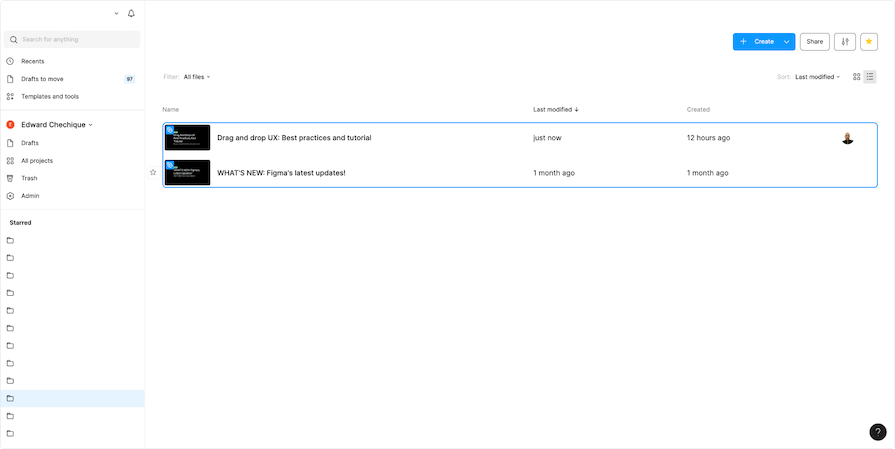
- Allow the user to select and drag more than one item at a time. For example, in Figma’s file manager, users can select multiple files and drag them together:

- In lists, make it clear where an item will go after it is selected and moved. For example, in Notion, a line appears to show exactly where the dragged item will be placed:

- For interfaces that require precise placement, provide input fields so users can position items exactly where they want. For example, in Figma, users can drag elements on the canvas and use input fields to set their exact positions:

Mobile
- On mobile, drag-and-drop should not be the only option. Add another way for users to move elements because small screens and fingers make it difficult. Always provide an alternative way to move items
- Because the screen is small, avoid conflicts between interactions. For example, drag-and-drop can interfere with scrolling, so test it to ensure it works well
- Add icons, like handles, to show users where to touch and drag elements. This makes it easier for them to understand
- Show clear visual feedback to let users know where they can drop the element
- Use enough space for users to touch the element with their finger. For example, make the element at least 44 pixels to make it easier to move. Smaller sizes make it harder to touch and move
Tablet
- Tablets are versatile devices that support interaction through fingers, styluses, and, in some cases, mice. Designing for tablets requires considering these input methods to ensure usability and functionality
- Hover interactions are not essential for most tablets since they lack mice. However, on iPads, hover becomes important because users can navigate the interface with a mouse
- Ensure target zones are large enough for finger interaction. Smaller zones make it hard for users to move elements accurately
- Ensure stylus support for drag-and-drop actions, as seen in apps like Apple Notes and Notion, where users can easily move elements
Drag and drop UI design patterns and use cases
There are many areas in interfaces where designers can use the drag-and-drop pattern. Let’s look at some common examples:
- Uploading files — You can use this pattern when designing an interface where users need to upload files. It is very common and appears in almost every application
- Reorder info — Drag-and-drop is often used in apps with lists, like Notion, Jira, and Trello, to organize information visually
- Organize the interface — Photoshop, Illustrator, and Figma users can organize the interface by moving tools or plugins. This helps them customize the workspace to fit their needs. In addition, when users organize elements on the desktop or mobile screen, it is a similar case
- Grouping or nesting — You can use drag-and-drop to organize folders on your computer, like in macOS or Windows. It lets you move files or folders into other folders easily
- Multi-select & bulk actions — Let users select multiple objects, files, or elements at once and move them together. For example, on iOS, you can select many images, delete them all at once, or send them in one click to a friend. This saves time and makes it easy to manage multiple items

- Resizing — Resizing an image is similar to a drag-and-drop interaction, though it is more like a movement. For example, in Figma, when the user wants to crop or resize an image, they select the item, move the mouse, and adjust it easily:
Component-level and system-wide considerations
Design systems
When designing your design system, focus on creating reusable components for all applications. For instance, a common UX pattern incorporates drag-and-drop interactions, allowing developers and designers to reuse them consistently.
Whether using code or a Figma UI kit, keeping components like file upload interactions consistent across applications saves time, makes the UI more familiar to users, and boosts efficiency for both development and design teams.
Naming conventions
Use clear and simple names for components to ensure everyone understands them, whether they are developers working with code or designers using a UI kit. For example, name a draggable item or drop target based on its function. If you’re unsure, use ChatGPT to help choose the best names by describing the component and its parts.
Accessibility
Accessibility is crucial when designing drag-and-drop components. These components can be challenging for some users, so it’s important to provide alternative ways to move elements on the interface.
Add keyboard navigation and clear AIRA rules to make the feature easier to use. Additionally, include an undo option, like pressing Ctrl+Z or using an Undo button, to help users correct mistakes easily.
Collaborate on technical frameworks
Before adding drag-and-drop interactions, discuss with your developers the best technical approach for the system. This ensures the interface is user-friendly and aligns with the developers’ tools and frameworks, meeting all functional needs.
Drag and drop: Best practices checklist
Here is a checklist to help you review the article before using drag-and-drop. It will make checking all the points easier:
Discoverability
- Use clear labels for draggable items
- Display visible drag handles or triggers (e.g. grip lines, icons)
- Apply hover effects to indicate interactivity on the desktop (e.g. cursor change, shadows, outlines).
- Include tooltips or microcopy to guide first-time users
- Use subtle motion or animation to hint at draggable elements
Interaction design & feedback
- Make the grabbed state visually distinct (transparency, elevation, shadow, tilt).
- Highlight drop zones when an item is dragged
- Showing valid, invalid, or special drop actions
- Animates movement smoothly to preserve a sense of place
- Show clear post-drop feedback to confirm the action is complete
Accessibility
- Support full keyboard navigation with Tab, Arrow Keys, Enter, and Space
- Use ARIA attributes
- Design big, easy-to-tap targets for mobile users
- Offer alternative actions like right-click menus
Help users stay in control
- Add an undo or cancel option after users drop something
- Show clear messages if something goes wrong
- Use snapping to help items line up neatly
- Let users select and move multiple items at once
Testing
- Test the feature on different screen sizes (desktop, tablet, mobile)
- Check interactions with various input methods: mouse, touch, and keyboard
- Make sure it works on different operating systems and browsers
- Watch real users interact with the feature during usability testing
Use cases & context-specific patterns
- Reordering: Use placeholders, animations, and visual cues to guide position changes
- Resizing: Add clear handles and show live previews of size changes
- File upload: Design large, visible drop zones
- Content transfer: Show changes visually or with confirmation messages
Examples of effective drag and drop UIs
Let’s look at examples of using drag and drop in different applications.
Resizing the menu in Apple Notes

When using the Apple Notes app on laptops and desktop computers, you can click a button to open and close the main menu. The menu will open to a default size you can then drag to resize:
Why it works:
- Layout customization is a non-critical action that enhances UX in a subtle way
- The cursor changes to the “Move” icon as a clear visual cue that the dragging action is available
- The visible text changes dynamically during interaction to help users choose the perfect menu size for their needs
- This UI pattern is specifically designed for laptop/desktop users
Order layers in Figma

You can drag and drop different layers in Figma to reorder them according to your needs:
Why it works:
- The selected item is highlighted during interaction. This highlight color is even different from the highlight color for a hovered item
- A line or box is shown to offer a clear visual cue indicating where you are dragging the layer (above/below layers or stacked on another layer)
- While this is a non-critical action, you still have the option to undo it if needed
Move items in Trello

The drag-and-drop UI pattern simplifies task management in Trello by allowing you to move cards between labeled columns:

Why it works:
- Task management is a classic, ideal use case for the drag-and-drop UI pattern
- The cursor changes to the “Move” icon when the dragging option is available
- Different highlight effects visually indicate different states during the interaction:
- First, the card is highlighted to indicate which card will be dragged when you select it
- When you select the card, the current column is highlighted to show where you’re moving it from
- Once the card is dragged most of the way to the target column, the highlight switches to the new column to show where you’re moving it to
- The drop zone is the perfect size: Just large enough to prevent any confusion between columns, but not so small that it requires a ton of precision while moving
FAQs about drag and drop UX
What is drag and drop UI design?
Drag-and-drop is a UI feature that lets users select an item, move it on the screen, and place it somewhere else. It mimics real-world actions. You can find it in functions like reordering lists, resizing images, or uploading files.
Is drag and drop accessible?
Drag-and-drop can be made accessible. However, it can be a challenging UI pattern because it may not be easy to use as-is for all users. For example, it can be difficult for people who primarily navigate using their keyboards to move elements in the interface with it. To make it accessible, designers can add options like keyboard navigation or menus to move files, instead of relying only on drag-and-drop.
Should I use drag and drop on mobile?
You can add drag-and-drop on mobile, but it can be challenging for users to use. If you do add it, also give another way to do the same task. For example, let users choose to drag and drop or use a menu to move an element on the list. Don’t depend only on drag-and-drop for mobile.
What’s the difference between drag and drop and move-to?
Drag and drop is a way to move an item easily, like in the real world. Move-to does the same action but uses menus. The user selects an item, clicks on a menu, and chooses where to move it. Both do the same task, but in different ways. Drag and drop feels more natural, while move-to is easier and more accessible for many users.
Is it recommended to add an undo action to drag and drop?
It is better to add an undo function for this action. If users get confused and move an item to the wrong place, the undo button or Ctrl+Z will help them go back and fix the mistake.
Can I let users select and drag multiple items at once?
Yes, allowing users to select and drag multiple items at once is recommended, especially for apps that need to move many files, like Google Drive, Figma File Manager, or photo apps on mobile.
Do drop zones highlight when an item is dragged over them?
Yes, it is necessary to highlight the drop zone before the user drags the item. For example, if the user hovers over the zone, they can drag the file. It helps the user know where to drop the item.
Conclusion
In this article, we explored different aspects of drag-and-drop components in user interface design.
We started by explaining why the drag-and-drop pattern was useful for UI interfaces. It simulated real-world behavior on screens to make it easier for the user to complete a task in a more intuitive way.
Next, we discussed when and where to use this pattern, such as for task management, layout customization, and creating workflows. However, we noted that drag-and-drop might not be the only solution on mobile, and we needed to provide users with another way to finish the task.
We covered best practices for implementing drag-and-drop. To sum it up, here are a few key principles to keep in mind:
- Always give users visual clues. Show them what they can drag and where they can drop it
- Make sure users can undo drag and drop actions easily, in case they make a mistake
- Keep the drag and drop behavior consistent across your app so it feels familiar no matter where they use it
- Use drag and drop only where it makes sense. Place it in zones where the interaction feels natural to avoid confusion and reduce errors
We saw that design considerations could vary across platforms. On desktops, drag-and-drop was easier with a mouse, while on mobile, elements needed to be at least 44 pixels for usability. Tablets required additional considerations, such as stylus use and hover states.
Finally, we explained how to implement drag-and-drop components in a system and organize them within a design system. At the end, we provided a checklist for review before implementation and answered some frequently asked questions.
Header image source: Move by Abdemouniam El gueriri on IconScout
The post Designing drag and drop UIs: Best practices and patterns appeared first on LogRocket Blog.
This post first appeared on Read More