
Forget the manual. Here’s how to branch, merge, undo mistakes, and collaborate like a pro.
You know that feeling when you’re deep in code, ready to commit your work, and suddenly you freeze because you can’t remember if it’s git reset –soft or git reset –hard? Or worse—you just merged the wrong branch and now you’re frantically Googling “how to undo git merge” while your heart races.
I’ve been there. We’ve all been there.

Git is one of those tools that’s simultaneously essential and infuriating. You use it every day, yet somehow the exact command you need always lives in that foggy part of your brain where perfectly good information goes to hide.
This post is your practical guide to the Git commands that matter — the ones you’ll actually use, not the obscure flags buried in the official docs that only Git maintainers remember.
If you want a quick reference while working, I’ve put together a clean Git Cheat Sheet that includes all the important commands, branching workflows, and recovery techniques in one place. You can grab it here: [Grab the printable PDF with all these commands organized] →
The Git Mental Model (One Minute That Saves Hours)
Before commands, let’s fix the confusion at the root.
Git has three places your code lives:
- Working Directory — Your actual files right now
- Staging Area (Index) — What you’re preparing to commit
- Repository (HEAD) — The committed history
Most Git confusion happens because people forget which place they’re working with.
When you run git add, you move changes from working → staging.
When you run git commit, you move from staging → repository.
When you run git restore, you’re pulling files back from staging or repository to working.
Keep this model in your head, and 80% of Git suddenly makes sense.

Daily Git: The Commands You’ll Use Every Single Day
1. Status First, Always
The most underrated Git habit:
git status
Before you add, commit, or push — check status. It tells you:
- What’s staged
- What’s modified but not staged
- What’s untracked
Pro tip: Use the short version for faster reading:
git status -sb
This shows branch info + compact file status. Once you use it, you’ll never go back to the verbose output.
2. Staging: The Interactive Way
Most people do:
git add .
But that stages everything, including debug code you forgot to delete or that console.log() you left in.
Better approach:
git add -p
This lets you stage chunks of files interactively. Git shows you each change and asks: stage this? (y/n)
You can turn one messy work session into multiple clean commits. Game changer.
3. Commit Messages That Don’t Suck
Bad commit message:
fixed stuff
Good commit message:
fix: handle null user input in login form
Use a convention. The most popular is:
- feat: new feature
- fix: bug fix
- chore: maintenance (dependencies, config)
- docs: documentation only
Your future self (and your teammates) will thank you.
Branching: Where Most People Get Lost
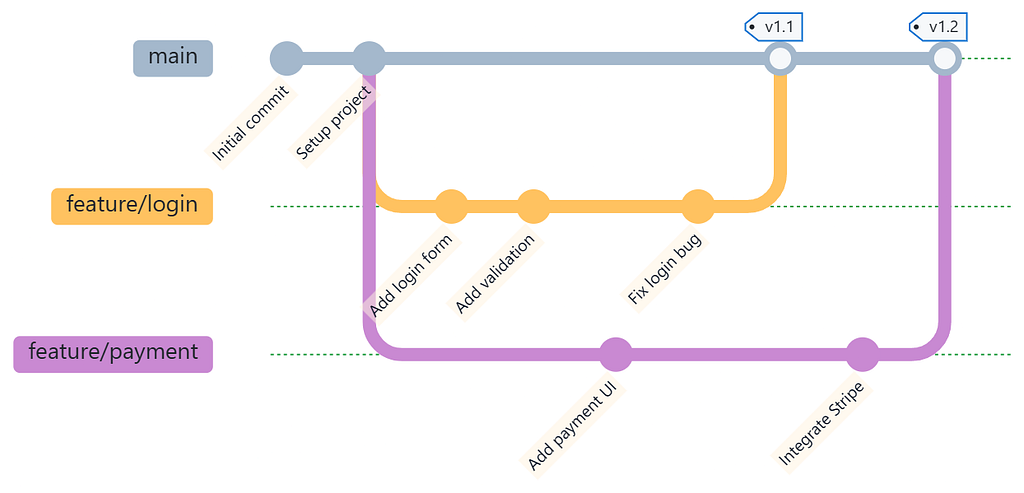
Branches are just pointers to commits. That’s it. Not magical parallel universes — just lightweight labels.
Create and switch to a new branch
Modern Git way:
git switch -c feature/new-thing
Old-school way (still common):
git checkout -b feature/new-thing
Both do the same thing. The switch command is newer and clearer about intent.
See all your branches
git branch -vv
The -vv shows which branches track remote branches. Super useful when cleaning up after a project.
Delete a branch you’re done with
git branch -d feature/new-thing
If Git complains it’s not merged, and you’re sure you want to delete it:
git branch -D feature/new-thing
Capital D = force delete. Use with intention.
The Undo Commands (AKA “Oh No” Commands)
This is where Git saves you — or confuses you — depending on whether you know the right tool.
Uncommitted changes you want to discard
git restore file.js
Throws away your local edits. File goes back to last committed state.
Discard all uncommitted changes:
git restore .
Unstage a file (but keep your changes)
git restore --staged file.js
This pulls the file out of staging but leaves your edits intact. Great for “oops, didn’t mean to stage that.”
Undo the last commit (keep your work)
git reset --soft HEAD~1
Moves the branch pointer back one commit. Your changes stay staged. Perfect for “I want to rewrite that commit message” or “I forgot to add a file.”
Undo the last commit (discard everything)
git reset --hard HEAD~1
⚠️ DANGER ZONE. This deletes the commit and throws away the changes. Only use if you’re absolutely sure.
💡 Pro tip: I put together a Git Cheat Sheet PDF with all the undo/recovery commands (plus branching, merging, and collaboration workflows) in one clean reference. Grab it if you want this organized and printable.
Merge vs Rebase: The Eternal Debate
You’ll hear strong opinions on both sides. Here’s the practical take.
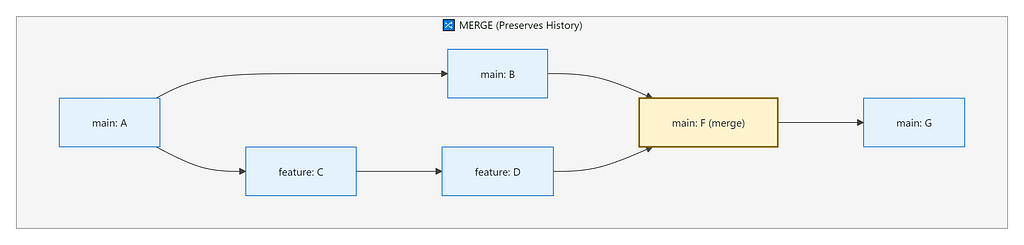
Merge (preserves history)
git switch main
git merge feature/login
Pros:
- Shows the full history of when branches diverged and merged
- Safe for shared branches
Cons:
- Creates extra “merge commits” that clutter history
When to use: Merging pull requests, combining long-lived branches.
Rebase (rewrites history)
git switch feature/login
git rebase main
Pros:
- Clean, linear history
- Looks like you wrote perfect code in order
Cons:
- Rewrites commits (dangerous if others are using your branch)
When to use: Cleaning up your local feature branch before opening a PR.
The Golden Rule
Never rebase commits that other people have based work on.
Rebase your own feature branch? Great.
Rebase the shared main branch? You’ll break things for everyone.

Working With Remotes (Without Breaking Things)
Fetch vs Pull (They’re Not the Same)
Fetch downloads changes but doesn’t merge them:
git fetch origin
Pull fetches and merges:
git pull
If you want more control:
git fetch origin
git merge origin/main
Or pull with rebase (keeps history cleaner):
git pull --rebase
Push to a remote
First time pushing a branch:
git push -u origin feature/login
After that, just:
git push
The -u flag sets the “upstream” so Git remembers where this branch lives remotely.
Stash: The “I Need to Switch Contexts” Command
You’re mid-feature when someone says “urgent bug on production.”
You don’t want to commit half-done work. Use stash:
git stash
Your changes disappear (safely stored). Now you can switch branches, fix the bug, come back, and restore your work:
git stash pop
Pro move: Stash with a message so you remember what it was:
git stash push -m "WIP: login validation"
List your stashes:
git stash list
Reflog: The Git Safety Net You Didn’t Know Existed
Ever accidentally delete a branch or reset too far and think “my work is gone forever”?
It’s not. Reflog is your time machine.
git reflog
This shows every place your HEAD has been — even commits that seem “deleted.”
Find the commit you want, then:
git reset --hard abc1234
You’re back. Crisis averted.
Final Thought
Git doesn’t have to be scary. It’s a tool, and like any tool, it gets easier the more you use it with intention instead of fear.
You don’t need to memorize every flag. You need a mental model (working/staging/repo), a handful of reliable commands, and the confidence that Git’s safety nets (reflog, stash, revert) have your back.
Bookmark this post. Keep it open in a tab. Next time you’re about to Google “git undo commit,” you’ll have the answer in 10 seconds instead of 10 minutes of Stack Overflow archaeology.
What Git command do you always forget? Drop it in the comments — I’ll add it to the list.
And if this helped you, share it with a teammate who’s still Googling git reset vs git revert every week. We’ve all been there.
Want This as a PDF Reference?
I turned this guide into a comprehensive Git cheat sheet PDF with organized commands, workflows, and troubleshooting — perfect for keeping open while you code or printing for your desk.
Stop Googling Git commands — get the complete reference →
Happy Coding!
Also visit my Gumroad stor for quick cheatsheets and other coding stuff : https://pushpak48.gumroad.com/
✔️ If you like my blog, you can Buy Me a Coffee here. ✔️ Connect with me on Linkedin. ✔️ Press and hold the 👏 button to give up to 50 claps to this article!
Thanks for reading!

The Git Commands You Actually Use (And How to Stop Googling Them) was originally published in Javarevisited on Medium, where people are continuing the conversation by highlighting and responding to this story.
This post first appeared on Read More